Check Bluetooth headphone battery on Mac
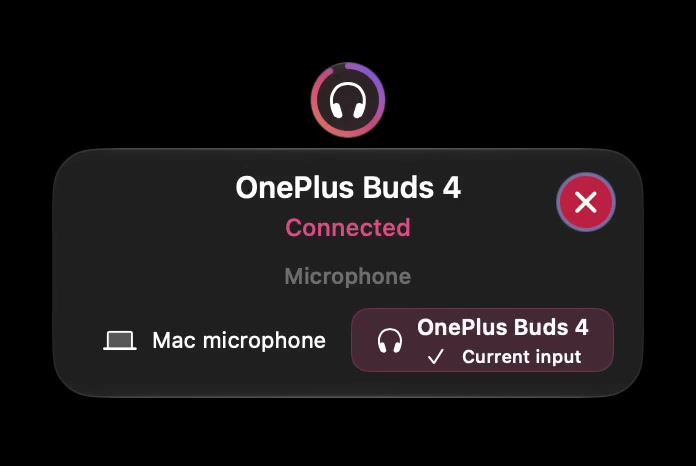
A Bluetooth audio connection and a battery reading are separate things. Start with the Mac's built-in controls and your headphone maker's instructions. If the headphones play audio but show no percentage, do not assume a new utility will necessarily reveal one.
This guide helps you distinguish a connection problem, a missing reading and a SoundBuddy compatibility question. SoundBuddy is our product; the built-in checks below do not require buying it.
Check the built-in display first
For AirPods, Apple documents checking charge on Mac by opening the case or taking the AirPods out, holding them near the Mac, then opening Control Centre, Sound and the AirPods entry. Follow the instructions for your model in Apple's AirPods charging guide.
For other headphones, check the connected device in System Settings > Bluetooth and consult the manufacturer's instructions for battery status. Names and available information vary by device and macOS version. Seeing a device listed or hearing audio does not establish that its battery percentage is available to SoundBuddy.
A headphone maker's phone app, case light or spoken battery announcement may provide another check where that model supports it. A reading on the phone is evidence about that connection, not a guarantee of the same information on the Mac.
Record what is actually missing
Before changing settings, separate the observations. This small checklist makes a support conversation more useful than simply reporting that Bluetooth is broken.
| What you observe | What it establishes | Useful next check |
|---|---|---|
| Headphones are listed but not connected | The Mac knows the device | Confirm the intended connection using its normal pairing instructions |
| Audio plays but no battery percentage appears | Audio works; battery availability remains unknown | Check the maker's documentation for that exact model |
| A battery value appears in macOS but not SoundBuddy | The two displays differ in this setup | Note the model, macOS version and where the Mac shows the value |
| A value appears but seems old | A displayed value may not reflect a new observation | Note when it changed and compare with an independent indicator if available |
| The case or one earbud has no separate value | Not every component has a confirmed reading | Check model-specific instructions rather than infer a missing percentage |
Do not turn an absent reading into an estimated percentage or a remaining-runtime claim. You can still describe the device as connected without claiming that its battery was measured.
What SoundBuddy can and cannot promise
SoundBuddy shows battery information only when macOS or the device driver exposes a reading it can use. Some headphones expose no battery value through that route. SoundBuddy does not estimate remaining runtime. These limits are also stated in the current product questions.
A recognised product name, an illustration or a successful Bluetooth connection is not a compatibility test. An app that reads a particular device through another mechanism may behave differently; a missing built-in display does not prove that every possible utility is incapable of reading that device. We are not claiming those capabilities for SoundBuddy.
Before buying for battery status alone, ask about your exact headphone model and macOS version. Do not use an image of a similar model as proof. SoundBuddy's current offer is for Apple silicon Macs running macOS 14 or later, with internet required for licence checks.
If you need help, send a reproducible description
- Record the exact headphone model and macOS version.
- Say whether it is connected to this Mac and whether audio plays.
- Say where, if anywhere, you can see a battery value: macOS, a phone app or the device itself.
- If SoundBuddy differs, describe the screen and sequence that produced the difference.
- Keep licence keys, purchase emails and private device names out of public screenshots or comments.
Avoid deleting Bluetooth preference files, removing security protections or repeatedly re-pairing every device just to obtain a battery percentage. No such reset is required by this guide. Seek model-specific support if the available information does not explain the result.
Battery status is separate from microphone choice
Your headphones can be useful for listening even when their battery is not exposed to a utility. If your actual problem is the Mac choosing the headset microphone, use our guide to separate Mac microphone input from Bluetooth headphone output.
For SoundBuddy's purchase activation and installation steps, use the installation guide. Installing the app or activating its licence alone does not demonstrate that your particular headphones expose a battery reading.