Browser microphone permission and device selection: check both
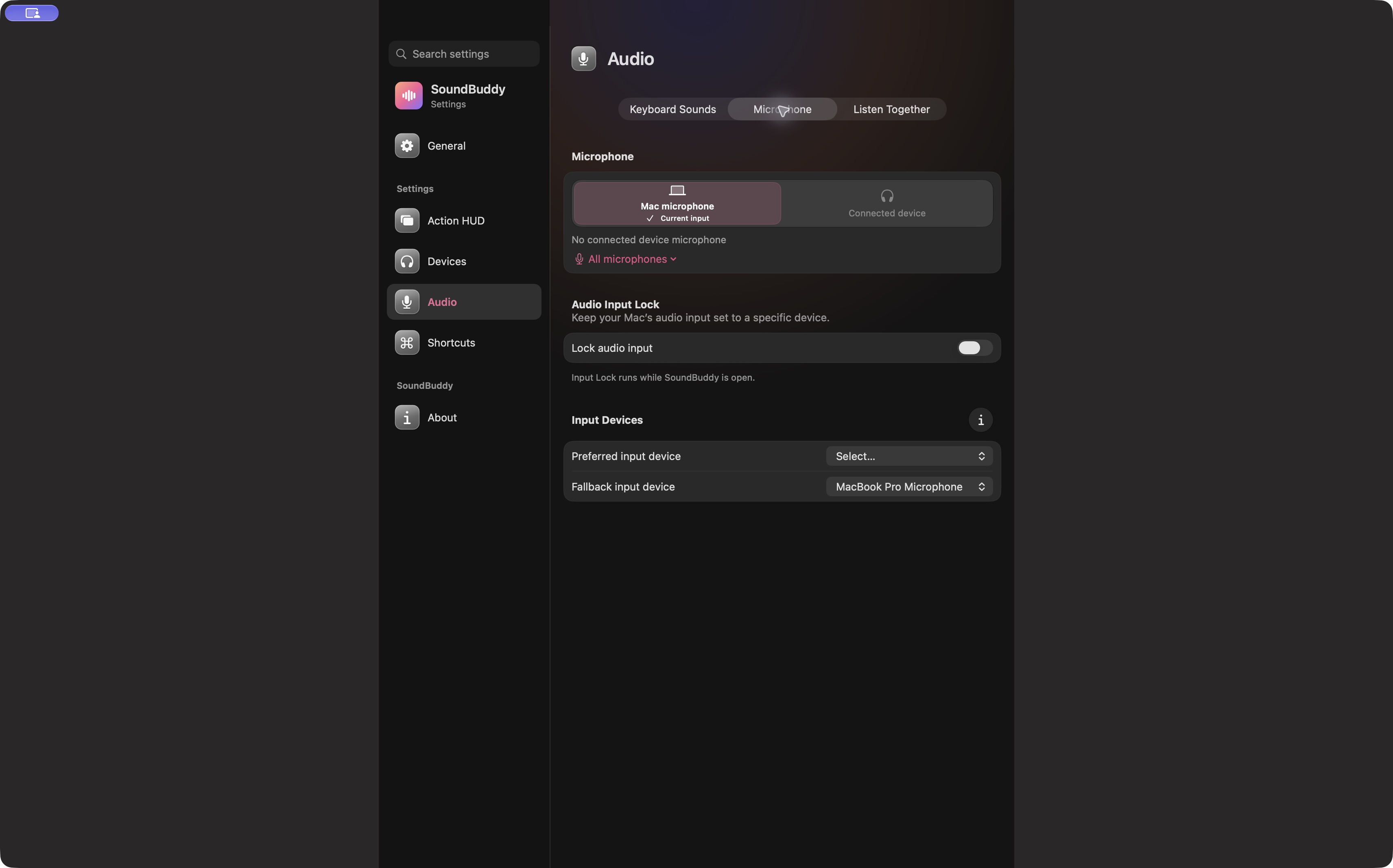
A website can have permission to use a microphone and still receive audio from the wrong one. It can also be blocked from receiving audio even when the Mac's selected input is correct. Check access and selection separately so you know which problem you are trying to solve.
SoundBuddy is our product. It helps with the Mac's default input choice. Browser and website permissions remain controls you manage in macOS and the browser. SoundBuddy does not grant a meeting website access on your behalf.
Separate the access checks
First, confirm that you trust the meeting website and that its address is the one you intended to open. Review the browser's microphone access in System Settings > Privacy & Security > Microphone. Apple's microphone access guidance explains this permission boundary and the importance of checking third-party privacy practices.
Then check that site's microphone setting in the browser. In Safari, use Settings > Websites > Microphone and review the relevant website. Apple's Safari website settings guide describes Ask, Deny and Allow. Choose the access you intend for that particular site rather than changing unrelated websites.
An organisation-managed browser may restrict these controls. Ask the administrator about a locked setting rather than trying to bypass it.
Check the selected microphone separately
Once access is allowed as intended, compare the Mac's selected input with the meeting site's device selector, if it provides one. A selection labelled Default may behave differently from a named device. Read the site's current choice rather than assuming permission picked the correct microphone.
| Observation | Next check |
|---|---|
| Site reports access denied | Browser access in macOS and permission for that site |
| Site can hear you, but from the wrong location | Its device choice and the Mac input |
| Mac input seems correct, site remains silent | Site selector, mute control and its own audio test |
| Work policy prevents a change | Administrator guidance |
Use a non-sensitive test phrase after making one change. Close the test when finished. Allowing access does not establish that a site stores nothing; its own terms and privacy policy govern its handling of audio.
Know where SoundBuddy fits
The screenshot shows SoundBuddy's microphone settings, not a Safari permission screen. Use it to recognise the system-choice part of the workflow. For an app that keeps its own named input, follow the call-app override guide.
Keep any permission decision deliberate. You can return to the browser or macOS settings later to review access. There is no need to reset every audio preference to answer whether one site is blocked or using a different input.
Next step: write down the site's access state and selected device as two separate fields, then use its audio test.