Your call app uses the wrong microphone: check both selectors
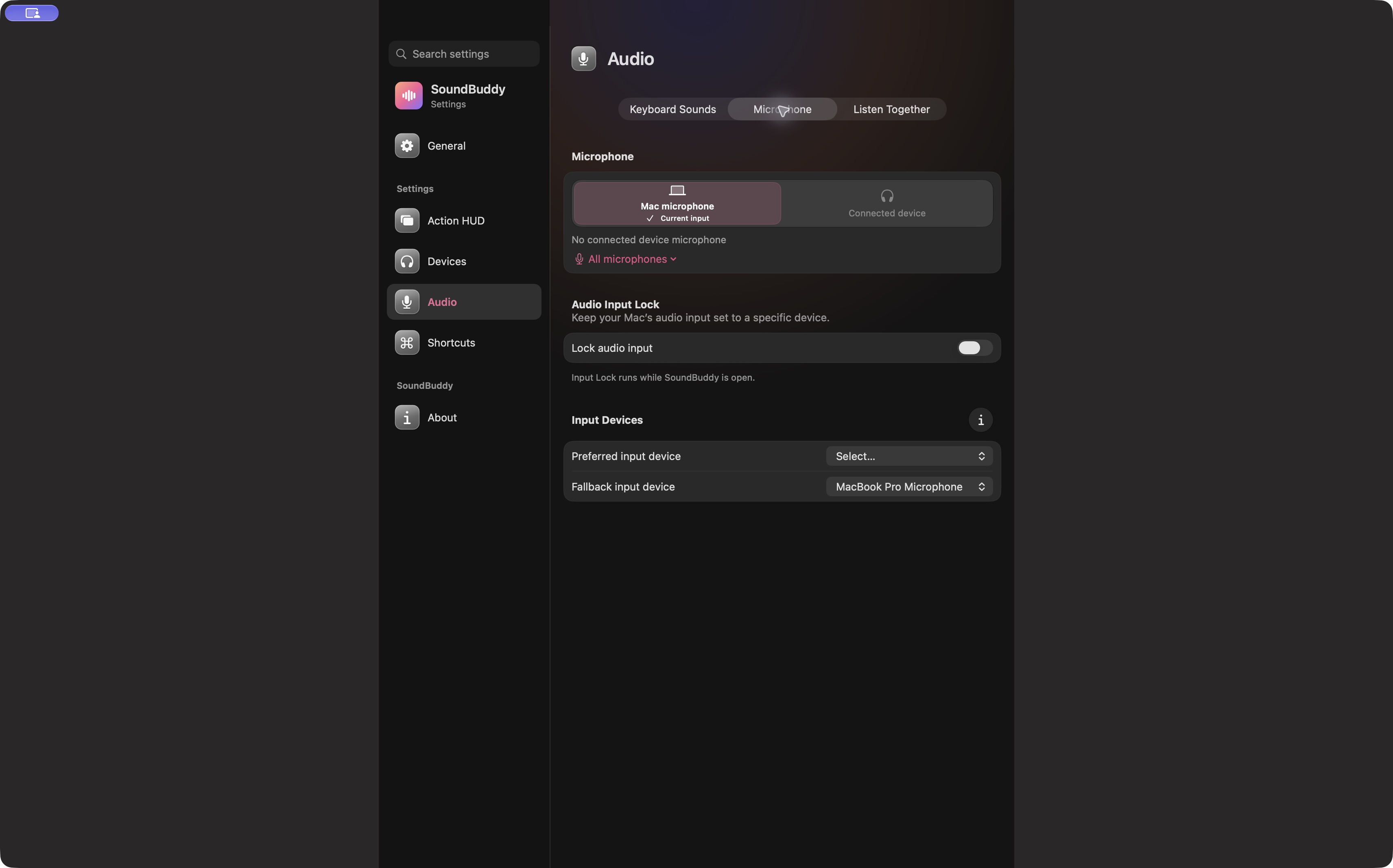
If your Mac shows the microphone you want but a meeting still uses another one, inspect the meeting app's own microphone selector. System input and an application's explicit device choice can differ. Changing the same Mac setting repeatedly may leave the app's choice untouched.
This guide gives you a way to locate the disagreement. SoundBuddy, our Mac app, changes the default input; it does not promise to rewrite every application's audio settings.
Write down the two choices
Before changing anything, record the input shown by macOS and the microphone named in the app. Include the app version if you need help later. A label such as a named headset is a different observation from a setting that follows the system default.
| Mac input | App input | What to investigate |
|---|---|---|
| Intended microphone | Different named device | App-level selection |
| Intended microphone | Follows system, but no sound | App test, permission, mute and device availability |
| Different microphone | Follows system | Correct the system input first |
| Unavailable or unclear | Unavailable or unclear | Re-establish the device list before changing preferences |
The table locates the next check. It does not diagnose a hardware fault or prove that an app honours the default in every session.
Use the app's own test
Zoom documents a microphone selector and a built-in audio test in its audio-settings guide. Use a brief, non-sensitive phrase for any recording test. Confirm the returned audio is from the input you selected. Labels and paths can differ across app versions.
For another app, open its current audio help and locate the corresponding input control. Do not assume that a successful Zoom test establishes Teams, Meet or another app's behaviour. Browser meetings may also depend on browser and macOS access permissions.
Change one selector, test, and record the result. If the app requires a restart before a change applies, follow its prompt. Avoid restarting a live meeting just to run an experiment.
Separate permission from device selection
A chosen microphone can still be muted, unavailable or blocked by access settings. Permission determines whether an app may use a microphone; selecting a device chooses the input it should use. Review only the access relevant to your app. This troubleshooting flow does not require disabling macOS security protections.
Where SoundBuddy helps
Use SoundBuddy to inspect or choose the Mac's default microphone. If you also want to maintain a preferred system input while the app is open, review Input Lock and fallback choices. Check the meeting app again afterwards.
Keep the distinction in your support report: “Mac input is A, app input is B” is more useful than “the microphone is broken.” Report the observed names privately if they contain personal information.
Next step: compare the two input labels before making another change, then use the meeting app's own audio test.