SoundBuddy Input Lock: choose a preferred microphone and a fallback
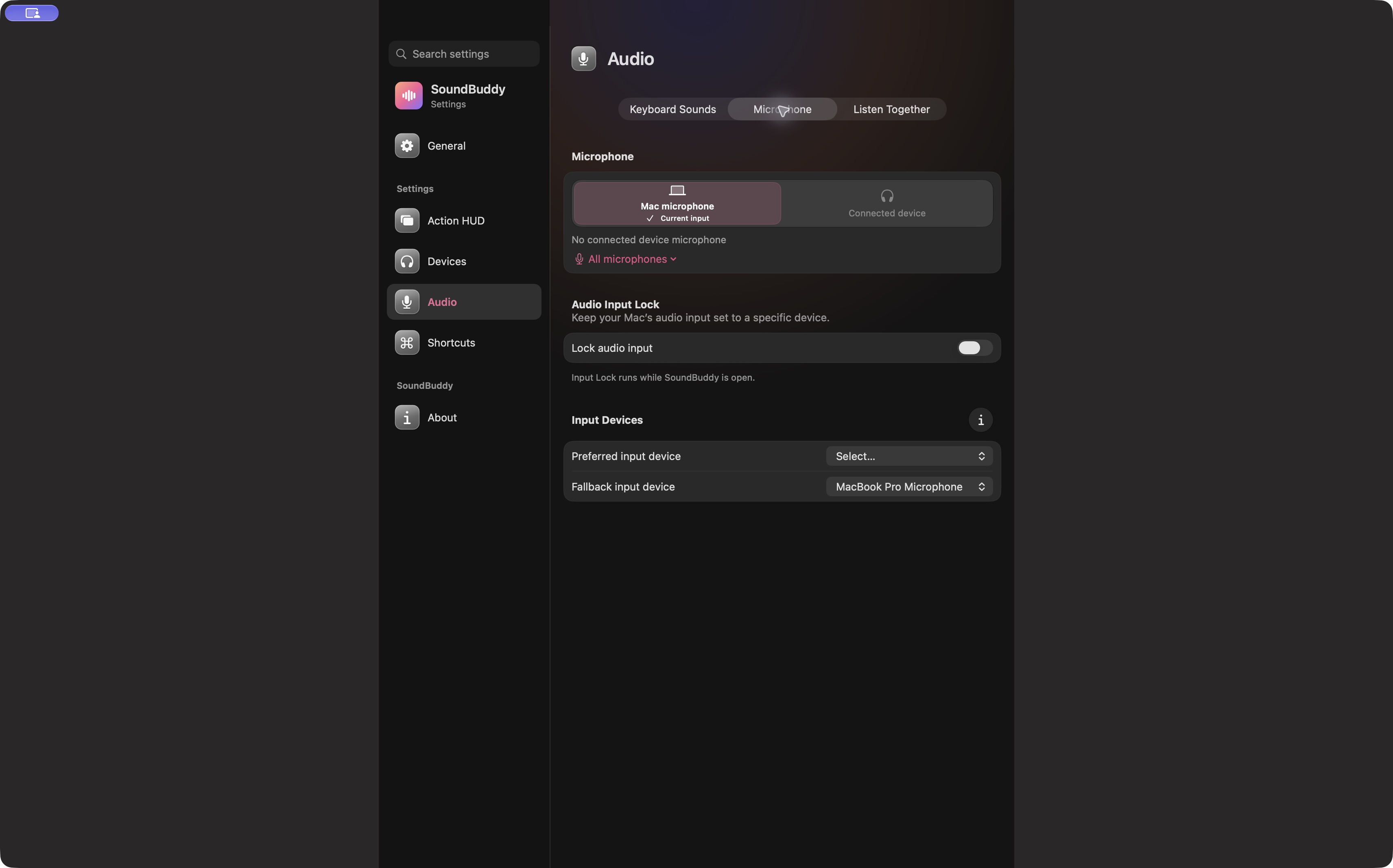
A microphone can be connected without being the input your Mac uses. If you want SoundBuddy to maintain a particular default input while it is open, choose that microphone as the preferred input and decide what should happen when it is unavailable. Make these changes before a call, when you can check the result without interrupting anyone.
SoundBuddy is our product. This guide explains its input preference controls; the built-in Mac input selector remains a useful first check.
Start with the input you want
Open System Settings > Sound and review Input. Pick a microphone that is available in this setup. Check that your call app is using the intended input too. Apple's input-settings guide explains the system selector; an app can have its own device choice.
Before configuring a lock, write down two names: your first-choice microphone and an acceptable backup. On a desktop Mac without an available built-in microphone, a laptop-oriented fallback suggestion may be useless. Choose from the inputs actually listed on your Mac.
Configure the two roles
- Open SoundBuddy Settings > Audio > Microphone.
- Under Input Devices, choose the Preferred input device.
- Choose a different, available Fallback input device if you want a backup.
- Read the choices once more, then turn on Lock audio input.
- Check the current input and SoundBuddy's status before opening your meeting.
Choosing devices while the lock is off saves a preference without switching the current microphone. The lock operates while SoundBuddy is open. Turning it off leaves the current input unchanged; choose another input separately if that is your intention.
Know the expected states
| Situation | Intended behaviour | What to verify yourself |
|---|---|---|
| Preferred input is available | Maintain that default input | The Mac and call app use the expected device |
| Preferred is absent, fallback is available | Use the fallback input | The backup actually receives your voice |
| Neither choice is available | Wait for an eligible input | A status message is not proof of usable audio |
| Lock is off | Leave ordinary input selection in your control | Saved preferences are not an active lock |
This is the control model, not a report that every hardware transition has been tested. Device availability can change, and a failed device read should not be treated as proof that a microphone disappeared.
Test a transition when it is safe
Outside an active call, record the selected system input, connect or remove only the accessory you intend to test, then record the new state. Check the call app separately. Stop if the state differs from your expectation; do not keep reconnecting several devices at once.
If the Mac input changes correctly but the meeting does not, use the next guide on call-app input overrides. Input Lock does not promise control over every application's named microphone setting.
Next step: choose the preferred and fallback names before enabling the lock, then confirm the resulting input in your call app.