Give SoundBuddy popups enough time to read
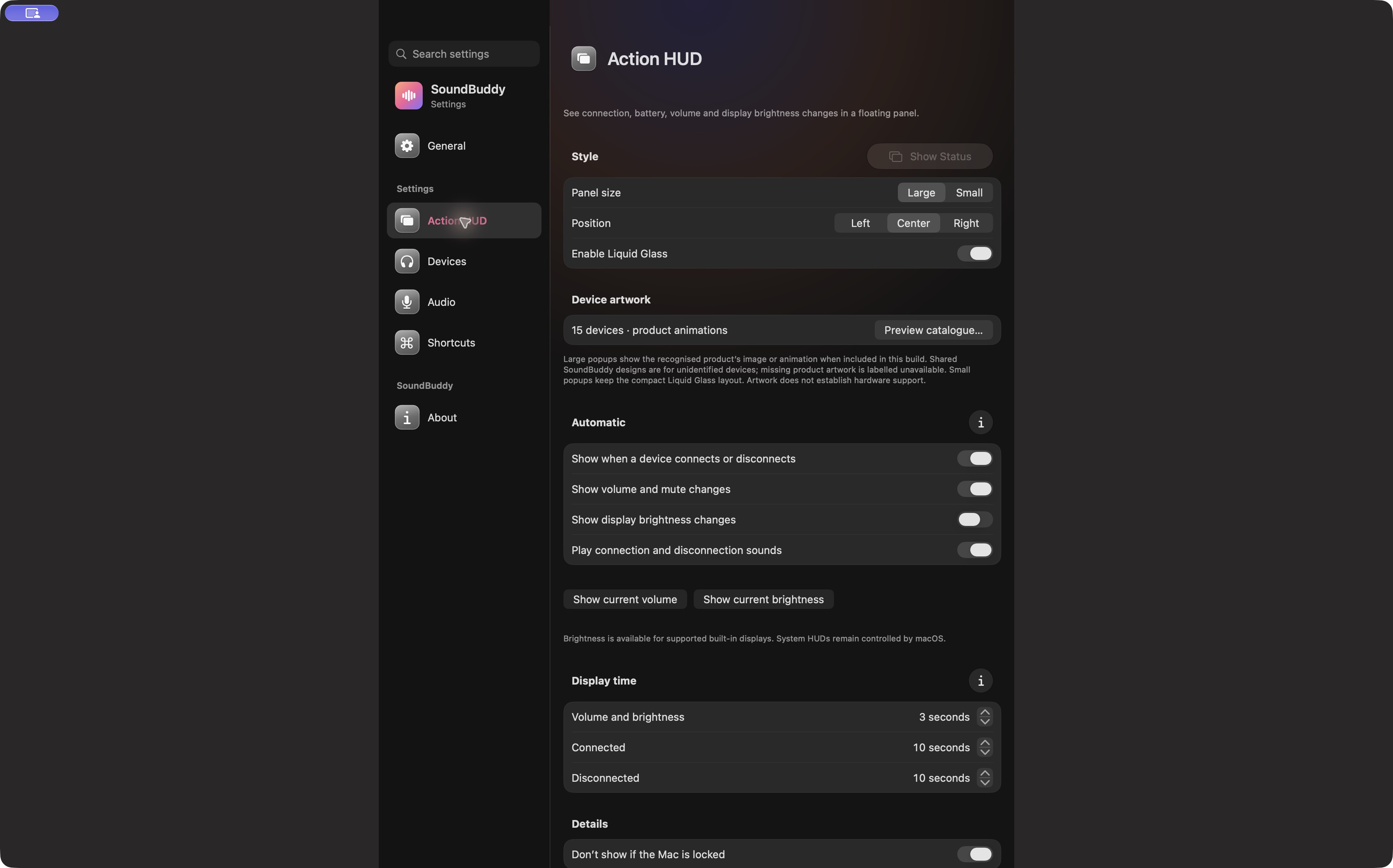
If a SoundBuddy popup disappears before you can read it, adjust that popup's display time. Keep size and position steady during the first trial so you can judge whether more time solves the problem.
SoundBuddy is our product. Action HUD settings provide separate timing controls for connected, disconnected, and volume/brightness popups. These affect SoundBuddy's floating panels; macOS continues to control its own system displays.
Match the control to the event
Open Settings > Action HUD > Display time. Identify the kind of panel that was hard to read before changing a value. A connection update and a volume update use different controls.
| Event you are evaluating | Display time control |
|---|---|
| Device connected | Connected |
| Device disconnected | Disconnected |
| Volume or supported brightness update | Volume and brightness |
The actual settings photo shows three seconds for volume/brightness and ten seconds for each connection state. Those are captured choices, not a recommended configuration or a claim about defaults. Use the values and allowed range shown in your installed copy.
Try one change in ordinary work
Write down the existing value so you can restore it. Increase only the relevant setting, then observe a suitable new popup outside an important call. If the event would require disconnecting a device you are using, wait until that disruption is acceptable.
For the system category, the Action HUD page also offers Show current volume. Use a deliberate preview only when you want to inspect it. A volume popup does not test the timing or content of a device-disconnection event.
Record whether you could finish reading the useful information without rushing. More time can help readability, but it can also leave a panel covering work for longer. Keep the shortest duration that comfortably meets your own task rather than aiming for a universal number.
Separate duration from other causes
If the panel was covered, too small or in an inconvenient place, timing alone may not solve it. After finishing the timing trial, consider size or position as a separate change. Keep the sequence simple enough to know which adjustment helped.
If no automatic popup appears, first check whether that event is enabled. The locked-Mac guide explains automatic suppression while locked. Increasing display time does not enable an event or remove that condition.
The screenshot proves that the settings were visible in the captured build. No reconnect, disconnection or timing test was performed for this article. Record your result on the installed build before relying on a particular duration.
Next step: note the existing duration, change one event category and observe one suitable new popup.