Keep SoundBuddy's automatic popups quiet on a locked Mac
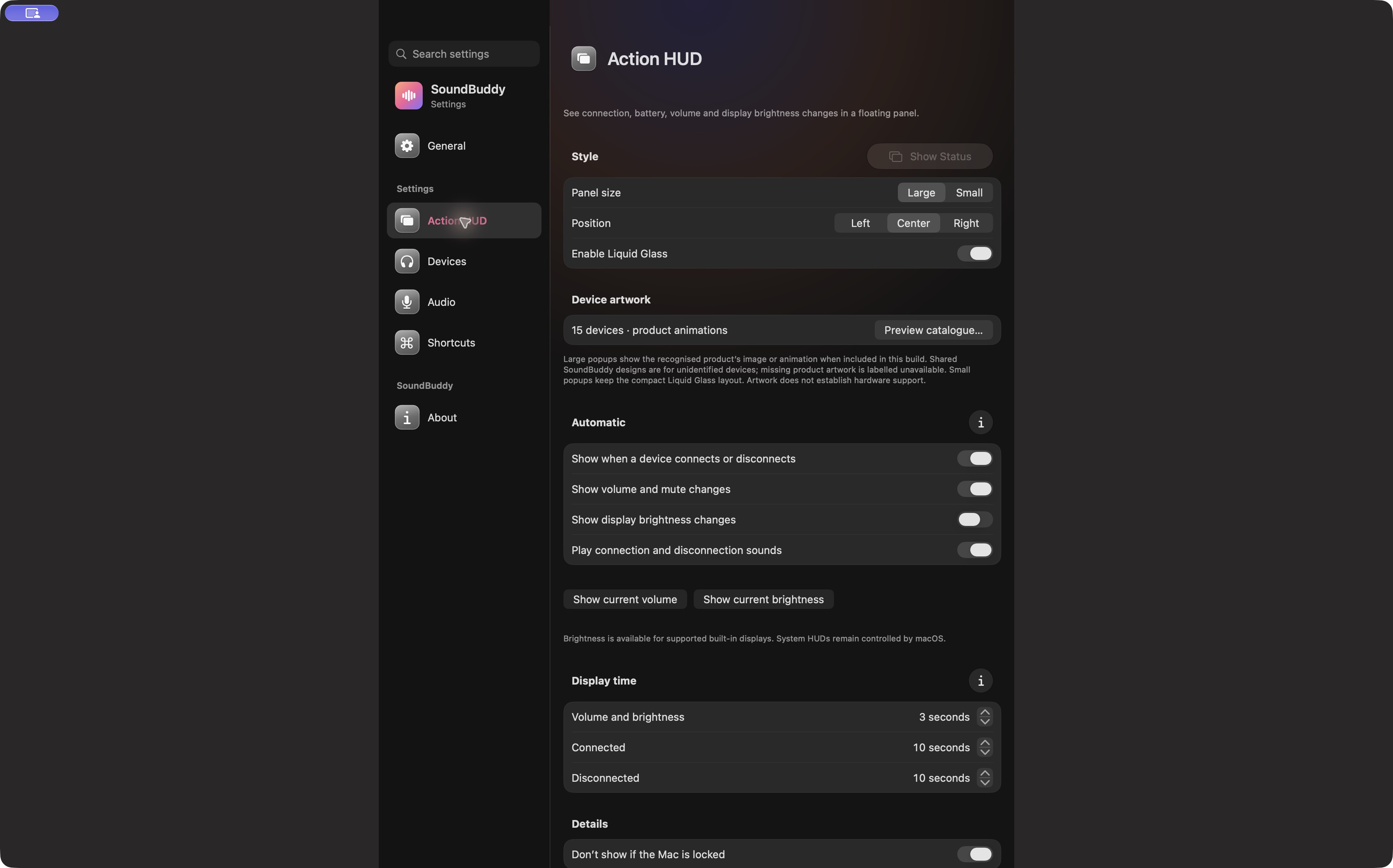
SoundBuddy has a Don't show if the Mac is locked preference for its automatic HUDs. Review that setting if connection or other floating status updates should stay out of the lock-screen experience. It is separate from the Mac's notification settings and from keyboard-sound protections.
This guide concerns SoundBuddy, our app. It does not claim to suppress every notification, sound or device event on your Mac.
Review the setting before a test
Open SoundBuddy Settings > Action HUD and find Details. Inspect Don't show if the Mac is locked. The app's help text describes suppressing automatic HUDs while the screen is locked. The current capture shows the preference enabled, but your saved setting may differ.
Also note whether Show when a device connects or disconnects is on. These are two different choices: whether to show an automatic connection update, and whether to suppress automatic HUDs in the locked state. A manual status preview does not prove a real automatic connection event has occurred.
Separate the systems involved
| Surface | Relevant control or boundary |
|---|---|
| SoundBuddy automatic floating HUD | Action HUD automatic and lock-state preferences |
| macOS notifications | System Settings > Notifications and the applicable app choices |
| SoundBuddy keyboard audio | Its pause/protected-session model |
| The headset's own sound | The accessory's maker-supported controls |
Apple's notification guide documents notification behaviour on a locked screen. That is useful context, but it does not turn a custom floating panel into a macOS notification.
Use a privacy-conscious observation plan
Save your work and choose a moment when a device transition will not interrupt a call. Record the enabled preferences while unlocked. If you test a lock/unlock cycle, keep passwords and lock-screen personal content out of any recording. Observe whether a relevant automatic HUD appears; do not treat a manually opened panel as the same test.
This is a proposed test procedure, not a claim that every lock, sleep, display and hardware combination has passed. If the result differs, note the exact app build, macOS version, setting states and event sequence.
Check keyboard sounds separately
The current Keyboard Sounds Auto Pause screen lists screen lock, sleep and inactive sessions as protected conditions. Those controls are distinct from the Action HUD preference. Use the keyboard pause guide if the question concerns typing sounds rather than a popup.
If you hear a sound without a popup, identify its trigger with the sound-control guide before changing several settings.
Next step: review the Action HUD lock-state preference and record its state before a safe, deliberate observation.