Pause SoundBuddy keyboard sounds when a microphone is in use
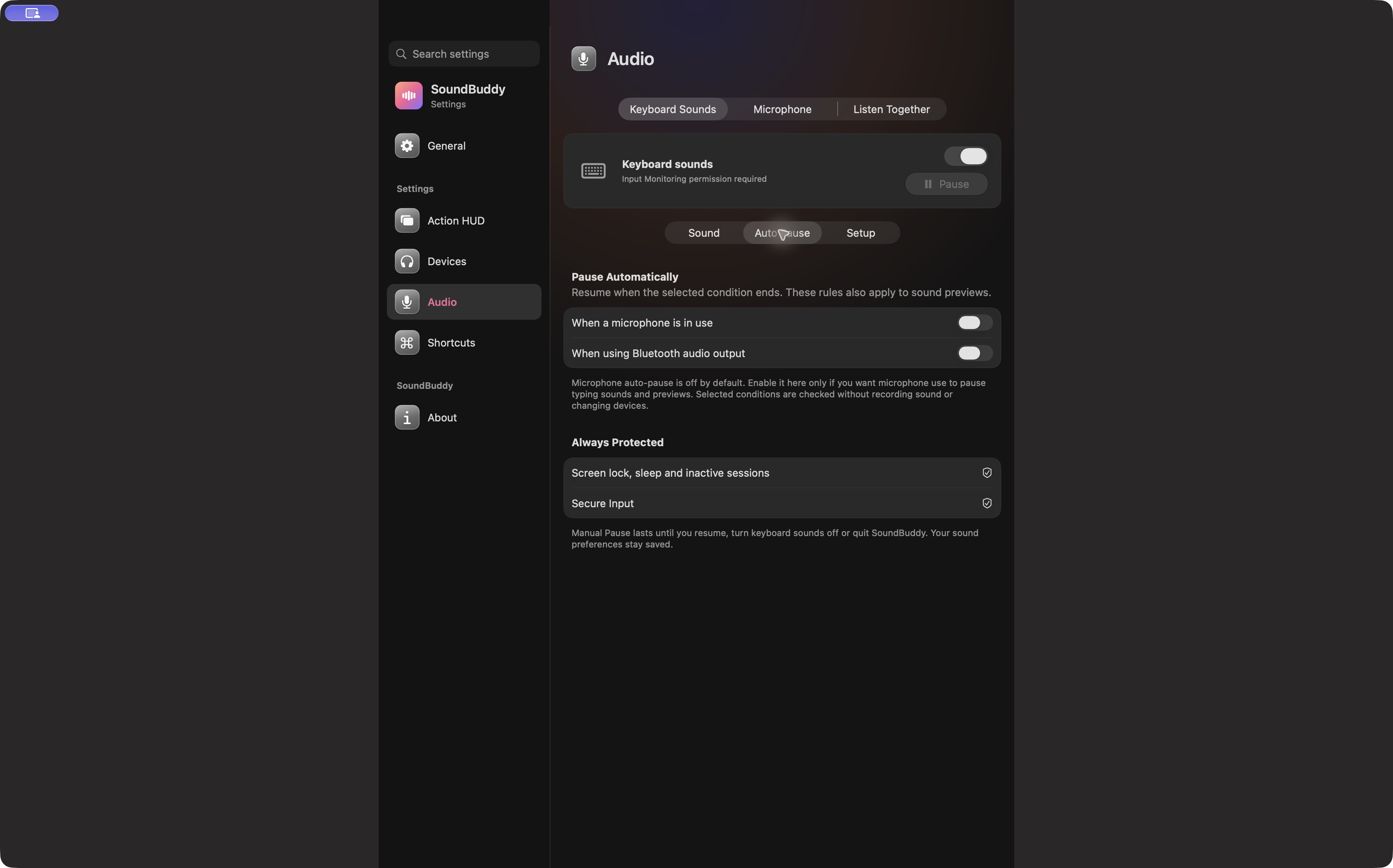
If you want typing sounds to become quiet when your Mac uses a microphone, SoundBuddy offers an optional Auto Pause condition. Inspect that condition before relying on it during a meeting. Having keyboard sounds enabled does not mean microphone auto-pause is enabled too.
SoundBuddy is our product. This guide covers pausing its keyboard sounds and previews. It does not mute your microphone or claim to stop another application's music.
Find the condition you need
Open Audio > Keyboard Sounds > Auto Pause. Review When a microphone is in use. Enable that condition only if you want microphone use to pause typing sounds and previews. A separate option concerns Bluetooth audio output; do not turn it on simply because it is beside the microphone condition.
The current app explains that microphone auto-pause is off by default. Read the setting in your installed copy rather than assuming a default establishes your present state. The condition checks do not need to record sound or change your selected devices.
Distinguish three reasons for silence
| State | What to inspect |
|---|---|
| An enabled automatic condition is active | Read the status and the relevant microphone/output condition |
| You paused manually | Resume deliberately when you are ready |
| Global input setup is incomplete | Follow the separate permission/setup instructions |
Screen lock, sleep, inactive sessions and Secure Input are protected conditions shown separately in the current app. Removing one optional condition should not be treated as a way to defeat those protections.
Test with non-sensitive work
- Complete keyboard setup if you intend to test sounds across apps.
- Note the selected pack, volume and pause state.
- Enable the microphone condition if that is the behaviour you want.
- Outside a real meeting, use a trusted app's ordinary microphone test and observe SoundBuddy's status.
- End the microphone activity and check what the app reports afterwards.
Use a simple test phrase, with other people informed if a recording is involved. If the status is unclear, stop and record the exact message instead of switching several settings repeatedly. This capture proves the controls exist, not that this transition passed a hardware test on every Mac.
Keep microphone routing separate
The pause condition concerns SoundBuddy's typing audio. It is different from choosing your input microphone or setting preferred/fallback devices. Use the pre-call check card to verify the meeting's input separately.
If you need quiet immediately, use SoundBuddy's manual Pause control rather than start a new diagnostic test during a live conversation. Resume only when that suits your work.
Next step: inspect the microphone Auto Pause toggle and test its status outside a real call before relying on it.