Keyboard sounds on Mac: Input Monitoring setup
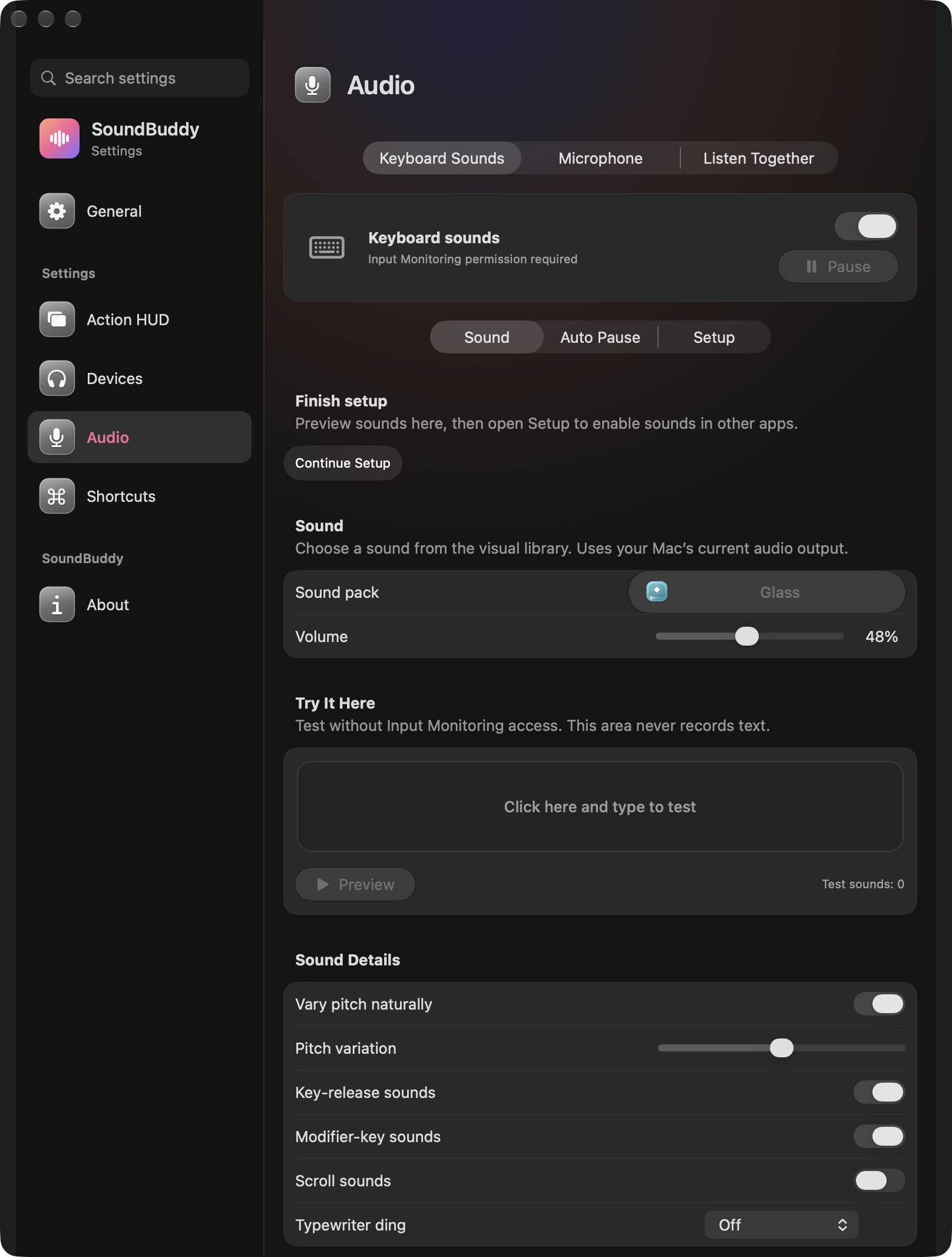
To try SoundBuddy keyboard sounds, start with its labelled browser demo or the native app's local test area. Playing sounds while typing in other Mac apps is a separate setup step that needs Input Monitoring permission. A preview working does not establish that global playback is ready.
This guide explains those three states so you can choose the access you are comfortable granting. SoundBuddy is our product; this is not a claim that every keyboard-sound app uses the same permission model.
Choose which kind of preview you want
| Mode | What you can check | What it does not prove |
|---|---|---|
| Browser simulation | The synthesised sample sounds offered on the website, after you enable sound and type or tap there | Native installation, global keyboard access or playback in another app |
| Native local test area | The selected native sound and volume inside SoundBuddy | That Input Monitoring is granted or typing elsewhere will play a sound |
| Native sounds across apps | Playback while typing outside SoundBuddy after its setup requirements are met | That the same behaviour is available in every context or other app |
The browser's switch-inspired samples are synthesised sounds, not recordings of physical mechanical switches. Start with the keyboard audition if you want to hear that demonstration before deciding whether to buy. A free browser simulation is not a native free-trial offer.
Understand what Input Monitoring allows
Apple explains that Input Monitoring can let an app monitor keyboard, mouse or trackpad input even while you use other apps. It is a privacy permission, not simply a volume setting. Review the app's purpose and privacy information before granting it; you can manage the permission in System Settings > Privacy & Security > Input Monitoring. See Apple's Input Monitoring guidance.
For SoundBuddy, this permission is part of enabling keyboard sounds across apps. The fact that an application has permission does not by itself establish what it stores or sends. For current product disclosures, read SoundBuddy's privacy details. Internet access for licence checks is a separate requirement.
Set up SoundBuddy deliberately
These steps follow the current SoundBuddy setup controls. Labels can change between releases; use the instructions in your installed app if they differ.
- Install SoundBuddy in Applications and complete purchase activation using the installation guide.
- Open Audio > Keyboard Sounds, choose a sound and start with a comfortable low volume.
- Use the local Try It Here area to check the selected sound inside the app.
- Open Audio > Setup and review the separate global-sounds step.
- If you want typing sounds in other apps, open System Settings > Privacy & Security > Input Monitoring and allow SoundBuddy. Reopen the app if macOS asks.
- Return to SoundBuddy, check its permission/setup status, then test ordinary non-sensitive text in another app.
If you do not want to grant that access, keep the browser audition or local test as your evaluation. Do not grant unrelated permissions or disable macOS security protections to make this guide's steps work.
If the preview works but typing elsewhere is silent
First identify which preview worked. A website test is not running the native keyboard service. A native test pad is also different from listening for input in another application.
In SoundBuddy, check the selected sound, its volume, whether playback is paused, the output device and the setup/permission status. A visible Input Monitoring permission required message means global setup is incomplete, even if you can select a sound pack. Follow any reopen prompt rather than repeatedly switching permissions without checking the result.
If macOS says access is allowed but SoundBuddy still cannot use it, record the installed app version, macOS version and the exact message. Contact support with that description. Do not paste private text, passwords or a licence key into a public report or test recording.
If sounds are distracting or you change your mind
Pause or turn off SoundBuddy's keyboard sounds when they do not suit the task. You can also turn its Input Monitoring access off in macOS settings. Review the effect afterwards; turning permission off changes the app's ability to receive the input it needs for sounds across apps.
There is no promise that adding typing sounds will improve concentration or productivity. Try them with your own work and listening setup. Our guide to music and productivity explains why the task and person matter when choosing background sound.
Keep audio setup and device readings separate
If a Bluetooth headset's sound changes when its microphone is used, that is a different troubleshooting problem. Read Use your Mac microphone with Bluetooth headphones. For missing device charge information, see checking Bluetooth headphone battery on Mac.
SoundBuddy currently targets Apple silicon Macs on macOS 14 or later. Native features and permissions should be evaluated in the installed build; the website simulation does not access your keyboard in other apps or your Bluetooth devices.