A pre-call microphone check for your Mac
Before joining a call, confirm where your voice goes and where you will hear the other person. A connected headset or a familiar icon cannot answer both questions. Use a short check you can repeat whenever you change desks, headphones or meeting apps.
You can complete the basic checks with built-in Mac controls and your meeting app. SoundBuddy is our product and provides a nearby view of the default microphone; buying it is not a prerequisite for this checklist.
Use this check card
| Check | Record before joining | Pass condition |
|---|---|---|
| Output | The intended headphones or speakers | A deliberate test sound reaches them |
| System input | The microphone named by macOS | It is available and selected |
| App input | The meeting app's named choice | It matches your intention |
| App test | Result of the app's audio check | Your short test is received as expected |
| Backup | An available alternative | You know how to select it if needed |
The card is a procedure, not a promise that a call will remain interruption-free. Network conditions and the meeting service are separate from local device selection.
Check the system first
Open System Settings > Sound. Review Input and Output independently. Apple's input guide explains where the system microphone is selected. Keep the output on the device you want for listening.
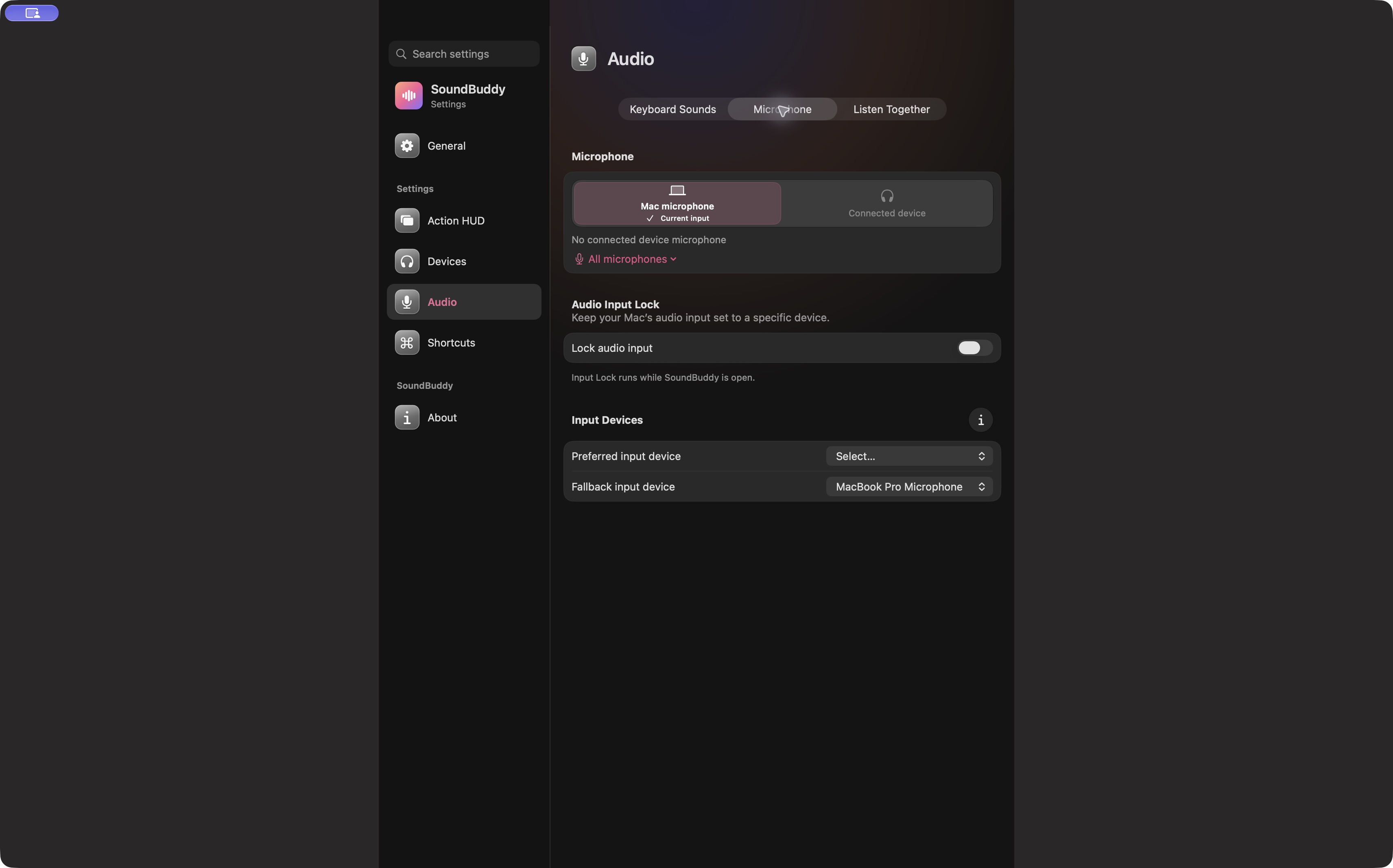
In SoundBuddy, Audio > Microphone offers another view of the default input. A grey or unavailable connected-device choice is a reason to inspect the connection, not a reason to repeatedly click it. Do not select a similar-looking product name as a substitute for the actual device.
Check inside the app you will use
Run that app's own test before the real meeting. For Zoom, its official audio test instructions describe testing speakers and microphone and changing the selected device. Use ordinary, non-sensitive words if the test records and plays back your voice.
If the app and system labels disagree, use the two-selector troubleshooting guide. If the test passes but participants cannot hear you later, check the meeting mute and connection state before changing several device settings.
Keep a small fallback plan
Write down one available backup input and one listening option. On a Mac without a usable built-in microphone, “switch to the Mac mic” may not be a valid plan. Check the actual device list rather than assume every Mac has the same hardware.
If your preferred setup changes often, SoundBuddy's preferred and fallback input guide explains its lock model. Test transitions outside an active meeting before relying on them.
Next step: keep the check card beside your meeting link and complete it after the last device change, not before it.