Choose the right audio source for Mac Live Captions
If captions follow a video but not someone speaking beside your desk, first check which audio source is being captioned. Computer playback and room sound are different inputs to a captioning task. Changing the headphones or a microphone preference is not the same as selecting that task's source.
SoundBuddy is our product. It can help with the Mac's default microphone choice, but this guide uses macOS Live Captions for transcription. A SoundBuddy microphone status is not a caption-source setting.
Name the conversation you want to follow
Decide whether the words are coming from an app playing on the Mac or from a person in the room. That gives you a source to inspect before changing hardware or raising listening volume.
A public desktop-transcription discussion describes a reader wanting text support during work reviews at a computer. After enabling Mac Live Captions, they initially did not see their own speech transcribed. A reply pointed to the computer-audio/microphone choice, and the reader reported that it met their need. That is one person's report, not an accuracy test or a SoundBuddy testimonial.
Check Apple's availability and source controls
Apple's Live Captions guide limits availability to Apple silicon Macs and supported languages, countries and regions. Follow its version-specific instructions for your system. The first use downloads language data, requiring internet access.
Open System Settings > Accessibility > Live Captions. In the Live Captions menu-bar controls, inspect Computer Audio or Microphone. Use Computer Audio for Mac playback; use Microphone for sound picked up in the room. Apple also describes switching from the caption window's source control.
Captioning can be paused without being turned off. An automatically hidden window can mean that no audio is detected, rather than proving the feature is unavailable. Inspect the selected source and pause state before treating a blank window as a microphone fault.
Make the text readable for the work in front of you
Apple's Live Captions settings reference lists font, size, text colour, background colour and language choices. Start with the text adjustment that makes the window readable for you; it is a separate choice from selecting the audio source.
The reference also describes a FaceTime-only option. If the task is a video or another app, inspect that scope rather than assuming that enabling captions establishes the same behavior everywhere. Apple warns that accuracy varies and that captions should not be relied on in high-risk or emergency situations.
For a work review, keep a way to ask someone to repeat or confirm a missed phrase. Do not treat a plausible caption as independent confirmation of a name, number or decision.
Keep SoundBuddy's microphone status in its own role
SoundBuddy's available microphone controls concern the Mac's default input. They do not select Computer Audio inside Live Captions or turn the app into a transcription service.
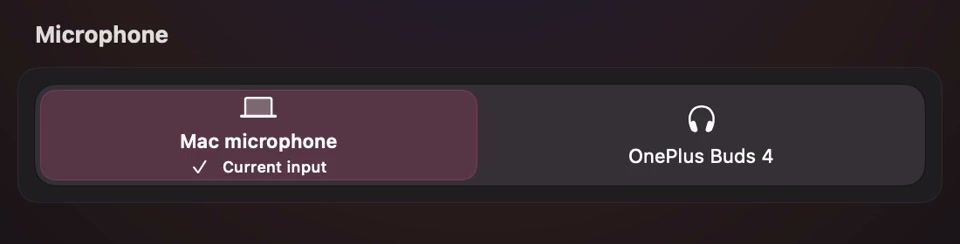
Open the full-size actual microphone-controls capture
Read a current-input label as an input observation. It does not establish that the captioner is using that input, hearing speech or producing correct words. For the separate question of an app using a different microphone, use the app-versus-Mac input guide.
Check one source with non-sensitive words
Before relying on a setup for a review:
- Name the task: Mac playback or a conversation beside the desk.
- Note the caption source and whether captioning is running.
- Use a short, non-sensitive example from the intended source. For a conversation, agree with the other person before testing it.
- Record whether words appear and whether they correspond to that source. Keep those observations separate from whether every word is correct.
- If the result is wrong, return to the source and scope controls before changing unrelated audio settings.
No captioning experiment was performed for this article. The useful outcome is a source that matches your task and text you can read, with a way to confirm anything uncertain. It is not a claim that automatic captions replace every other communication support.
Next step: identify where the words originate, then inspect the captioner's source before troubleshooting a microphone or changing output volume.