Meeting echo? Check for a second audio connection first

Before changing drivers or buying another microphone, check whether the same room has more than one active connection to the meeting's audio. A laptop, a phone used for the call and a second browser session can look like separate conveniences while creating an unwanted return path for sound.
SoundBuddy is our product. It can help you inspect or choose the Mac's default microphone, but that is a different job from removing an echo inside a meeting. Start with the meeting's audio connections, then confirm the intended microphone.
Count audio connections, not just people
Look at the devices and meeting sessions you control. Is the meeting open in both a desktop app and a browser? Did you join on a phone for audio while leaving the computer's audio connected? Is a colleague's laptop also playing the same meeting beside you?
Zoom's echo guidance identifies simultaneous phone/computer audio and multiple nearby computers with active audio as possible causes. It recommends disconnecting the extra audio connections. Muting only the extra microphone may leave its speakers playing.
Choose which device should handle room audio. If an extra device is needed for viewing or presenting, use the meeting app's option to disconnect or leave its audio while retaining the session if supported. Confirm what the option will do before using it; ending a call is different from leaving its audio connection.
Do not change other participants' devices without coordinating with them. If the problem may involve another room, ask the host to help isolate it rather than assuming your own microphone is responsible.
Check the listening route next
After reducing duplicate room audio connections, inspect the speaker or headphone choice in the meeting app. A connected headset is not proof the app is sending its sound there.
Google Meet's audio troubleshooting guidance suggests headphones, lower speaker volume and muting when not speaking to help avoid echo. It also recommends checking the actual microphone and speaker selections. If Meet shows an echo warning, consult its Troubleshooting & help guidance for that session.
Use a comfortable listening level. You do not need to raise it to provoke an echo. A brief, agreed check with another participant is more useful than repeatedly changing several controls during the discussion.
Inspect the microphone without confusing it with echo removal
Now compare the microphone selected in your meeting app with the input you intended to use. If the app follows the system default, the Mac's current default matters. If it selects a named input directly, changing the system default may leave that app's choice unchanged.
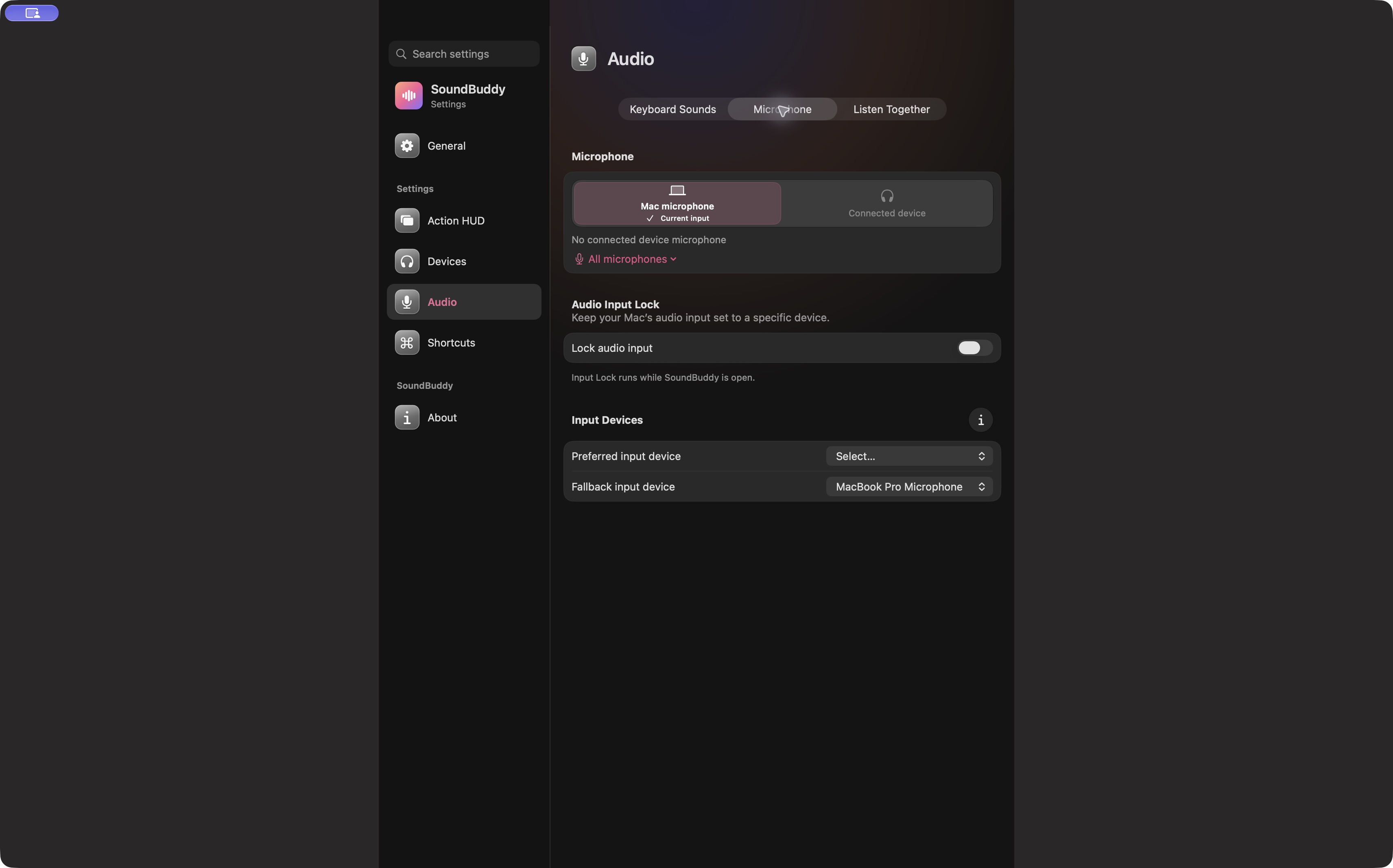
Open the full-size actual microphone settings capture
SoundBuddy's microphone-selection and Input Lock controls manage the Mac default-input choice. They do not disconnect a second meeting session or remove sound already playing from another device in the room. Enabling Input Lock is not an echo troubleshooting step. The app-specific microphone guide explains that selection boundary in more detail.
Retest one change and record the result
Keep a short note: which audio connection was removed, which input/output remained, and whether the other participant still heard the echo. A local microphone activity indicator cannot establish what someone hears at the far end of the call.
A public Zoom Community report illustrates the confusion: the author noticed a duplicate participant entry after trying other changes. A community manager suggested duplicate connections as a possible explanation. The thread does not contain a confirmed follow-up proving the author's exact cause or a successful repair.
If the problem remains, stop cycling through microphone preferences. Share your observation with the meeting host or the app's support team and include the app version and devices involved, without private meeting details. Other causes may need separate investigation.
Next step: count the audio-connected sessions in your room, deliberately keep the intended one, then check the meeting app's input and output. Treat the observed result as evidence, not as a guaranteed fix from any single setting.