SoundBuddy icon missing? Check visibility before reinstalling
If you cannot see SoundBuddy in the menu bar, check its visibility setting and whether the app is running before reinstalling it. SoundBuddy includes a deliberate No Icon choice. A hidden entry, an obscured entry and a stopped application need different next steps.
SoundBuddy is our product. This guide explains the available recovery route and the limits of what a visible icon or running process can prove.
First, identify what is missing
- The whole menu bar is absent: inspect the Mac's menu-bar visibility state before looking for one app's icon.
- Other entries are visible but SoundBuddy is absent: check the app's icon choice and any visibility rules you already use.
- Items are crowded near a camera housing: investigate available space separately from SoundBuddy's preference.
- SoundBuddy will not open: treat that as an app-opening problem, not evidence that No Icon caused a crash.
A public Mac discussion reports menu-bar apps remaining active while their icons were unavailable. It concerns other products, and the replies describe different possible causes. It does not establish a SoundBuddy defect or a universal fix.
Recover access through the app
Open the installed SoundBuddy app from Applications or select its Dock entry if present. If no app window is visible, reopening SoundBuddy is designed to bring Settings forward. If a window is already open, activate it and choose SoundBuddy > Settings, or use Command-comma while SoundBuddy is the active app.
In Settings > General, find Menu Bar Icon. Choose SoundBuddy or Classic if you want a visible app entry. Mac Battery is another available style; its name refers to the Mac, not a newly measured headset battery percentage.
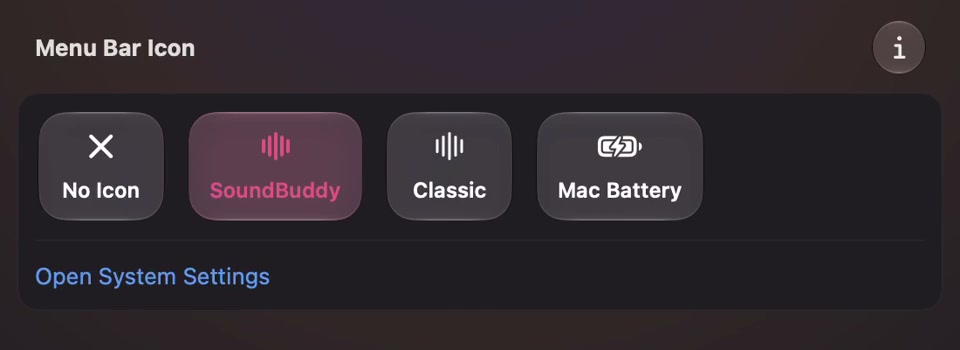
Open the original app capture for the full-size reference.
No Icon removes the menu-bar entry; it is not a Quit command. Closing an app window also need not terminate SoundBuddy. Neither fact proves that a particular feature is enabled, licensed or actively operating. Inspect the feature's own state after you recover access.
While No Icon is selected, Show Device Menu can be disabled. Use Settings to choose a visible icon rather than expecting that command to restore an entry it cannot open.
Check the Mac's visibility layer separately
After choosing a visible style, inspect the menu bar again. If your macOS version offers app-specific menu-bar visibility controls, check the installed app's entry there too. If you already use a menu-bar manager, inspect its existing hidden-item rules. Changing SoundBuddy's icon style does not override every system or third-party visibility decision.
For a camera-housing obstruction, Apple's scale-to-fit guide describes an app-specific option on relevant MacBook models. The option may be absent for compatible apps, and scaling can affect other apps in the same Space until the scaled app closes. Read those conditions before using it; this is not a guaranteed SoundBuddy recovery step.
Do not remove essential menu-bar controls or install another utility just to test whether SoundBuddy is running. Start with the controls already available on your Mac.
If you still cannot find a window
Open Activity Monitor and search for SoundBuddy. Apple's process-viewing guide explains searching by an app or process name. Use View > All Processes if your current filter could be hiding the result.
A matching running process is evidence that the app is present in that view. It does not prove the menu is accessible or that the app is responsive. If no match appears, confirm you are opening the installed app you intended, rather than an older copy in another location. Consult the installation guide for the installation path and requirements.
Avoid force-quitting an app during a call or recording just to recover an icon. If reopening does not restore access, record your app/macOS version, whether a process appears, the icon choice if accessible and whether other menu-bar items are visible. Those observations are more useful than resetting preferences before preserving the state.
Keep visibility separate from decoration
If the icon is visible and only its movement is distracting, use motion and appearance controls. You can inspect animation without deliberately removing the entry you use for access.
No icon-recovery or macOS visibility-setting test was performed for this article. The screenshot shows controls; your installed version and visibility state determine the result.
Next step: reopen the installed app, inspect Menu Bar Icon and verify a visible entry before changing another layer.