Make SoundBuddy calmer: separate motion, transparency and sound

If SoundBuddy's decorative movement or translucent controls compete with your work, start with the appearance setting that matches the problem. Reducing movement, making a background more solid and silencing feedback are separate choices. You do not need to treat them as one all-or-nothing theme.
SoundBuddy is our product. This guide explains the relevant controls and how to compare them deliberately. It does not promise better concentration, a battery saving or a medical benefit.
Decide what you want to change
- An icon keeps moving: inspect Animate SoundBuddy menu bar icon, or the broader Reduce motion preference.
- Content behind a control makes it harder to read: inspect Reduce transparency. Enable Liquid Glass is a separate appearance choice, not a guarantee that every surface stays translucent.
- The visual state is fine but a sound interrupts: inspect that sound's own control. Reduce motion is not an audio mute.
- A popup disappears before you can read it: use the separate popup-duration guide. A longer display time answers a different question from animation.
A public Mac discussion describes a reader preferring less sliding movement while still noticing a fade. It is an older, individual account of macOS transitions, not a SoundBuddy test. The useful distinction is that “reduced motion” need not mean “nothing ever changes on screen”.
Find SoundBuddy's own appearance controls
Open SoundBuddy > Settings > General > Appearance. Inspect the labels in your installed version before changing them.
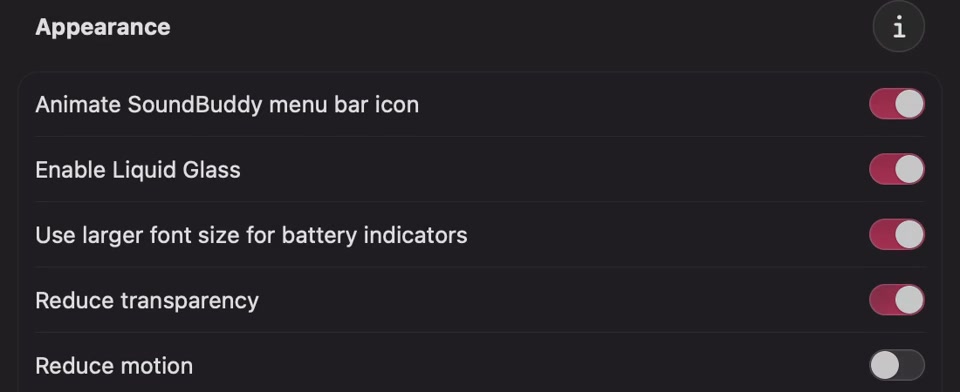
Open the original app capture for the full-size reference.
For movement limited to the status icon, inspect Animate SoundBuddy menu bar icon first. For a broader preference within the app, inspect Reduce motion. SoundBuddy also reads the Mac's reduced-motion preference in relevant animation paths. Leaving the app's switch off does not establish that the system preference is off.
For legibility, compare Reduce transparency while keeping the same background and window position. SoundBuddy's relevant material choices take both app and system accessibility preferences into account. Keeping Enable Liquid Glass on is not evidence that a particular button must retain a glass effect when a reduced-transparency or reduced-motion preference applies.
Choose the right system-wide scope
Use the app preference if your immediate concern is SoundBuddy. If you want less movement across the Mac, search System Settings for Reduce Motion. Its location varies with macOS version; Apple's current motion guide places the control under Accessibility > Motion. That broader choice can affect other interfaces too.
For background legibility, Apple's Display accessibility reference describes Reduce transparency under Accessibility > Display. It replaces some transparent backgrounds with solid ones. That is separate from increasing display brightness, changing a sound's volume or changing every app's text size.
Do not turn off an accessibility preference just to reproduce a promotional animation. Keep the setting that suits your reading and interaction needs. This guide does not certify the appearance of every macOS surface or every third-party app.
Compare one ordinary interaction
Use an action you already perform, such as opening SoundBuddy's menu and reading the current input. Avoid starting a real call, granting permissions or connecting a device just for an appearance comparison.
- Note which element is difficult: movement, background legibility, text size, duration or sound.
- Record the app preference and the relevant system preference. A screenshot of a switch alone does not show the effective behaviour.
- Change only the preference that answers your question, then repeat the ordinary interaction.
- Check that you can still identify the current state and use the control. Keep the change if it suits you; restore it if it does not.
No accessibility settings were changed for this article, and the still image cannot demonstrate an animation stopping. An animated preview can also be still because of another condition, such as Low Power Mode or an inactive view. Do not infer a broken device connection from decoration alone.
Keep sound choices separate
If you want quiet keyboard feedback, use its own enable, volume and pause controls. If the interruption is a connection cue or menu-opening sound, review that specific preference instead of changing appearance. The connection-versus-keyboard sound guide explains the different feedback paths.
A calmer interface is a personal preference and an accessibility consideration. It is not evidence that SoundBuddy makes you finish work faster. For productivity claims, keep actual finished work separate from how pleasant the setup feels, as discussed in the sound and productivity guide.
Next step: name one distracting or hard-to-read element, choose the matching preference and compare the same interaction before changing anything else.