Set typing-sound volume without turning down your whole Mac
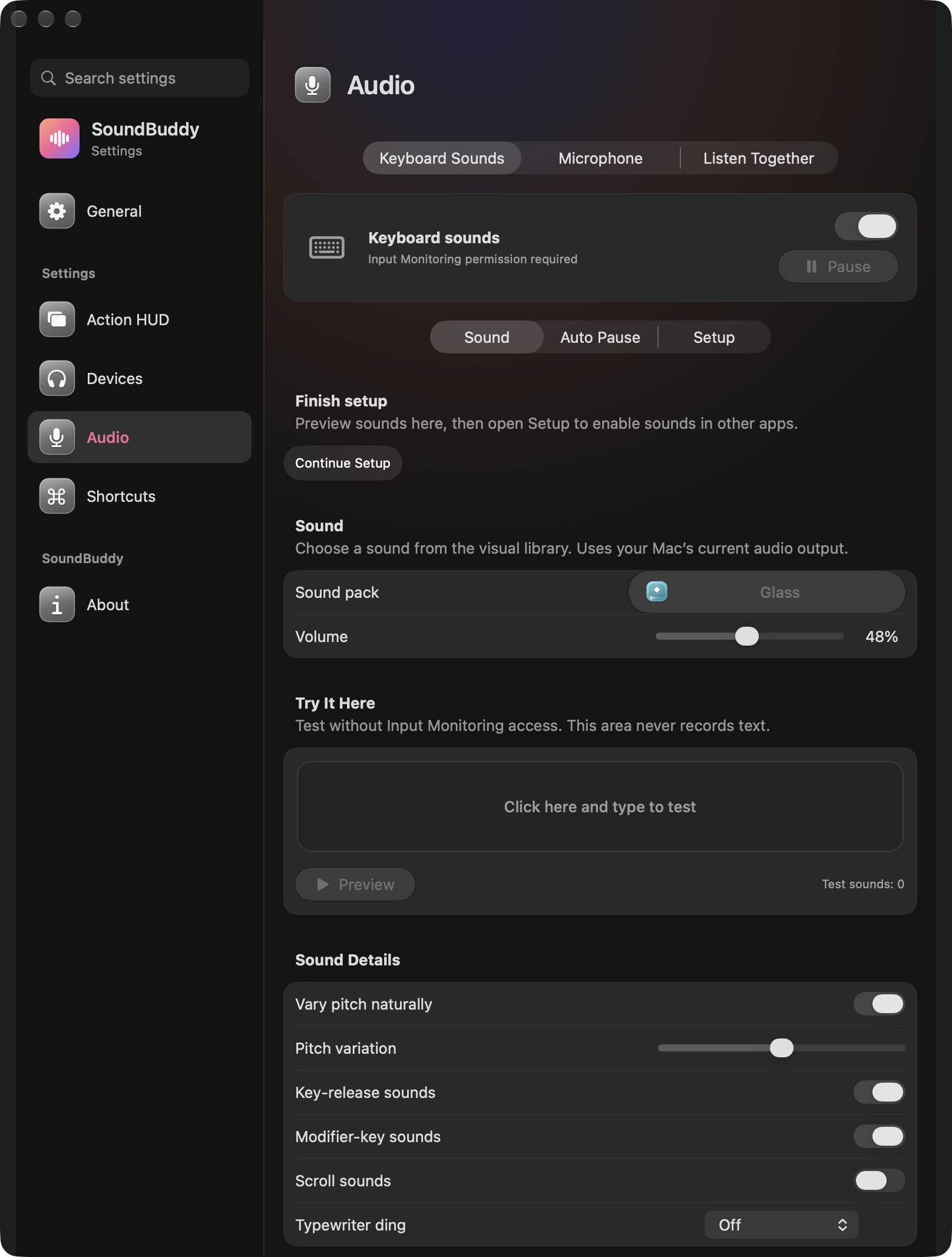
If SoundBuddy's typing sounds dominate your work, start with its keyboard Volume control. Keep the Mac's output level steady while you adjust the typing layer. That makes it easier to preserve the level you want for other audio.
SoundBuddy is our product. The app has its own keyboard-sound volume slider. It is not a general mixer for every application, and it does not guarantee a particular acoustic loudness at a given percentage.
Find which volume you are changing
In Settings > Audio > Keyboard Sounds, locate Volume under Sound. The screenshot shows a captured value of 48%. That is the maker's setting in the image, not a recommended starting point for your ears or hardware.
The Mac's output setting is another control. Apple's Sound settings reference describes output volume and mute separately from input controls. Check the intended output device before comparing levels. A muted or different output can make an app slider seem ineffective.
Do the comparison at an ordinary, comfortable listening level. If an output or app reports an error, pause the trial and inspect the message rather than increasing every volume control to compensate.
Use a short adjustment loop
- Keep one pack and one audio output selected.
- Set the Mac to the comfortable level you ordinarily use for that output.
- Lower SoundBuddy's keyboard volume and deliberately preview or type a harmless phrase locally.
- Raise only the app control until the feedback is useful to you.
- Try an ordinary writing task briefly, then choose whether to keep, reduce or pause it.
Avoid changing pitch variation, release sounds and the pack during this first pass. Each can change your impression of the result. A single slider trial gives you a clearer comparison.
Recheck after an output change
| Situation | Record before adjusting |
|---|---|
| Headphones replaced by speakers | Output name and whether other audio is at a comfortable level |
| Pack feels sharper or busier | Selected pack and the same app-volume starting point |
| Preview is silent | Status, output and mute state |
| A call is starting | Whether typing feedback should be paused |
Repeat the comparison after changing outputs. An app percentage is not a measurement of sound at your ear, and equal slider values do not establish equal perceived loudness across devices or packs.
If you want quiet during microphone use, review the separate Auto Pause condition. If you want immediate quiet, use the app's deliberate pause control instead of changing the entire system volume.
Next step: keep the Mac output steady and adjust only SoundBuddy's keyboard volume for one short task.