Personalise SoundBuddy color while keeping selected text readable

An accent color can look pleasant on an icon while being inconvenient for reading selected text. In SoundBuddy, App color and Text highlight are separate choices. Adjust the one that matches the problem, then check a real control you use.
SoundBuddy is our product. This guide explains those app preferences and the built-in preview. It does not establish that a particular palette improves concentration or that every color combination suits every reader.
Find the two controls
Open SoundBuddy Settings > General > Color. If you cannot locate the section, search for App color or Text highlight in the settings search field.
- App color controls SoundBuddy's accent choice for relevant interface elements. Follow macOS uses the Mac's accent preference.
- Text highlight controls the appearance of selected text in supported app editors. Automatic follows the Mac's selected-text colors.
The two settings do not need to use matching colors. A favorite accent can stay in place while you choose a different selection background that is easier for you to distinguish.
Apple's appearance guide also distinguishes the Mac's accent color for interface controls from its highlight color for selected text. SoundBuddy's own preferences apply within SoundBuddy; they do not rewrite those system choices for other apps.
Use the preview as an illustration
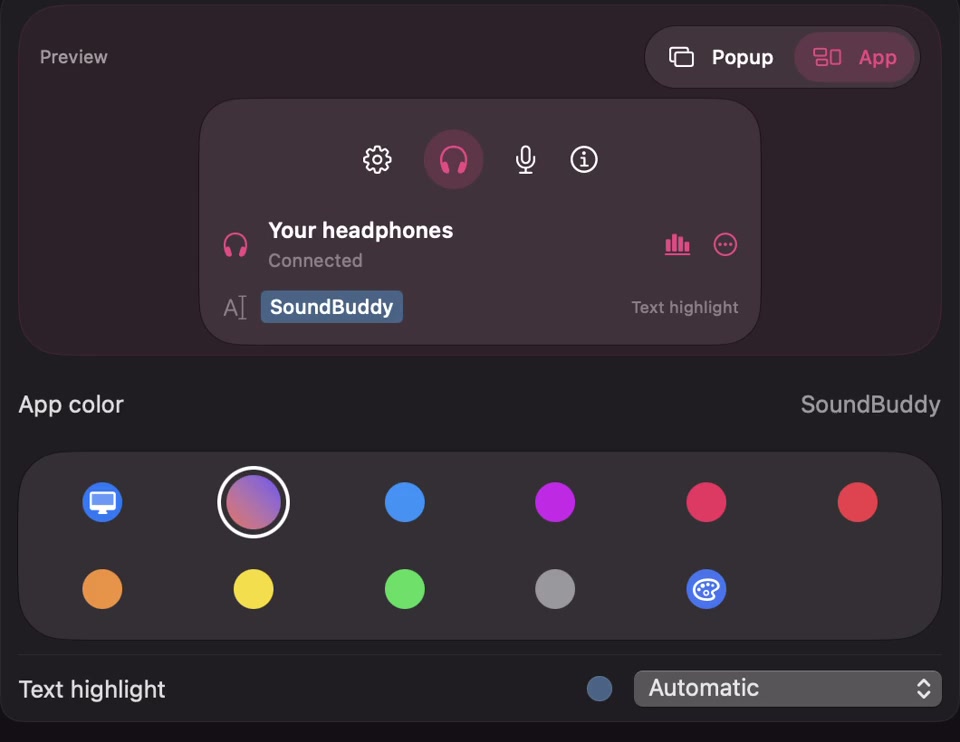
Open the full-size actual personalization capture
The Preview area offers Popup and App examples. Use them to inspect how your choices look together. Seeing Connected in this illustration does not mean a headset has just connected, and switching the preview surface does not test Bluetooth or microphone behavior.
The capture is a historical reference. Compare the labels in your installed copy rather than copying every visible value from the image.
Change one color at a time
Note the current App color and Text highlight choices. If a custom color is already configured, record its value before replacing it so you can restore it.
First decide which element is difficult to read. If selected text is the problem, leave the accent alone and compare Text highlight choices. If the selected text is clear but accented controls are hard to identify, compare App color instead.
The custom choice reveals a separate color control for the relevant setting. You do not need a custom color to make a useful comparison. A preset or the system-following choice can be a simpler starting point.
SoundBuddy may adapt an accent for readability against its light or dark surfaces. A chosen pale color therefore need not appear as the exact same shade on every control. This behavior is separate from a guarantee about the contrast of an entire screen.
Check an ordinary editable field
After reviewing the preview, inspect a harmless text selection in an editable SoundBuddy field you already use. Keep the same window, appearance and content while comparing one preference.
Check three things:
- Can you identify exactly which characters are selected?
- Can you still read those characters against the selection background?
- After clearing the selection, is the normal text readable too?
Use your own reading experience alongside the visible selected state. If the alternative is less useful, restore your recorded choice. Do not infer a universal accessibility result from a swatch or a single screenshot.
If you normally work in both light and dark appearances, check your usual interactions in both when convenient. Keep any accessibility settings you rely on. There is no need to disable them to reproduce a promotional image.
Keep other apps and other appearance controls separate
A public Books selection report describes selected text being obscured despite a system highlight choice. It concerns Books on a particular Mac setup. It is not evidence of a SoundBuddy defect, and a SoundBuddy color preference cannot repair another app's text rendering.
If the difficulty is movement or a translucent background rather than selection color, use the separate motion and transparency guide. Changing an accent is not an audio mute, a larger text setting or a microphone-selection action.
Next step: identify one hard-to-read state, note the original choices and compare the matching color preference. Keep the result that lets you recognize and read the control comfortably in your own setup.