SoundBuddy opens after restart? Separate login items from session restoration

If SoundBuddy appears after you sign in, first decide what you want: have it available for each desk session, or open it only when needed. Then inspect why it returned. A saved login item and a restored session are separate things to check.
This guide uses macOS controls. It does not assume your installed SoundBuddy has a built-in launch-at-login switch, and it does not treat an unexpected opening as proof of an app defect.
Inspect the Mac's login-item list
Apple's automatic login-item guide describes System Settings, General, Login Items & Extensions. The list lets you add an app to open when you log in or remove a named item from automatic opening. Labels can vary with macOS version, so check the version of the guide against your Mac.
If you want SoundBuddy to open at login, use Add and select the installed copy you intend to use. The installation guide helps identify the expected installed app. If you prefer opening it manually and it is listed, select that specific item and use Remove. Note the original choice before changing it.
The same Apple guide describes background activity separately. Do not interpret every background entry as the same thing as an app in the automatic-opening list. This investigation does not call for disabling unrelated helpers, deleting files or removing every item from startup.
Check whether the previous session was restored
Apple's app and window reopening guide describes the Reopen windows when logging back in checkbox in the shutdown, restart or logout confirmation. If you do not want the previous session restored, inspect that choice before the next planned logout or restart. It affects the session, not just SoundBuddy.
The article also says a forced restart, or bypassing the confirmation, can reuse the most recent reopening choice. A restart without the usual dialog is therefore not a clean comparison of a new checkbox selection.
Do not restart during a call, recording or unsaved task just to investigate this. At a suitable stopping point, record the login-item choice and the session-restoration choice separately. If you change both at once, it is harder to learn which mattered.
Restoring windows when an app is opened is another preference described in Apple's guide. It is not the same question as deciding whether the app starts when you log in. Leave that wider window preference alone unless it is the behaviour you actually want to change.
Make one intentional startup choice
For your next ordinary sign-in, use a short observation note:
- Write down whether you want SoundBuddy to start automatically or remain manual.
- Inspect whether it is in the Mac's login-item list and which installed copy is selected.
- Note the session-restoration checkbox before any planned logout or restart. Save your work and finish active audio tasks first.
- Change only the choice relevant to your goal. Remember that the restoration checkbox can affect other apps in the session.
- After the next sign-in, record whether SoundBuddy opened, whether a window appeared and whether its menu-bar entry was visible.
Those are different observations. An absent icon alone does not prove an app failed to start. Use the separate menu-bar visibility guide if the question becomes finding an already-running app.
Automatic opening also does not establish that a particular feature is configured, permitted or active. Inspect the feature you want after opening the app; do not use startup as an activation test.
Do not copy an unconfirmed cleanup recipe
A historical public Mac discussion reports other apps opening despite the author's login choices. Replies suggest different causes, but the thread does not establish a confirmed resolution.
That supports the need to identify the actual opening path, not a SoundBuddy-specific diagnosis. This guide does not adopt the thread's file-deletion suggestions. If a named app still opens after you have documented both choices, preserve that observation and consult the app's current documentation or support.
Useful details are the app version, macOS version, installed location, login-item entry and whether the previous session was restored. Keep private account details out of screenshots or support notes.
Keep app appearance separate from automatic opening
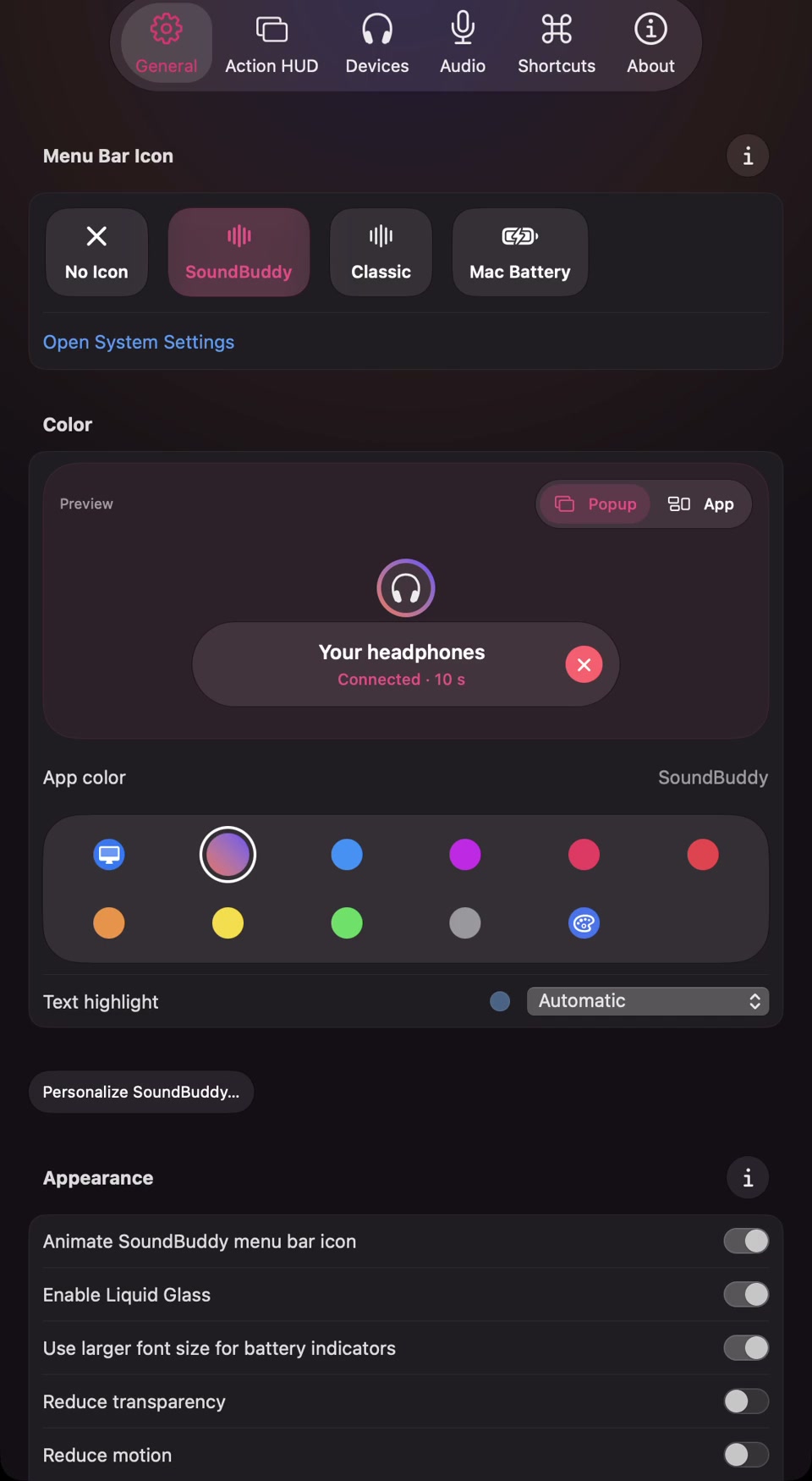
Open the full-size actual General-settings capture
SoundBuddy is our product. Choosing an icon or appearance is a different decision from asking macOS to open an app at login. A source review of the released 0.4.1 build 25 does not establish a built-in launch-at-login control; the instructions here deliberately use the Mac's own documented list.
This is public-documentation and source research. No logout, restart or startup comparison was performed, and no boot-time or productivity improvement was measured.
Next step: choose automatic or manual opening, inspect the named login item and note session restoration before the next sign-in you already intend to make.