Turn off SoundBuddy's Input Monitoring access when you choose
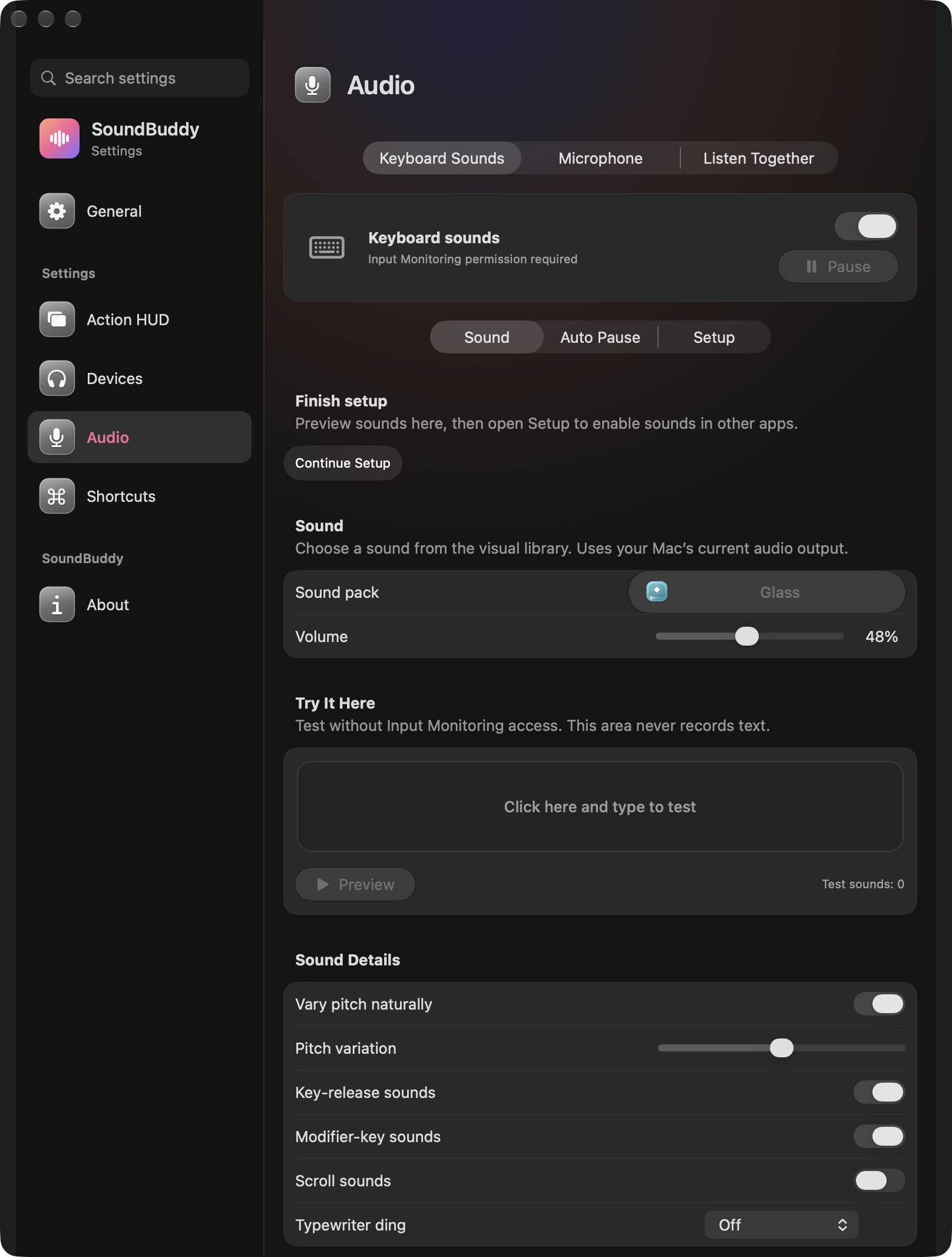
You can review and disable SoundBuddy's input-device monitoring access in macOS. Do this when you no longer want global typing sounds, or when you prefer to keep using only the local preview workflow. Make the permission decision in system settings rather than treating a silent sound pack as proof that access is gone.
SoundBuddy is our product. This guide describes the user-controlled permission boundary. No system permission was changed while preparing it, and the photo is the app's permission-required state, not a screenshot of a completed revocation.
Choose the result you want
For temporary quiet, pausing keyboard sounds may be sufficient. For removing input-monitoring authorisation, review macOS directly. These actions answer different questions: whether sounds play now and whether the app has permission to monitor input devices.
Apple's Input Monitoring guide explains that you can turn an app's access on or off. Review the relevant entry rather than changing permissions for every utility you use.
- Open System Settings > Privacy & Security > Input Monitoring.
- Find SoundBuddy and confirm it is the entry you intend to change.
- Turn its access off if that is your decision.
- Follow any macOS instruction to quit or reopen the app.
- Return to the same permission list to confirm the setting you chose.
If a managed Mac prevents a change, ask its administrator. Avoid command-line permission resets or broad changes to unrelated apps as part of this routine review.
Verify authorisation and behaviour separately
| Check | What it answers |
|---|---|
| SoundBuddy access is off in macOS | The permission setting you selected |
| Global typing produces no SoundBuddy sounds | An observed playback result in that context |
| Local Preview still works | Local audition remains available in that state |
| App says permission required | The app's current view of setup |
Silence alone is ambiguous because mute, manual pause and protected-session conditions can also stop sound. Conversely, a local preview does not show that global monitoring is still authorised. The current app source gives local preview a separate path from the global listener.
Keep other decisions separate
Reviewing Input Monitoring does not uninstall SoundBuddy, cancel a purchase or change every privacy permission on the Mac. If you want to remove the app as well, treat that as a separate task and check its installation and licence guidance.
If you later want cross-app sounds again, return to the keyboard setup guide and make a fresh deliberate choice. There is no need to grant access merely to compare the sound of a pack locally.
Next step: confirm the SoundBuddy entry in macOS matches your choice, then use the app's status as a separate behaviour check.