Only the left Audacity recording meter moves? Check mono first
A moving left recording meter does not automatically mean your voice will play from only the left headphone. Audacity documents that mono recording uses the left recording meter, while a centered mono track plays through both sides.
First identify whether you are looking at the recording meter, listening to a recording or inspecting two channels in an existing file. Each observation needs a different next check.
Identify the meter before changing Mac balance
Audacity's meter guide distinguishes the microphone-icon recording meter from the speaker-icon playback meter. Its channel explanation says a mono recording activates only the left recording meter; centered mono playback feeds both output channels.
If that matches your setup, do not change Mac left/right balance merely to make a second input bar move. If familiar recordings also sound one-sided, investigate the Mac listening-balance question separately.
A stereo track with a silent channel is another case. Keep the original project and file intact while establishing what source and channel configuration produced it.
Confirm the source and intended channel count
Audacity's microphone-recording guide places input selection under Audio setup > Recording devices and notes that mono is typical for microphones. Choose the entry for the microphone you intend to use rather than relying on a similar label elsewhere on the Mac.
For a single voice source, inspect the available recording-channel choice in Audio Setup. Audacity's Audio Setup reference identifies Recording Channels as the number of channels to capture, separate from Recording Device and Playback Device.
If your source is intended to be mono and the app offers 1 (Mono), that is the relevant comparison. Do not assume every device exposes the same choices. Check the exact microphone or interface documentation before treating a two-channel device label as proof that it captures two distinct perspectives.
If you deliberately need two different inputs or a stereo source, preserve both channels and map them to the actual source. Turning that material into mono can lose the distinction you intended to record.
Compare a short new capture, not the only copy of your work
Outside a call or production recording:
- Keep your existing project and original audio untouched; use a separate test project.
- Record the Audacity version, selected recording device, recording-channel choice and playback device.
- If appropriate for the actual source, choose the available mono recording option and make a short, non-sensitive voice capture.
- Stop recording, then listen back with the track centered and note both the recording-meter behavior and the listening result.
- If the result remains one-sided or unusually quiet, preserve that observation before changing more settings.
Audacity's recording FAQ describes a mono source captured in stereo producing an empty channel or duplicated content. It also documents a separate-interface case where a mono capture can be unexpectedly quiet. That exception is why one mono setting is not a universal repair for every interface.
If that exception fits, use the FAQ and your interface's channel-routing instructions with a separate test project. Do not delete a channel from your only recording or keep increasing gain to force an unexplained result.
Keep unresolved Mac reports in their original scope
A 2025 Audacity forum thread describes a Mac user seeing a left-only result despite a two-channel device label. The later explanation includes an external microphone and conversion path, but the thread does not establish a completed repair.
The useful lesson is to identify the source path and desired result. It does not prove a current Audacity defect, a required driver installation or a SoundBuddy issue. Keep those guesses out of the support note unless independently verified for your exact setup.
SoundBuddy's input chooser does not set recording channels
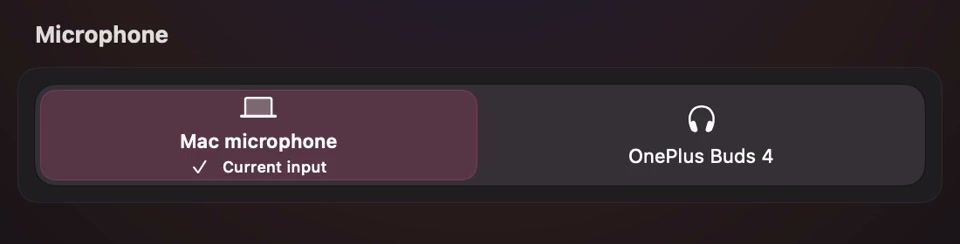
Open the full-size actual microphone-controls capture
SoundBuddy is our product. The displayed input choice is a separate field from the recording application's channel count and track pan. Use the app input-selection guide if the application is using a different microphone than expected.
No Audacity recording, playback or channel-routing test was performed for this article. A useful result is knowing whether a left meter is expected or a captured channel is missing; no production-quality or productivity gain has been measured.
Next step: identify the recording meter and actual source, then compare the appropriate available channel setting in a separate short test project.