One headphone side is quieter? Inspect the Mac output balance
If one headphone channel becomes unexpectedly quieter, inspect the selected output and its balance before treating a connection label as proof that playback is correct. Preserve any uneven balance you chose intentionally; the goal is to find an unwanted change, not force everyone to use the same setting.
SoundBuddy is our product. Its device status can help identify the accessory you are looking at, but connection, microphone choice, battery data and left/right playback are separate observations.
Inspect the output you are actually hearing
Open System Settings > Sound > Output and select the intended listening device. Note its name and the controls that are available. Apple's output-settings guide describes the Balance slider separately from overall output volume.
If Balance is available, note its current position before moving it. If an unexpected position explains the difference, compare with the position you normally intend to use. Keep the same output and audio source during that comparison.
If the control is absent, record that fact rather than assuming an invisible value. Check the device maker's supported controls for that connection. Increasing overall volume is not a reliable way to diagnose or correct a left/right difference.
An older public Mac discussion reports unwanted balance changes while using Bluetooth earphones. It shows a reported customer problem, not proof of a universal current macOS bug or the cause on your Mac. You do not need to buy another utility to inspect the setting first.
Compare the same source before changing the setup
Choose a familiar short clip or a trusted test source whose channel content you understand, at a comfortable level. Some stereo content intentionally places sounds differently across channels, so one musical moment is not enough to diagnose a headphone.
- Note the selected output, the app playing the clip and the intended balance position.
- Play the same short passage while keeping those choices steady.
- If you make a balance comparison, change only that setting and note the result.
- Check whether the unexpected difference occurs across more than one suitable source. Keep source-specific and device-wide observations separate.
If the difference persists with your intended settings, consult the model's troubleshooting instructions. A connection badge cannot establish that both physical channels are working, and a battery percentage cannot establish why a channel sounds different.
Keep mono audio distinct from balance
Apple's Audio accessibility reference describes Play stereo audio as mono under System Settings > Accessibility > Audio. Mono combines stereo content for playback through the left and right outputs. Balance adjusts their relative output levels.
Note an existing mono preference before comparing content. If you deliberately change it for a comparison, restore the state you want afterward. Mono can change which content reaches each side; it is not a repair for a failed speaker. Do not discard an accessibility choice simply because it differs from somebody else's setup.
What the actual SoundBuddy screen establishes
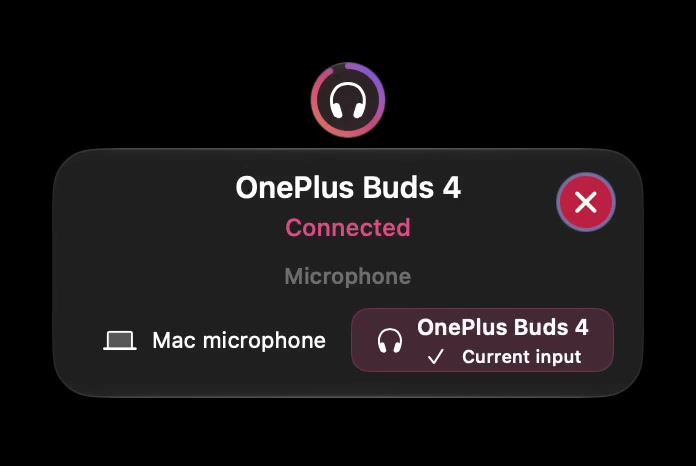
Open the original app capture for the full-size reference.
Current input describes the microphone choice. It does not establish the selected listening output or prove equal playback through two channels. Use the Mac's Output settings for that first distinction, and the paired, connected and selected guide if the states are unclear.
SoundBuddy's overall device-volume control is not a stereo test or a promise to reset balance. Inspect the actual balance control when available rather than repeatedly moving a different slider. For device-dependent volume availability, use the output-control guide.
Keep a useful observation for support
Record the accessory model, Mac/macOS version, connection type, selected output, available balance/mono settings and which sources showed the difference. If a problem occurs only after reconnecting or changing outputs, note that sequence without assuming it proves the cause.
Use the battery-reporting guide separately if a component's charge is missing. Do not fill an absent per-ear value with an estimate to explain an audio symptom.
No left/right listening comparison, balance change, mono change or headphone hardware test was performed for this article.
Next step: note the selected output and your intended balance, then compare one familiar source without changing several controls at once.