Volume popup or volume control? Check what your Mac output supports
If audio plays through an external display or receiver but the Mac's volume slider is unavailable, first identify where that setup lets you adjust the level. A volume popup is feedback about a reading. It does not make an output device support software volume control.
SoundBuddy is our product. Its Action HUD can display reported volume and mute changes when the relevant reading is available. This is separate from controlling an output, from the output's physical knob and from an individual app's volume.
Confirm the selected output before changing levels
Open System Settings > Sound > Output and note the selected device. “The speakers on my desk” is a physical description; the selected route might be a display, an interface or another output.
Then distinguish these observations:
- The output plays audio and its Mac slider works: use that available control at a comfortable level.
- The output plays audio but its Mac slider is unavailable: inspect the display, receiver or speaker's own controls and documentation. Reinstalling a feedback utility does not establish a missing hardware capability.
- The output is selectable but no sound is heard: selection alone does not prove playback. Check the app's volume/mute and the device's setup separately.
- The output is missing entirely: investigate connection or detection first, rather than treating this as a volume-popup problem.
Apple's Audio MIDI Setup reference says active volume sliders depend on software volume control being available for the selected device. You can inspect the device under Window > Show Audio Devices without changing its sample rate, channel configuration or clock settings.
Find the control that belongs to this route
Apple's speaker troubleshooting guide directs readers to check external speakers' own power and volume adjustments. Its digital-receiver section specifically describes adjusting volume on the receiver when using the computer's digital output. Do not turn that particular example into a claim that every USB, HDMI or wireless device behaves identically.
A public Mac support discussion describes a greyed-out Mac control for speakers routed through a display. The reader reported raising the level through the monitor's settings. That is an observed individual workaround, not proof of the cause on every similar desk.
Follow your device maker's instructions. Keep the starting level comfortable and change one control at a time. A player-app slider can change that app's signal while the speaker's own setting remains unchanged, so one percentage does not describe every stage of the listening path.
Decide whether SoundBuddy feedback is useful
In SoundBuddy > Settings > Action HUD, inspect Show volume and mute changes. Enabling this preference requests companion feedback when SoundBuddy observes an available change. It does not enable software volume control on a device that lacks it.
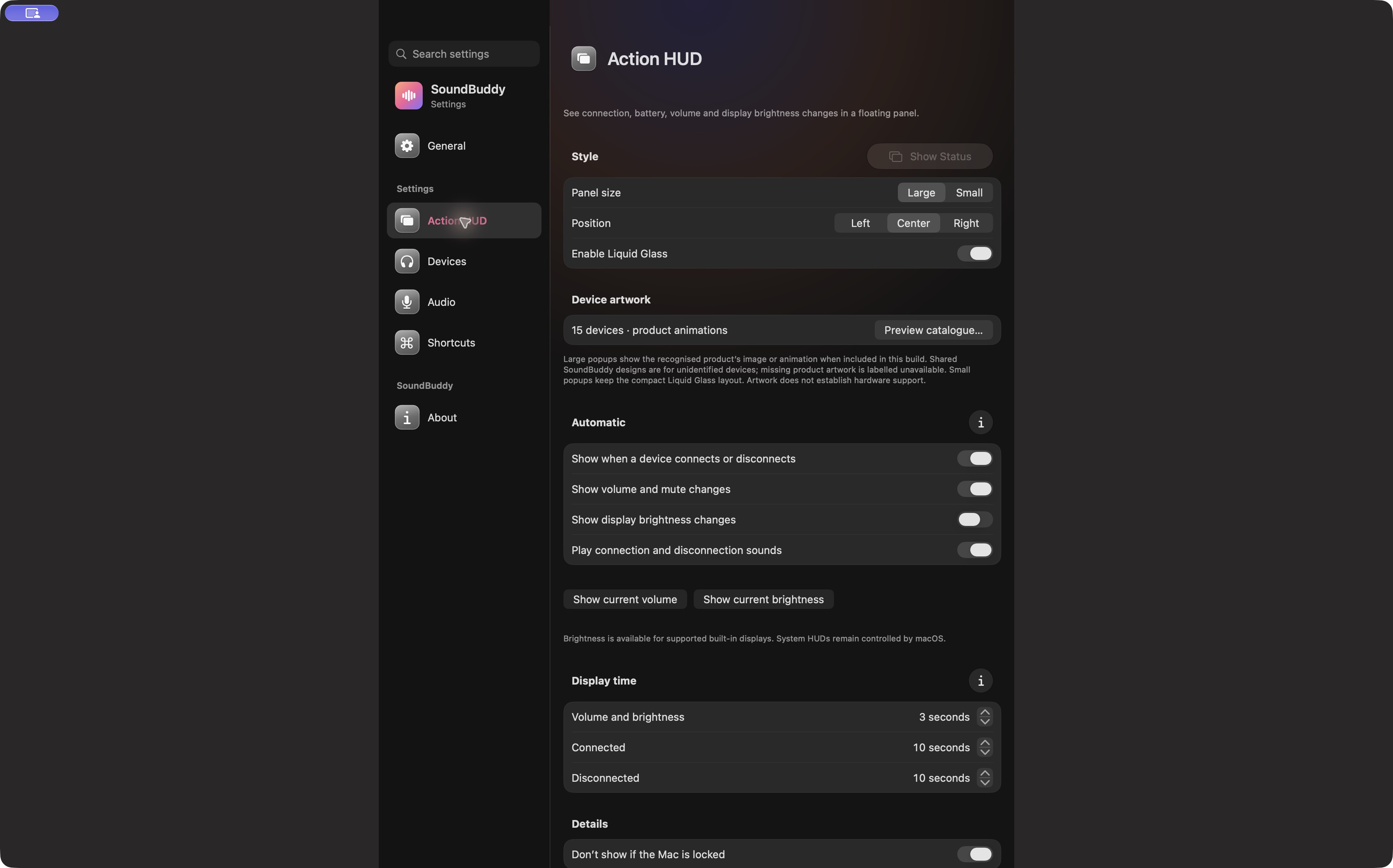
Open the full-size app capture to read the controls.
SoundBuddy's volume feedback follows the Mac's default output reading. A separate app-specific route or a physical speaker knob may not change that reading. If the output does not expose a usable level to SoundBuddy, the app cannot display a confirmed percentage for it. Missing feedback is not evidence that the output is muted or broken.
The Show current volume button requests an available current reading. The automatic preference concerns observed changes; merely launching the app or choosing a different route is not the same observation. System HUDs remain controlled by macOS. SoundBuddy does not promise to remove Apple's overlay or replace the system's volume controls.
Compare feedback without rebuilding the audio setup
Use a moment outside a call or recording:
- Record the selected output name and connection route, plus whether the Mac volume control is available.
- Note whether SoundBuddy's volume-feedback preference is enabled. Leave other preferences steady.
- If the output has a working volume control, make one small deliberate change and compare the device level with any feedback shown. Avoid turning several volume stages up to compensate for silence.
- If the reading or control is unavailable, use the device's documented control. Save the exact observation rather than inventing a percentage.
No output-volume or mute test was performed for this article. A reported percentage is a setting, not a sound-pressure measurement or a promise that two different devices will sound equally loud.
If only SoundBuddy's typing feedback is too prominent, use the separate keyboard-sound volume guide. If the popup is hard to read before it disappears, use display-time settings. Those are different adjustments from making an external output controllable.
Next step: write down the selected route and identify its working volume control before troubleshooting a missing popup.