Audacity starts squealing? Inspect the microphone-to-speaker loop
If a squeal or repeating sound grows when you monitor a microphone, stop the recording or monitoring session and lower the listening output before investigating. Do not keep the loop running to see how loud it gets.
A microphone can pick up sound from a nearby speaker, send it through the monitoring path and hear that output again. Start by identifying that return path. A louder input is not necessarily a person speaking, and resetting every preference hides which setting mattered.
Separate hearing the input from watching its meter
Audacity's recording preferences reference describes Audible input monitoring as sending the input to the selected playback device. For microphone recording, it recommends listening in headphones so the microphone does not hear the speaker output. It also warns against this monitoring option when recording computer playback because that can create feedback echoes.
The meter manual documents a separate Enable Silent Monitoring option: it shows the recording level without creating a track. Hearing the input is a separate option. A moving meter therefore does not require playing the microphone through the room.
If you only need to check whether the expected source reaches the meter, use the visual check deliberately. Do not turn on audible monitoring just to make the meter useful.
Inspect the specific monitoring option before a reset
The Transport Options reference places Enable audible input monitoring under Transport > Transport Options. A check mark means the option is enabled. Earlier versions called it Software Playthrough. Check the documentation for your installed version if the label differs.
With the unwanted sound stopped:
- Note the Audacity version, selected recording source and selected playback destination. Preserve any existing recording or project.
- Inspect the audible input monitoring option. If you did not intend to hear the microphone through the playback destination, turn that specific option off.
- If the purpose is only to inspect input activity, use the silent meter option instead. Keep the listening output low and do not deliberately reproduce the squeal.
- If you require audible monitoring for the recording task, review the headphone route described by the recording guide before resuming. Confirm which destination the application will use.
- Record which control changed and whether the unwanted sound stopped. Keep intentional monitoring settings documented for later sessions.
Avoid changing input gain, microphone choice, output and every preference together. A useful result is a named monitoring path and the setting that affected it, rather than an unexplained full reset.
A reported fix is a clue, not a diagnosis of your Mac
In a July 2025 MacBook Air report, a user described relentless feedback and asked how to reset settings. A responder suggested disabling audible input monitoring, and the original author reported that it resolved their problem.
That is one historical public report, not our hardware test or evidence that every squeal has the same cause. No audio from that discussion was downloaded or analyzed for this guide.
If the problem continues after the application's unwanted monitoring path is off, note other active monitoring tools or an audio interface's own monitoring control. Use the relevant device documentation rather than deleting configuration files or installing another routing utility as a first step.
For self-voice heard only in a headset, use the sidetone guide. If the stored voice file is distorted even with the monitoring loop stopped, use the capture and clipping guide. Those observations need different investigations.
SoundBuddy can show an input choice, not the monitoring loop
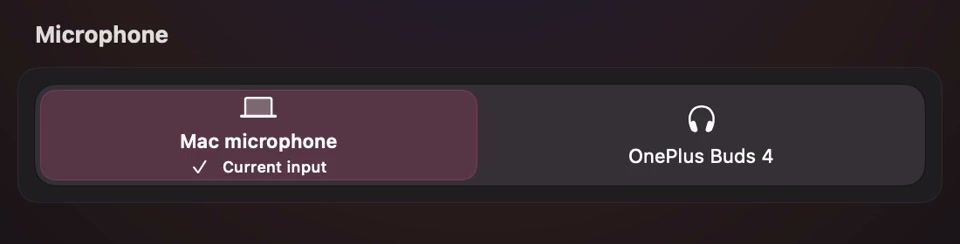
Open the full-size actual microphone-controls capture
SoundBuddy is our product. The displayed input selection does not establish whether another application sends that input to speakers, or whether an interface provides its own monitoring. Inspect the recording application's source and monitoring destination separately.
No recording, playback or feedback experiment was performed for this article. The proposed workflow is intended to avoid broad resets and repeated setup confusion; no time saving or productivity improvement has been measured.
Next step: stop unwanted monitoring, identify its input and playback destination, then inspect the audible monitoring option before changing unrelated preferences.