Recorded voice sounds crunchy? Check clipping before changing headphone volume
If a voice recording crackles or sounds flattened on louder syllables, preserve the original and inspect the recording stage. Turning down listening volume changes what you hear; it does not establish that the captured audio is clean.
Start with the question that matters: is the distortion present in the recorded passage, only while monitoring, or only after later processing? Do not change microphone selection, input gain and playback volume together.
Look at the recorded passage and the right meter
Audacity's microphone guide describes a red meter or block-like waveform as a sign that recording may be too loud and clipping. It recommends reducing microphone level or increasing distance as appropriate.
Keep that as a reason to inspect, not a diagnosis of every crackle. A playback fault, an effect or another part of the signal chain may need a different investigation.
The Audacity meter reference makes two useful distinctions. The recording meter's red colour warns that clipping may occur; its clipping bar records an overload event and can remain visible after that event. The bar is not a reading of the current instant.
The same reference explains that the playback slider changes speaker output without changing the audio's amplitude in the project. A quieter replay is therefore a separate result from a better capture.
Compare a fresh short capture with one input change
Use a separate test project and a non-sensitive phrase, outside a call or production recording:
- Record the microphone, interface if any, Audacity version and the input control currently used.
- Keep the original recording and project untouched.
- Use your ordinary speaking voice and position for a short new capture. Note whether louder syllables coincide with the distortion or clipping indication.
- If the available input control is too high for that setup, make one modest reduction and repeat the same phrase at the same position.
- Stop and listen back. Record both the meter result and the sound, then retain your intended settings.
If Audacity does not expose an input-level slider for the device, its meter reference points to the interface or operating system's input control. Use the control documented for your actual equipment, rather than assuming the Mac's listening-volume keys adjust recording gain.
If changing distance is the appropriate alternative, compare it separately instead of moving the microphone and changing gain at once. The purpose is to identify the stage that changed, not to hit a universal number for every microphone.
Keep an existing recording separate from a future capture
A 2025 macOS podcast report describes high microphone gain and a noise-reduction attempt that also distorted the voice. The author later planned a new recording with a backup. This is a reported experience, not our test of the audio or a diagnosis of your file.
Do not repeatedly process the only copy of important material. Work on a separate copy if you choose to investigate repair tools, and keep the untreated original available. This guide does not promise that a filter, normalization or quieter playback restores information lost during an overloaded capture.
If the original short test is clean but distortion appears only after effects or combining tracks, document that processing stage separately. If the issue is wrong pitch or speed, use the sample-rate investigation rather than treating it as the same symptom.
SoundBuddy identifies an input, not recorded peaks
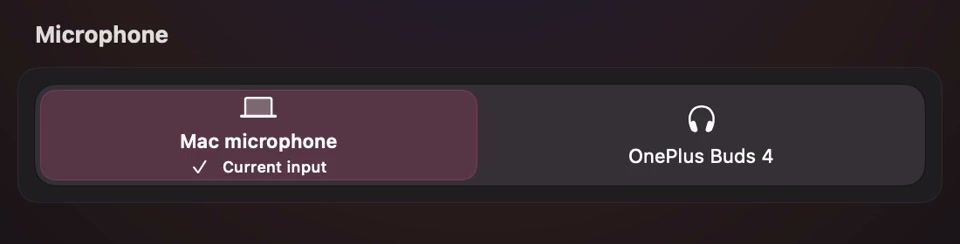
Open the full-size actual microphone-controls capture
SoundBuddy is our product. The displayed input choice does not establish the recording application's gain, effects or captured quality. Use the input-level guide for quiet outgoing voice, and the mono-meter guide when the concern is one-sided meter activity.
No recording, playback or clipping-repair test was performed for this article. The useful outcome is identifying a capture or processing problem before repeating important work; no quality or productivity improvement has been measured.
Next step: preserve the original, inspect the relevant meter and compare one available input control in a separate short capture.