Quiet microphone on Mac? Check input level, not headphone volume
If other people say your voice is quiet while you hear them clearly, turning up your headphones addresses the listening side of the conversation. First confirm the microphone being used, then inspect the input-level controls available for that device and app.
SoundBuddy is our product. Its microphone controls help you inspect or choose the Mac's default input. Selecting the intended microphone is useful, but it does not establish how loudly your voice reaches another participant.
Keep three questions separate
Work through these in order:
- Which microphone is receiving your voice? The built-in Mac microphone, a headset or another available input can have very different placement.
- What level is the device or app using? Look for the input controls offered for that route.
- What does the other participant hear? A local meter alone cannot answer this.
Avoid changing input, level, processing and listening volume together. A small controlled comparison leaves you with a result you can interpret.
Confirm the selected microphone
Check the meeting app's microphone selector first. If it follows the system default, compare that with the Mac's current input. If it selects a named microphone itself, a system-default change may not alter that selection.
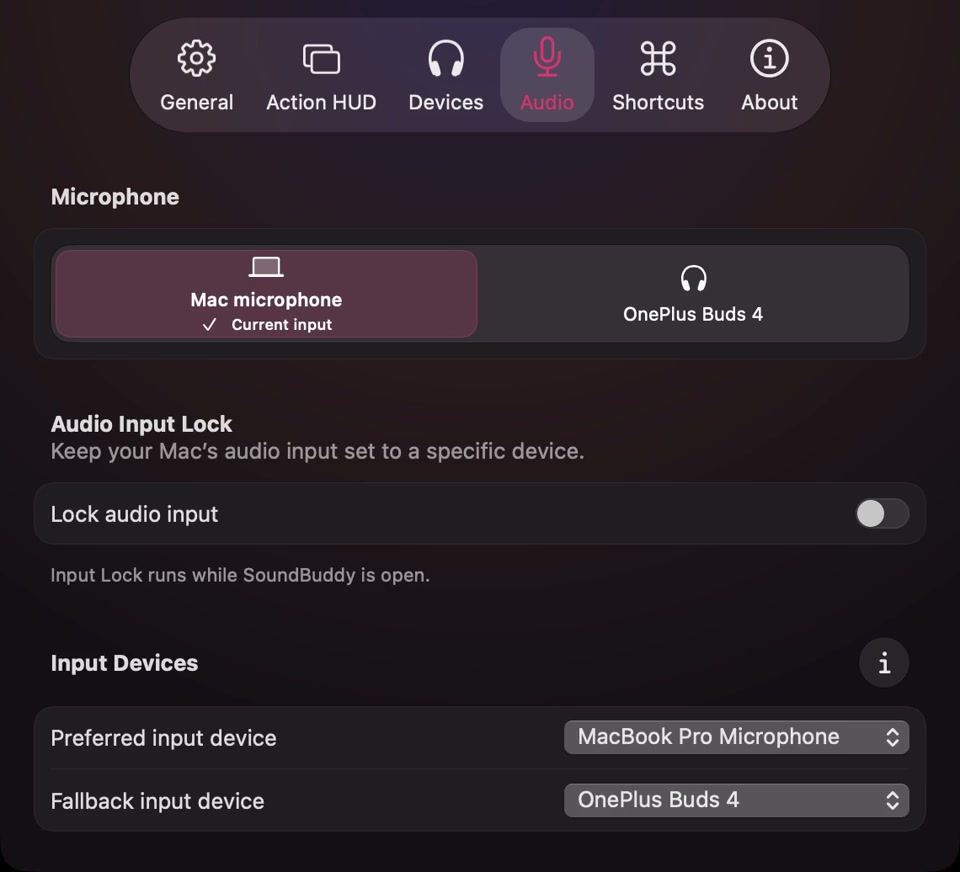
Open the full-size actual Audio settings capture
Do not enable Input Lock simply to make a voice louder. That preference concerns which default device the Mac uses. The app-specific microphone guide explains how to compare system and meeting-app choices.
Inspect the input control your route actually offers
Apple's sound-input guide directs you to System Settings > Sound > Input, where you select the intended device. It describes an input-volume slider and adjusting input level for a source that is too quiet or too loud.
Use the controls actually available for your selected hardware. If a device has no software input slider, do not treat that absence as proof the microphone is disconnected. A microphone or interface may have its own gain control; use its manufacturer's instructions rather than assuming a generic setting will suit it.
Note the original value. Keep your speaking position and ordinary voice consistent, then make one modest change if the available control permits it. More input level is not automatically better. If the result becomes distorted, restore or lower the changed setting and reassess.
There is no universal percentage to copy from someone else's screenshot. A different microphone, distance, app processing mode or room can change the result.
Check automatic adjustment in the meeting app
Zoom's audio-test instructions describe Settings > Audio > Test microphone. The test records speech and plays it back. They also describe the optional Automatically adjust microphone volume setting.
Use a harmless phrase if you choose that playback test. Inspect whether automatic adjustment is enabled before trying to compare a manual setting. Record its state so you know which configuration you evaluated. Do not toggle it repeatedly while also moving the microphone or changing devices.
A public Zoom report describes unexpectedly low input settings despite automatic adjustment reportedly being off. That report does not establish the cause, prove a current universal Zoom bug or validate a particular third-party fix. It illustrates why recording the observed setting is more useful than assuming it stayed unchanged.
Verify the conversation result
When practical, arrange a brief check with another participant. Keep their listening volume steady while you compare your one input change. Note whether your voice is audible and clear, rather than judging success from a moving bar alone.
If the sound is altered rather than simply quiet, inspect the separate Mic Mode and device-selection guide. If there is no incoming signal at all, return to device selection and permissions instead of increasing every available level.
Next step: identify the active microphone, note the current input and automatic-adjustment settings, then evaluate one controlled change. Restore the original configuration if it does not help. SoundBuddy's input selection is part of that setup check, not a voice booster or a guarantee of louder calls.