Voice Isolation or a different microphone? Check the right control

If the intended microphone is selected but speech, music or an instrument sounds wrong, inspect processing separately from device selection. Choosing a microphone answers where sound comes from. A Mic Mode answers how a supported app treats that sound.
SoundBuddy is our product. Input Lock maintains a preferred macOS default input while SoundBuddy is open. It does not apply Apple's Voice Isolation, supply noise cancellation or guarantee what another app records.
Decide which question you are answering
- The wrong physical microphone receives sound: check the system input and the app's own input choice.
- The intended source is selected but the sound is altered: inspect the app's available Mic Mode and other processing before changing devices again.
- The input is absent: a processing-mode change cannot make a missing device appear.
- A meter moves but the other person cannot hear you: system input activity and the app's transmitted audio are different observations. Use the app's own test too.
For the device-choice layer, see when a call app ignores the Mac default. For a basic activity check, use the input-meter guide.
Read the Mic Mode available in your app
Apple's Mic Modes guide starts with an app that supports the feature, such as FaceTime. It describes Voice Isolation for filtering background sounds, Wide Spectrum for including surrounding sound and Standard for returning to the standard mode. Options vary by app.
Apple's video-call audio reference describes the Video or Audio menu in macOS Sonoma 14 or later while a call is in progress, and the older Control Centre route for Ventura or Monterey. Inspect the controls offered by your actual app and macOS version rather than assuming every audio tool has the same menu.
A speech-focused mode and a mode that includes surrounding sound serve different intentions. A music lesson, an interview and a discussion in a noisy room do not necessarily need the same processing. Availability is also different from proof that a mode suits your recording.
When an audio interface is involved
PreSonus publishes guidance on Sonoma and Sequoia input-quality issues. It recommends checking Standard mode when Voice Isolation is affecting an audio application's input. That is a manufacturer's troubleshooting recommendation, not proof that processing caused every dropout or that changing it repairs an interface.
If your goal is to preserve an instrument or room sound, first note the present mode. Compare an appropriate available mode while keeping the same input, position and app settings. Do not simultaneously change the interface, cables, sample rate and several processing options; that removes the observation you need to assess the change.
Keep SoundBuddy's input preference separate
Open SoundBuddy > Settings > Audio > Microphone to inspect the current input and any preferred/fallback choices. Use Input Lock if your goal is to maintain an available default input, then check whether the destination app follows that default.
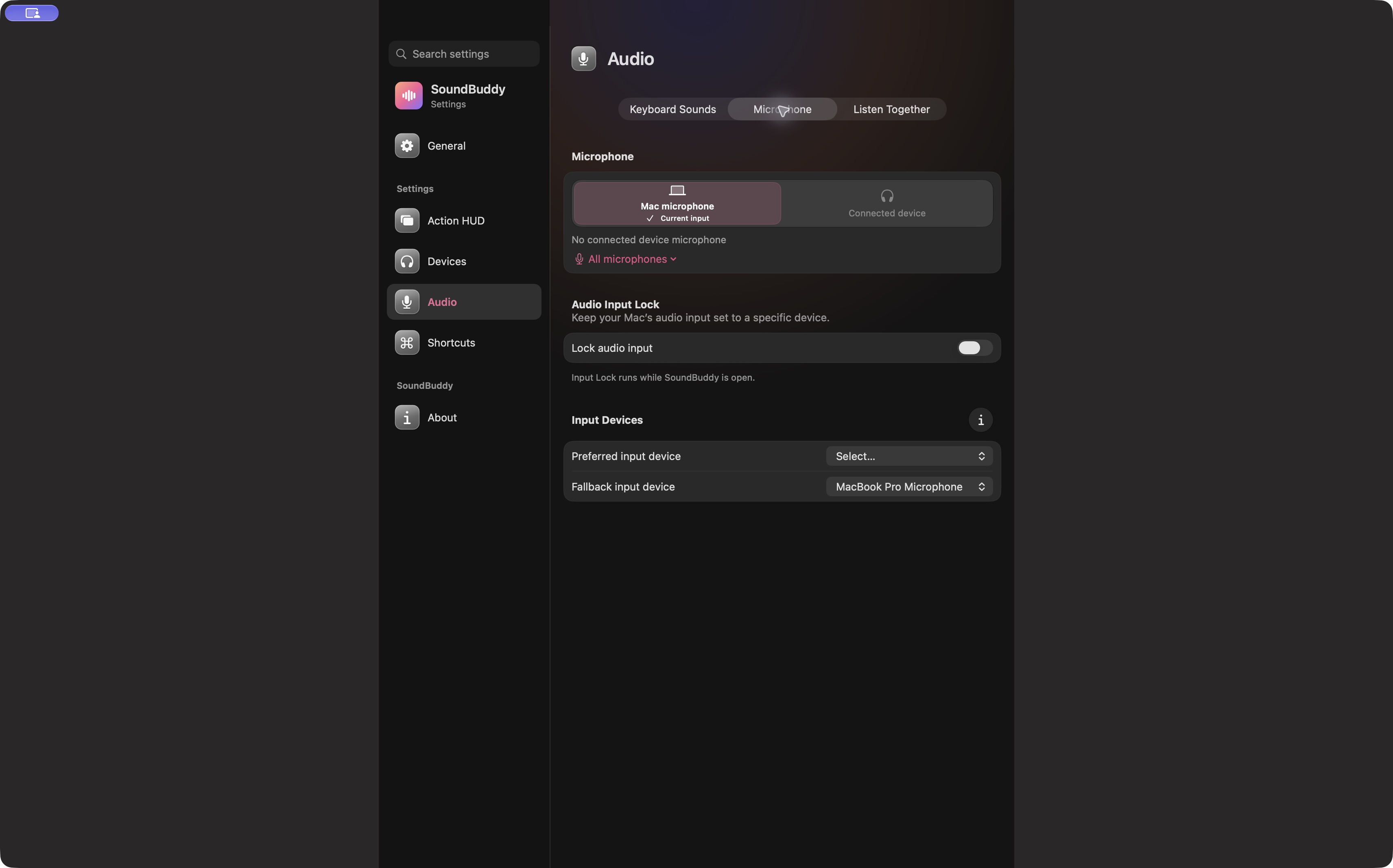
Open the full-size app capture to read the controls.
Changing an input preference is not a substitute for inspecting processing in the app that receives the sound. Likewise, returning to Standard does not choose your intended physical microphone. The preferred/fallback guide covers configuration without treating a successful selection as a sound-quality result.
Compare one layer deliberately
Use a trusted app's appropriate test or a planned test session, with non-sensitive speech or a brief sound you intend to capture.
- Write down the system input and the app input, including whether the app follows the system default.
- Keep that device choice steady and note the available Mic Mode. If the control is absent, record that rather than guessing it is active.
- If a comparison is appropriate, change only the mode and repeat the same ordinary sound. Use the app's playback or receiving-side test to judge the actual result.
- Note what changed and what did not. Restore the earlier mode if the comparison is not useful, and keep unresolved symptoms for a targeted support report.
Check whether your test tool saves or uploads audio before using it. A Mac input meter cannot tell you how the remote listener hears the processed signal. No recording, Mic Mode change, interface or Voice Isolation test was performed for this article.
Next step: record both the selected input and available processing mode, then change only the layer that matches your problem.