Check your Mac microphone before saving a recording
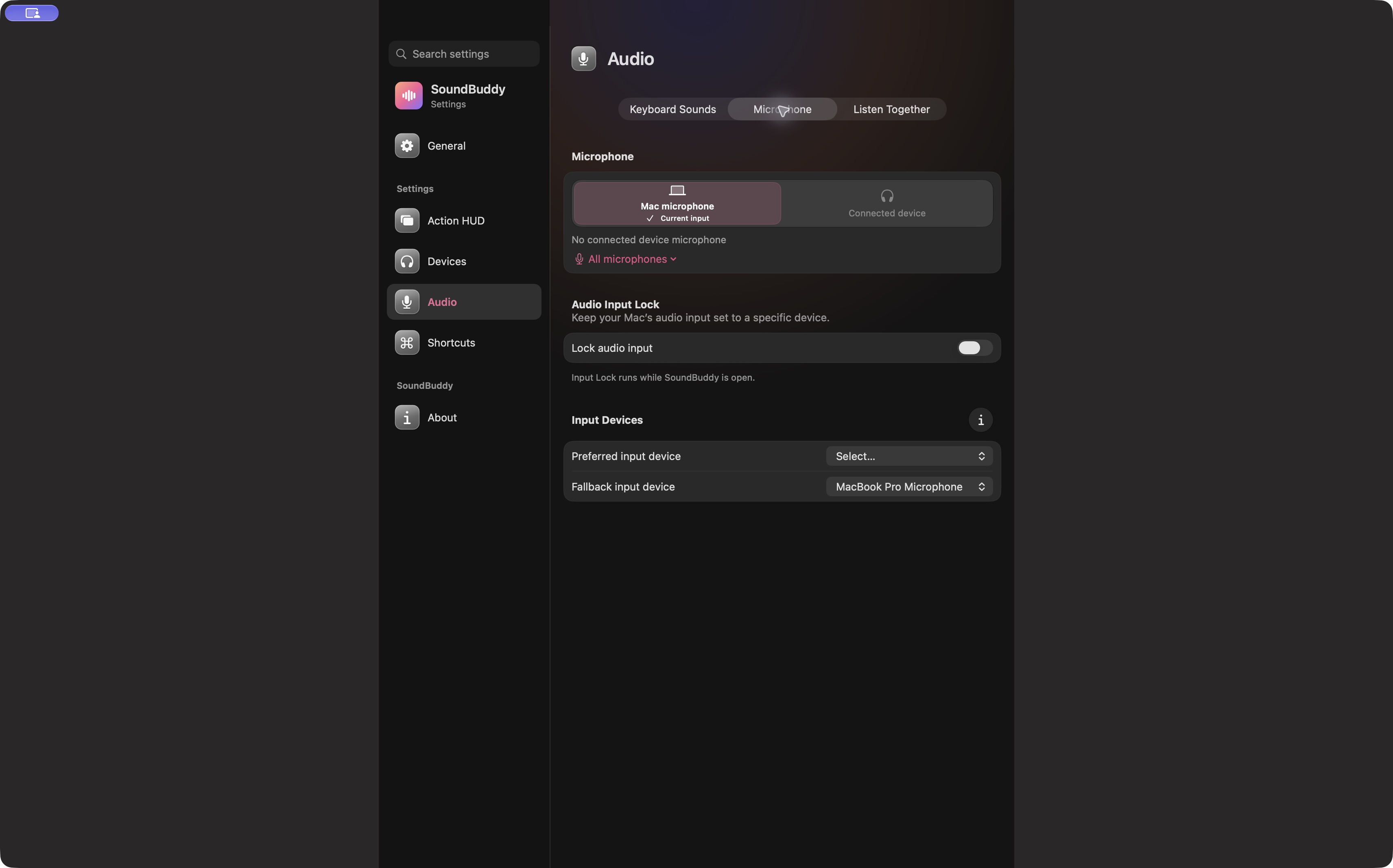
Start with a level check if your immediate question is whether the selected microphone receives sound. You can inspect the Mac's input meter without creating and saving a test recording. A moving meter is useful evidence of input activity, although it cannot tell you exactly how you sound to another person.
SoundBuddy is our product. Its microphone selector can help you inspect the current system choice. It does not replace the Mac's level meter or a call app's own test. The screenshot shows the selector, not a completed audio test.
Start with non-sensitive sound
Choose a moment away from an active call. Ask anyone nearby before making a test that might include their voice. Close unrelated conferencing or recording sessions so you know which tool you are observing.
Open System Settings > Sound > Input, select the intended available device and look at the input level meter. Say a plain test phrase, such as “checking this microphone”, and watch for a corresponding change. Apple's Sound settings reference identifies the input level meter as a visual representation of incoming sound. Exact options vary by Mac.
Do not interpret a tiny change as proof of clear speech. It might reflect background sound. Repeat the phrase at your ordinary speaking position, then stop speaking and compare the meter. Avoid tapping or blowing into a microphone as a substitute for an ordinary voice check.
Decide what the result establishes
| Observation | What you know | What remains unknown |
|---|---|---|
| Meter follows your test phrase | The selected input receives changing sound | How a meeting app processes or sends it |
| Meter stays still | This check did not show incoming sound | Whether selection, device or another setting caused it |
| Meeting app fails despite meter activity | The system test and app test disagree | The app's access, selection, mute or processing state |
Keep the distinction when reporting a problem. “The Mac meter moves, but the meeting test stays silent” is more useful than declaring the microphone broken.
Add a recording only when playback answers a question
If you need to hear distortion, distance or background noise, a short playback test may be appropriate. Use a trusted tool, inspect whether it saves or uploads audio, and use non-sensitive speech. Decide where any file goes and remove it through that tool's normal controls when you no longer need it.
No recording was made for this article. Choosing to observe a meter does not establish the privacy behaviour of every app already open on your Mac. Review active tools and their microphone access separately.
For the next layer, use the pre-call check card or the browser permission guide.
Next step: record “meter responds” or “meter does not respond” before deciding whether a recording is needed.