Wrong pitch or speed in Logic? Check the sample-rate setup
If recorded speech sounds unusually high or a project plays at the wrong speed, first identify where the change appears. A late note in your headphones, a recording that plays too fast and an audio/MIDI sync alert are different observations. They do not all call for the same adjustment.
SoundBuddy is our product. Its microphone selector concerns the Mac's default input. This guide uses Logic Pro's own documentation to separate file, project and interface settings from that device choice.
Preserve the original and describe the symptom
Keep the original project and source audio intact before experimenting. Note whether the change happens in an existing file, a newly recorded section, the whole project or an exported copy. Also note whether the issue is wrong pitch/speed or simply a delayed response while playing.
A public Logic voice-recording discussion describes high-pitched recordings after moving a setup to another Mac. The author reported that reconnecting devices and restarting eventually helped, while the cause remained unclear. Replies about sample rates were suggestions, not a confirmed diagnosis. Do not treat that reported recovery as a reason to disconnect equipment during active work.
For a sound that arrives late but otherwise plays normally, use the monitoring-delay guide. Changing pitch or moving recorded regions is a different intervention.
Inspect the file and project before changing either
Apple's Logic project sample-rate guide explains that a file/project sample-rate mismatch can change playback pitch. It also describes conversion, so a difference between two displayed rates is not by itself proof of a fault.
Inspect the project under File > Project Settings > Audio and note its sample rate. Record the affected file's rate too. Apple's guide names Convert audio file sample rate when importing under Project Settings > Assets, and separate file-conversion options in the Project Audio Browser.
These are distinct from simply choosing an input. Apple cautions against changing the project rate after recording or adding audio, because existing files may no longer match. Start with an inspection and a preserved copy rather than changing the original project's rate to see what happens.
The guide also describes real-time conversion when an output device cannot support a project's rate. An unsupported hardware rate therefore does not automatically mean the project must play incorrectly.
If an audio/MIDI sync alert appears, compare the interface
Apple's audio/MIDI sync-alert guidance addresses an incoming rate that differs from the project or fluctuates. It says an external interface should normally follow the project, but recommends checking the interface's settings when they do not match.
Use the interface maker's documented control app to inspect its rate, and compare that with the Logic project. If another digital device is connected, Apple's guide also says to establish a single main clock source. Follow the specific hardware documentation; a default-microphone switch does not establish clock configuration.
An alert is a reason to follow that scoped troubleshooting guide. A recording that merely sounds unusual does not prove that this alert condition occurred. Keep the exact message in your notes rather than replace it with a guessed cause.
Read SoundBuddy's microphone choice as a device choice
SoundBuddy's microphone selector and Input Lock concern the Mac's default input and its preferred/fallback device choice. Those labels do not show a Logic project's rate, a file-conversion decision or an interface clock.
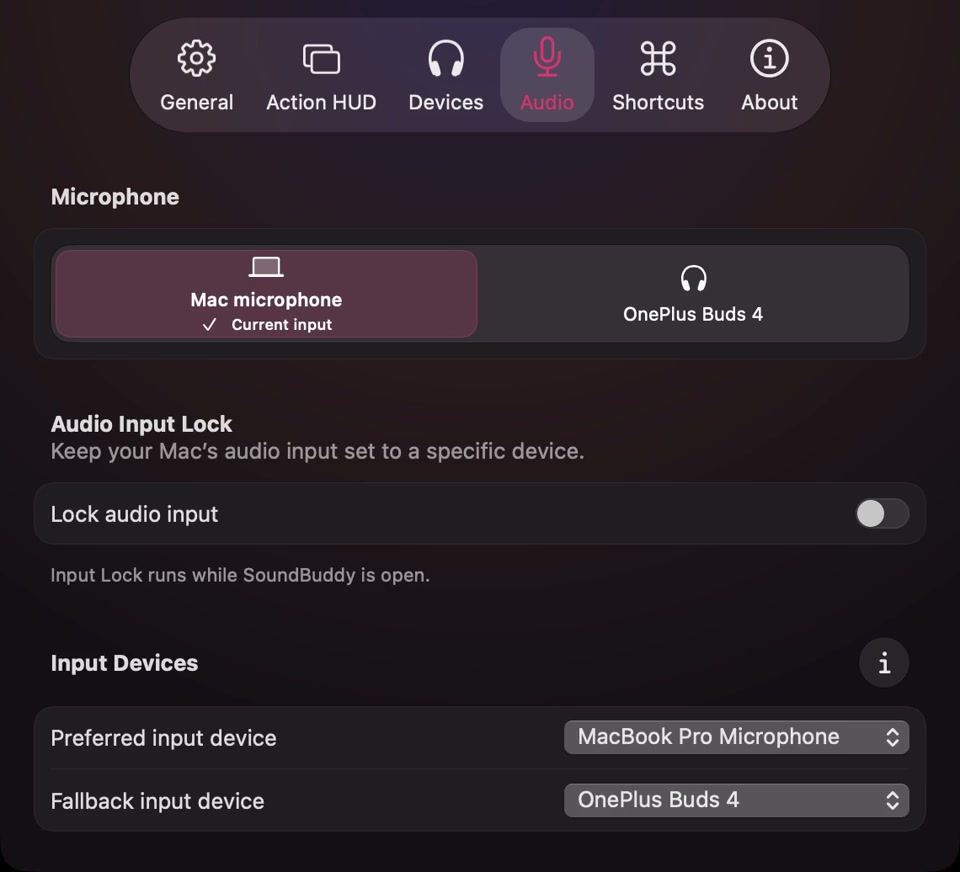
Open the full-size actual Audio-settings capture
If Logic's selected input is the question, inspect its own Audio settings too. The app-versus-Mac input guide explains why one default-input label does not establish every app's selection. Choose the intended input separately from investigating a speed or pitch change.
Make the next comparison explainable
Outside a recording session, keep a small setup note:
- The exact symptom and whether it affects playback, recording or an export.
- The preserved project and affected file, with their reported rates.
- The app's input/output choices and the interface's reported rate, if applicable.
- Any exact sync alert and the hardware documentation relevant to its clock setup.
- The single comparison you intend to make, its original state and its observed result.
Use a non-sensitive example in a copy if a documented comparison is needed. Avoid combining a project-rate change, file conversion, interface reset and device switch into one experiment. If the problem remains, the unchanged original and these observations give support a clearer starting point.
No audio, conversion or hardware test was performed for this article. A useful outcome is locating the stage that needs investigation, rather than assuming one sample-rate number or a connected-device status explains every pitch problem.
Next step: preserve the original, identify where pitch or speed changes, and inspect the file, project and interface settings before making a documented change.