Hear your own voice in headphones? Check sidetone separately
If your own voice is unexpectedly loud in your headset, first distinguish local microphone feedback from a voice returning through the meeting. You may also have the opposite preference: wanting more of your own voice while wearing closed headphones. Those are listening choices, not proof that the remote person hears a problem.
SoundBuddy is our product. Its microphone selector concerns the Mac's default input. That choice does not show a headset's sidetone level or establish what another participant receives.
Identify who hears the repeated voice
Write down whether you hear yourself, another person hears a repeat, or both happen. Note whether the effect is immediate or noticeably delayed, and whether it occurs only while the headset microphone is in use. These observations help describe the path; timing alone is not a diagnosis.
An older public Mac discussion describes a caller wanting sidetone for Zoom on a Mac mini. Another participant preferred not to hear that feedback. The thread shows different preferences, rather than a single correct level or proof that an app suggested in the replies is right for your setup.
If the same meeting has several active nearby audio connections, use the duplicate-audio echo guide. A local monitoring preference and a second call connection need different checks.
Understand the headset's local feedback
Sony's sidetone support guidance explains that, for its applicable headphones, microphone pickup can let the wearer hear their own voice and some surrounding sound during calls. The listening experience can therefore differ from music playback, including how effective noise cancellation seems to the wearer.
This is a model-specific explanation. It does not establish that every hiss, delay or echo is intentional sidetone. Nor does hearing more of the room in your own headphones establish that the other participant receives the same sound at the same level.
Keep the local listening result and the transmitted speech result separate. Ask a consenting receiver to describe the latter rather than infer it entirely from what you hear yourself.
Check the exact model's available control
Control availability varies. The same Sony guide provides a Capture Voice During a Phone Call option for named models in Sound Connect. A different Sony voice-feedback reference states that sidetone cannot be adjusted or disabled for its applicable products.
Check the applicability list and instructions for your exact headphones, connection and software. Do not assume that a slider from another model's screenshot exists on yours, or that phone-app instructions describe a Mac system setting.
If an appropriate control is already available in your supported setup, record its original state before comparing it. If the documented model has no adjustment, keep that limit in the result. Repeatedly resetting the Mac's microphone permissions does not establish a missing headset control.
This guide does not ask you to install a routing app or add another microphone-to-speaker path. A second monitoring path can complicate the comparison you are trying to make.
Keep microphone selection separate from monitoring
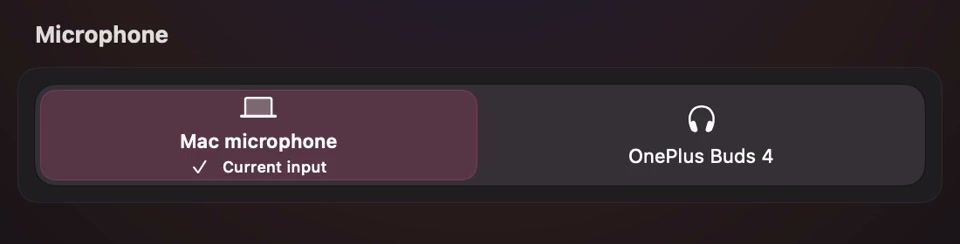
Open the full-size actual microphone-controls capture
The selected microphone label identifies the Mac's input choice at capture time. It does not prove that the call app follows that choice or identify the headset's local monitoring behavior. Use the Mac-versus-app input guide if the physical input is unclear.
Similarly, the Mic Mode guide covers processing in supported apps. Choosing a microphone, filtering speech and adjusting what you hear of yourself are separate decisions.
Compare local feedback and the receiving side
Use a short agreed rehearsal outside a real work call, with non-sensitive words:
- Record the headset model, connection, call app and selected microphone.
- Describe the local effect: too much self-voice, too little, a delay or a different sound.
- Ask the other person whether they hear a repeat or unwanted background sound.
- If your model offers the relevant feedback control and you want a change, compare only that choice. Keep the microphone and meeting setup steady.
- Restore your preferred state and note what changed locally and what changed for the receiver.
If a delayed repeat remains, preserve that observation instead of naming it sidetone simply because it is your own voice. Use the meeting and device maker's troubleshooting guidance for the path that still needs investigation.
No call, sidetone or microphone-monitoring test was performed for this article. A useful result is a clear distinction between the feedback you hear and the audio you transmit, with only the controls your actual setup supports.
Next step: identify who hears the repeated voice, then check the exact headset's feedback controls before changing several audio settings.