Share a clip's audio in Google Meet on Mac
If teammates can hear your voice but not the video you are presenting, check the presentation's audio choice separately from the microphone. A working microphone establishes one path into the meeting. It does not establish that the clip is being shared.
SoundBuddy is our product. Its default-microphone controls can help with the spoken part of a call. The browser and Meet presentation controls determine which computer audio you offer to attendees.
Record the two results separately
A public Mac mini discussion describes exactly this split: speech reached the meeting while media audio did not. The author later reported trying Safari and Chrome and still having a problem. That is an unresolved individual report, not proof that a browser switch or a new driver will fix every setup.
Before changing anything, note:
- Whether the other person hears your spoken test phrase.
- Whether they hear a short, non-sensitive clip you intend to present.
- Whether you selected a browser tab, a window or the entire screen.
- The browser, macOS version and audio-sharing option actually available to you.
Being able to hear the clip locally is a third observation. Keep it separate from what the attendee receives.
Start with a specific Chrome tab when it fits the task
Google's presentation instructions describe Present now and the choice of a tab, window or entire screen. For a clip in a Chrome tab, select that tab and inspect Also share tab audio in the chooser. Check the selected source rather than assume a visible presentation includes sound.
For a different clip tab, inspect Share this tab instead. This changes presentation content, not the call microphone.
Hosts or organisational settings can restrict presenting. Check that restriction if the presentation controls are unavailable.
Treat window and system audio as a separate option
Do not rely on the blanket claim that Meet can only share sound from a tab. Google's current screen-sharing comparison lists audio sharing for window/desktop presentations too, with macOS 14.2 or later required for that route. It recommends an up-to-date Chrome browser for fuller sharing functionality.
The presentation guide names Also share system audio for a window or entire-screen share. Inspect whether your current chooser offers it. Google's comparison also says window/desktop sharing is unavailable within an Adaptive Audio cohort. A missing option needs its context recorded; it is not evidence that SoundBuddy chose the wrong microphone.
Choose only the scope needed for the clip. System audio has a different scope from one tab, so consider other apps that may produce sound during the presentation. Avoid opening private work as part of a rehearsal.
Review the Mac permission that belongs to the browser
Apple's screen and system-audio access guide places those controls under System Settings > Privacy & Security > Screen & System Audio Recording. Review the browser entry and the access requested for the sharing method you intend to use.
This access is different from microphone permission or SoundBuddy's keyboard Input Monitoring permission. Grant access only when you choose to use the relevant feature and understand the app's privacy practices. No permission was changed for this article.
Keep the spoken microphone check in its own role
SoundBuddy's input selector concerns the Mac's default microphone. Meet can have its own input selection, and neither selector enables a presentation's tab/system-audio toggle.
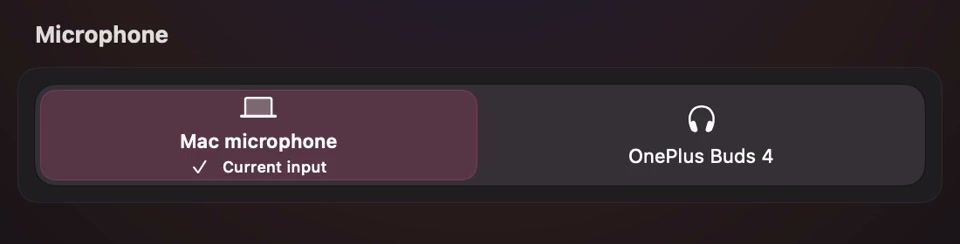
Open the full-size actual microphone-controls capture
For the voice path, use the Mac-versus-app input guide. If unwanted typing feedback reaches a recording or shared-audio source, the capture-path guide covers that different problem. Headphones do not, by themselves, establish that digital app audio is excluded from sharing.
Rehearse the intended share before the real presentation
Use an agreed practice session with a colleague and a benign clip. Keep one receiving endpoint active rather than adding nearby call speakers just to listen back.
- Ask whether the spoken phrase is heard, then test the clip separately.
- Record the selected tab/window/screen and its available audio toggle.
- If speech works but the clip is silent, compare the intended share choice before touching microphone settings.
- Ask the receiver to confirm the clip itself, rather than infer success from a moving picture or local playback.
- Stop presenting when the comparison is finished and restore any choice you deliberately changed.
No meeting or remote-audio test was performed for this article. The useful result is a confirmed voice path and a confirmed presentation-audio path for the specific browser and share mode you plan to use.
Next step: inspect the presentation's audio option, then verify the clip with an informed receiver before relying on the setup for a meeting.