Typing sounds in a screen recording? Check the audio path

Typing sounds can reach a recording in different ways. A microphone may pick up the physical keyboard or sound from speakers. A recorder may also capture digital app audio directly. Moving playback into headphones does not, by itself, establish that an app-audio source has been excluded.
SoundBuddy is our product. Its optional typing feedback adds digital sound; switching that feedback off does not silence the physical keyboard. Start by identifying which path your recorder or screen-sharing app includes, then change one source at a time.
Separate physical sound from app playback
| Possible path | What to inspect | What the observation does not prove |
|---|---|---|
| Keys make sound in the room | The selected microphone and its recorded track | That the noise comes from a sound-pack app |
| An app plays typing feedback | The app's own sound control and your capture sources | That headphones keep it out of desktop-audio capture |
| Speakers play feedback near a microphone | Playback and microphone pickup as separate sources | That disabling digital capture removes acoustic pickup too |
For example, OBS documents desktop and individual-app audio capture on supported Mac versions. Its guide distinguishes OBS versions and capture-source types. A scene can therefore include audio separately from the microphone you expected to hear.
For meetings, Zoom documents Share Sound as a way to send computer audio. Inspect that option when relevant. Microphone mute is not a complete inventory of the computer-audio sharing choices.
Start with SoundBuddy feedback off
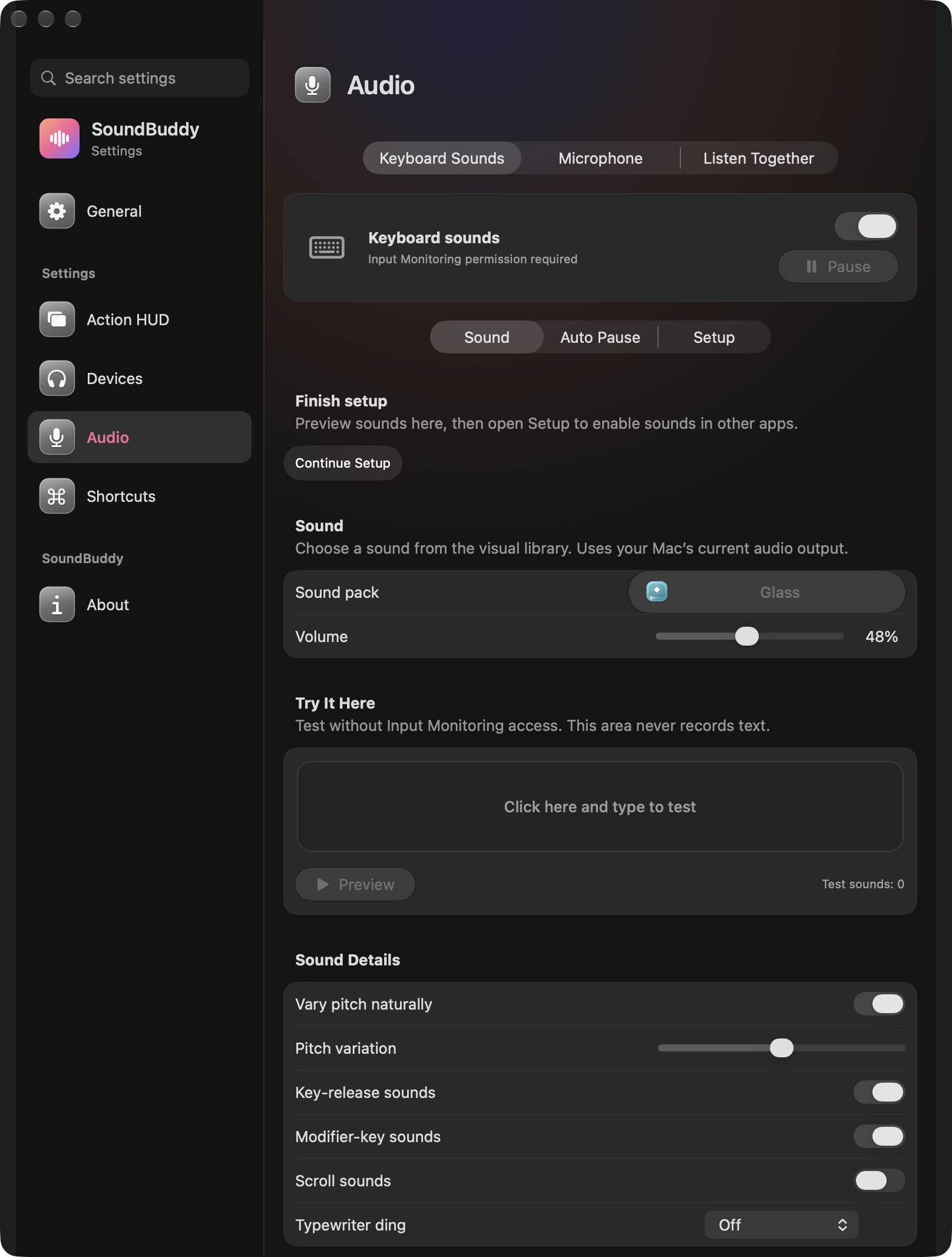
Open SoundBuddy > Settings > Audio > Keyboard Sounds and review the main Keyboard sounds switch. For a presentation where you do not want its typing feedback, switch it off and avoid starting a preview. This controls SoundBuddy's feedback, not another app's effects or the keyboard's physical mechanism.
The pictured permission requirement is also a reason to read the status rather than assuming sounds are active. You do not need to grant Input Monitoring just to carry out a quiet recording check. For setup questions, use the separate keyboard permission guide.
Compare one capture source at a time
Use your existing recorder's local test workflow, with an empty window and a few harmless keystrokes. Keep private documents and other people's speech out of the test. Do this before a real presentation or meeting.
- Write down the microphone source, any desktop or app-audio source, and SoundBuddy's current status.
- With SoundBuddy feedback off, make a short baseline test in the capture arrangement you intend to use.
- If clicks remain and your recorder offers separate source controls, compare a microphone-only test with an app-audio-only test. Change one source, then restore it before comparing the other.
- Listen to the result rather than relying only on what you heard in your headphones. Note which source was included when the clicks appeared.
- Restore the sources you need and make one final rehearsal. For a meeting, use its available test workflow or an agreed practice session rather than assuming the local recording matches what attendees receive.
These comparisons narrow the next question. They are not a hardware diagnosis: capture software, routing tools and the selected devices can change the result. No recording was made for this article.
Treat Auto Pause as a separate convenience
SoundBuddy has an optional microphone-use Auto Pause condition, covered in the Auto Pause guide. Review and test it if you want that behaviour. It does not serve as a complete check of a recorder's sources or what remote attendees receive.
If your goal is simply to keep SoundBuddy feedback out of this session, use its explicit sound switch and verify the result in the intended capture setup. You can revisit your preferred feedback afterward. SoundBuddy does not remove physical keyboard noise from recorded speech.
Next step: note whether clicks remain with SoundBuddy feedback off, then compare the relevant capture sources before changing more audio settings.