Mac using your iPhone microphone? Keep camera and audio choices separate
An iPhone can appear as a Mac audio input through Apple's Continuity Camera feature. That does not mean you must use its microphone whenever you want its camera. Start by deciding which combination you want, then inspect the meeting app's audio and video choices separately.
SoundBuddy is our product. Its microphone controls concern the Mac's default input. They do not turn on Continuity Camera, establish iPhone eligibility or force a meeting app to use that default.
Decide what you want to keep
| Your intended setup | First choice to inspect | Consequence to keep in mind |
|---|---|---|
| iPhone camera with a Mac or headset microphone | Separate camera and microphone selectors in the call app | Requires an app that offers those choices |
| No iPhone camera or microphone through Continuity Camera | The Continuity Camera setting on the iPhone | Turning it off removes both roles, not just the microphone |
| End the current iPhone connection | The iPhone's Disconnect control, when shown | The phone can disappear from camera and input lists |
Use this table outside a live call. A change that removes the current device can interrupt the session, so keep an available alternative for your next meeting.
Keep the camera while choosing another microphone
Apple describes the iPhone microphone as a separate choice in apps that offer a mic setting. If that is your app's arrangement, keep the iPhone selected for video and choose the intended Mac or headset input for audio.
Then check System Settings > Sound > Input and the app's own audio test. A system default and a named input saved by the app can differ. Use the call-app selector guide when those choices disagree.
If the app does not expose separate selectors, consult its current documentation rather than assuming a system change will override its camera/audio behaviour. This guide makes no active-call switching promise.
Turn the feature off only if you do not want either role
On the iPhone, open Settings > General > AirPlay & Continuity, or AirPlay & Handoff on versions using that label, and review Continuity Camera. Apple's instructions identify turning it off as the way to stop the Mac recognising that iPhone as a Continuity camera or microphone.
That is a broader decision than choosing a different mic for one app. Note the original state if you may want the camera later. Do not change Handoff, Bluetooth or unrelated sharing settings just because they are nearby.
Understand a temporary disconnect
The Mac user guide explains that tapping Disconnect on the iPhone removes it from the available camera and microphone lists. It also describes reconnecting with a USB cable before choosing the phone again.
If you intentionally disconnected the phone, its absence from Sound settings is therefore a different question from a remembered Bluetooth device name. To use it again, follow Apple's reconnection and setup instructions, including its Continuity requirements. A name in a Bluetooth list is not a successful microphone test.
Read SoundBuddy's current input as a system choice
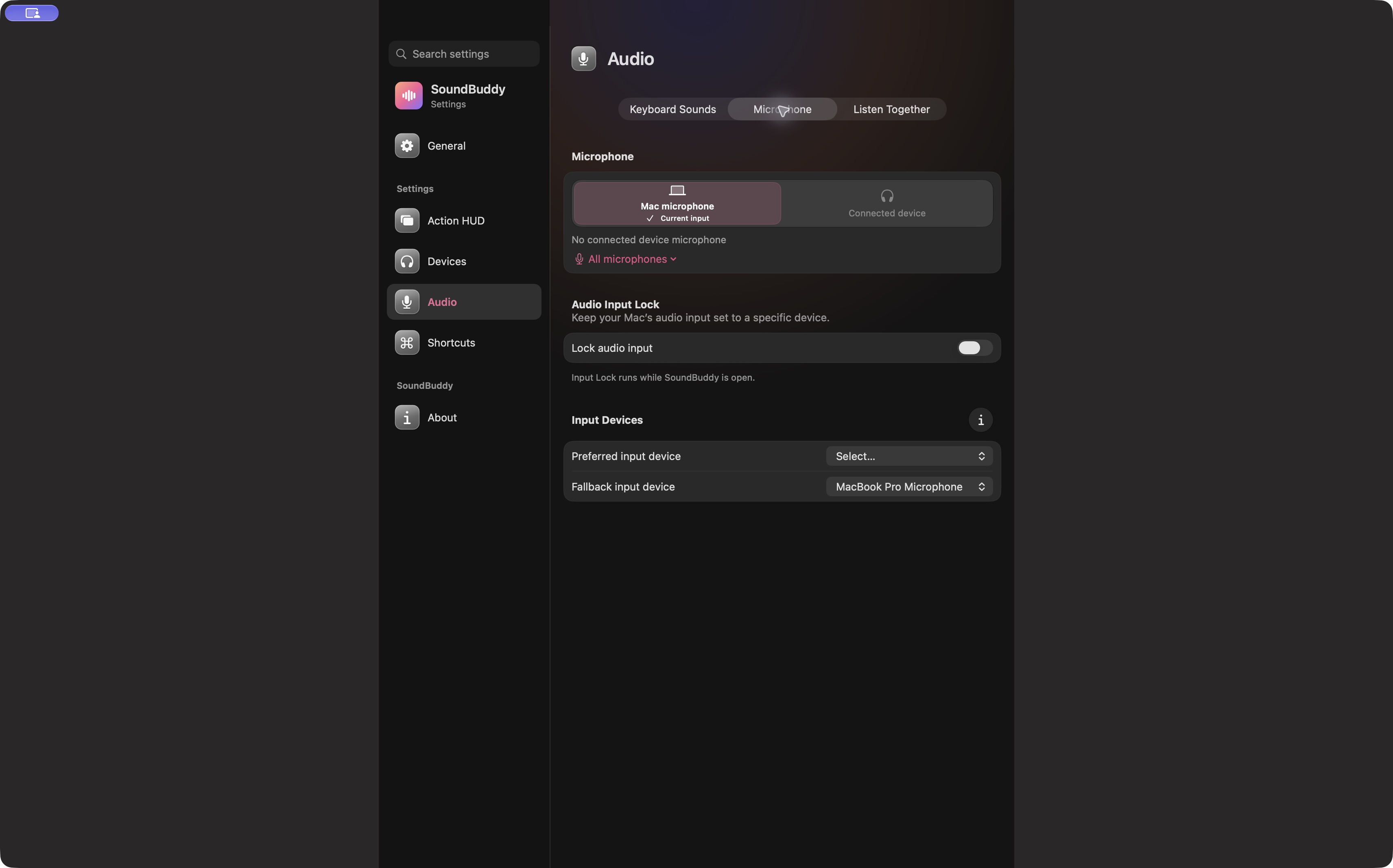
When the Mac microphone is available, SoundBuddy's Mac microphone shortcut can change the system default. Check the call app afterward. If Input Lock is already on, review its preferred and fallback choices before expecting a different selection to stay in place.
SoundBuddy cannot make an unavailable phone input appear just from its device name. Keep iPhone setup, available system inputs and the meeting app's choices as separate observations.
If interruptions continue, preserve the useful details
Write down the exact notification, the app using audio, the selected input, your macOS/iOS versions and whether Continuity Camera is on. A continuing notification is not proof that the microphone is still selected, and changing a setting is not proof that every app has adopted it. No Continuity hardware test was performed for this article.
Next step: choose whether you want the iPhone camera, its microphone, both or neither, then verify that combination before the next call.