Control Mac rain sounds separately from typing feedback

A steady rain sound and a click after each keystroke come from different kinds of audio. If you use both while working, keep track of the control for each layer. Pausing typing feedback does not establish that every other sound on the Mac has stopped.
SoundBuddy is our product. Its keyboard-sound controls manage its own feedback. Apple's Background Sounds is a separate macOS feature for continuous ambient audio, with its own switch and volume.
Identify which layer you are hearing
Start with the sound that is already playing. Does it continue when you stop typing, or does it occur after individual keys? Is it a steady ambient sound, a music player or a short connection cue?
Use one owner's control at a time and note what remains audible. That is a more useful comparison than turning the entire Mac down and losing your meeting audio too. A sound continuing after you pause one feature can simply mean another source is still playing.
If you are unsure which SoundBuddy cue you hear, the connection-versus-keyboard sound guide explains those event-based sources.
Use macOS for its ambient Background Sounds
Open System Settings > Accessibility > Audio and find Background Sounds. Apple's Audio settings reference documents its on/off control, sound choice and separate Background sounds volume.
Note the current state before changing it. If you want to try ambient audio, choose an available sound and begin at a comfortable low level. If you want it to stop, use that feature's own switch. Keep the overall listening output steady while comparing its volume.
Review only the options available in your installed macOS version. Apple's current reference also describes a timer and an option to turn sounds off when the Mac is not in use. The latter concerns sleep, screen saver and screen lock. It should not be treated as a microphone-use rule for a meeting.
Treat SoundBuddy Auto Pause as a separate preference
SoundBuddy's optional microphone Auto Pause concerns typing sounds and their previews. It does not operate Apple's Background Sounds switch or pause every app's audio. If you want a quiet call, deliberately stop any ambient layer you do not want before joining, then check the typing-feedback preference separately.
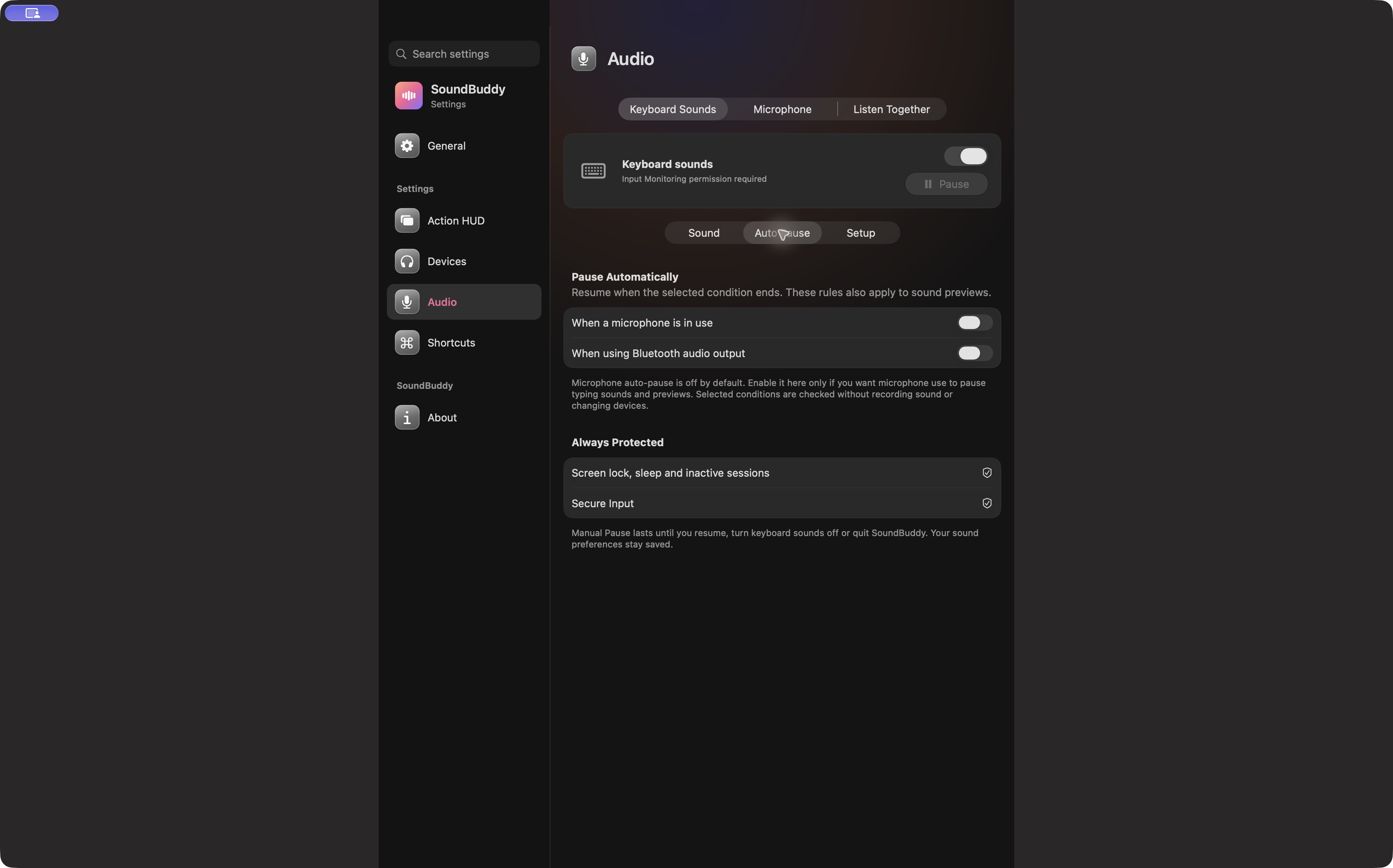
Open the full-size actual Auto Pause capture
Use the microphone Auto Pause guide if that optional typing rule suits your workflow. The screenshot above does not demonstrate it taking effect. You do not need to enable SoundBuddy keyboard feedback or grant it access merely to use Apple's ambient audio.
Compare layers without assuming a productivity benefit
Try the ambient sound on its own first, if you want it. On a separate comparison, add typing feedback only if you already have it set up and want to hear that combination. Keep the task and listening level similar enough to notice whether the extra layer is useful or distracting.
For each comparison, record which source is enabled, what you can hear and whether the work remains comfortable to follow. Prefer the simpler configuration if adding another sound makes reading or conversation harder. Silence remains a valid choice.
This is a personal preference check, not evidence that rain, noise or typing feedback makes you finish work faster. The music and productivity guide explains why pleasant sound and measured task performance should be assessed separately.
If the switch is on but nothing is audible
Check the selected output and that feature's own volume before increasing every control. If you already use an audio-routing or equalizer utility, note its state as part of the observation. A switch being on is not a complete test of the output path.
A historical eqMac report describes Background Sounds being inaudible with that utility on a specified macOS and app version. It is one reported setup, not proof of a current universal conflict or a SoundBuddy defect. Do not assume its explanation applies to your Mac.
Next step: list the sound layers you actually use, identify each source's switch and change one at a time. Keep ambient audio, typing feedback and meeting audio explicit so you can stop the intended sound without losing the rest of your setup.