Other apps silent while music uses your DAC? Check exclusive access

If music plays through your Mac's connected audio device while a browser or another app stays silent, check whether the music player has exclusive access to that output. Hearing one app does not establish that every app can share the device.
Start with the combination that fails: which player, which output and which second app? This guide addresses output sharing. A missing microphone or silent software instrument is a different investigation.
Decide whether you want shared audio
Roon's Exclusive Mode explanation says the player can take control of a connected audio device so other applications cannot share it during that time. Its examples include system notifications and YouTube alongside music. Not every output offers the same setting, and its description distinguishes connected devices from networked outputs.
That gives you a useful question before changing anything: do you want one player to own this output, or do you need several apps audible through it?
For a listening session, exclusive access may be intentional. For a desk session involving a tutorial or another app, investigate sharing rather than assuming the DAC is broken. This is a workflow choice, not a claim that either mode always sounds better.
Inspect the player setting for the selected device
TIDAL's Exclusive Mode support page describes output-device control and locates its setting under Settings, Streaming, Sound Output and More Settings. Inspect the device actually selected there; do not assume it matches every other app's destination.
The page distinguishes Exclusive Mode from Force Volume, which sets the app volume to its maximum for control elsewhere. These are separate choices. Enabling Force Volume is not a troubleshooting step in this guide. The same page says volume in Exclusive Mode is adjusted inside TIDAL.
Control names can differ across players and versions. Use the documentation for your player and output instead of copying a Windows sound-panel procedure onto macOS.
Compare one sharing choice outside a live session
Use this as a proposed comparison, after any important call, recording or performance:
- Note your macOS version, player version, output-device name and the second app that is silent. Record each app's selected destination where that choice is available.
- Note whether exclusive access is enabled for the player's output. Keep the original setting so you can restore it.
- If you need shared playback and the player offers the option, use its documented control to turn exclusive access off. Keep the device and other settings unchanged.
- With volume set conservatively using the appropriate control, compare the same player and second app again. Avoid switching between full-volume settings or altering hardware controls at the same time.
- Record whether the second app becomes audible. Restore the listening setup you prefer afterward.
If that comparison changes the result, it supports an output-sharing explanation for that configuration. It does not prove a universal Mac problem. If it makes no difference, record that and inspect the second app's destination and playback controls separately. The Safari playback guide covers browser-specific questions.
Do not reset the whole audio system, install drivers or change firmware just to test this single setting. If the output offers no exclusive option, note that limitation instead of searching for a control that may not exist.
Separate other-app silence from the player's own interruption
A public TIDAL Mac discussion reports the music player's own playback stopping with an external DAC. A reply describes headphones restarting and sound changing destination. Another comment later says the issue seemed fixed, without a version or independent confirmation.
That historical discussion establishes a reported problem, not a current confirmed defect or a diagnosis of your setup. The player's own interruption and other apps being unable to share its output need separate descriptions. The post's use of “bitrate” does not establish which hardware or audio-format transition occurred.
For a useful support report, include the app and device versions, whether exclusive access was enabled, which app stopped and whether the destination changed. Do not include account details or private audio. Public desk research is not a customer interview or an equipment test.
Keep microphone selection separate from output ownership
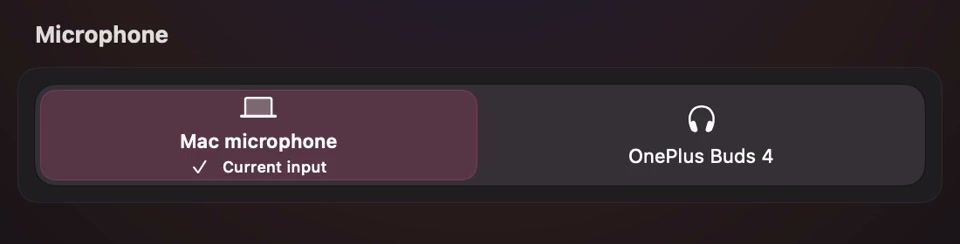
Open the full-size actual microphone capture
SoundBuddy is our product. This capture makes an input selection visible; it does not establish who controls an output. SoundBuddy is not an override for another player's exclusive device access. The volume-feedback guide also distinguishes visible feedback from control of a device's level.
No player, DAC or simultaneous-playback comparison was operated for this guide. The proposed benefit is a more specific troubleshooting question. No sound-quality or productivity improvement has been measured.
Next step: name the output both apps need, inspect exclusive access in the player and compare that one setting only if shared playback is your goal.