One Safari tab is silent? Check mute and Auto-Play separately
If one website is silent while another plays normally, keep that difference in the troubleshooting note. A tab's mute state, the website's own player and Safari's autoplay policy are separate checks. Switching headphones or raising the whole Mac is not the first way to tell them apart.
SoundBuddy is our product. Its device-status panel can help identify a connected accessory, but that panel does not establish the playback state of a Safari tab.
Start with the smallest failing scope
Use a short, non-sensitive clip and note whether playback was started deliberately, whether the picture is progressing and whether other known audio still works through the same output. Keep the output fixed during this comparison.
A public Safari discussion reports one site's clips becoming silent while other sites continued to play. The author had already checked that the Mac and tab were not muted; restarting Safari helped temporarily, but the cause was unresolved. This is a site-specific report, not proof that muting or autoplay explains every silent video.
If all apps are silent, investigate the selected output and its controls instead. The Mac output-control guide covers that different starting point.
Inspect the tab's Audio button
Apple's Safari tab-audio guide describes an Audio button in the Smart Search field and on tabs in the tab bar. To unmute the intended tab, use its muted Audio button when available.
Keep the action's scope clear. Safari also offers ways to mute other tabs or all playing tabs; those are different from unmuting the clip you want to hear. Preserve any unrelated tabs you intentionally kept quiet.
If you are unsure which tab is producing sound, Apple describes holding the Smart Search field's Audio button to see the playing websites, then choosing one to locate it. Do not use a broad unmute action just to discover the source.
Next inspect the website player's own mute and volume control, if it offers them. Note the state rather than changing the player, tab and output at once. A missing or inactive control is an observation to keep, not a value to invent.
Distinguish autoplay policy from a muted tab
Apple's Safari autoplay guide describes a separate per-website setting. In its current instructions, open the Page menu in the Smart Search field and choose Website Settings, then inspect Auto-Play.
The documented choices are Allow All Auto-Play, Stop Media with Sound and Never Auto-Play. They concern whether video starts automatically. They are not interchangeable with a tab's mute button.
Record the existing website-specific choice. If you deliberately want a change for that site, compare only that choice and retain your previous setting. Do not broadly allow autoplay for every website just to investigate one clip.
If you already pressed Play and the same player remains silent, an autoplay-policy change is not a proven repair. Keep that result and inspect the remaining scope instead of repeatedly relaxing unrelated settings.
Read the device panel as a separate observation
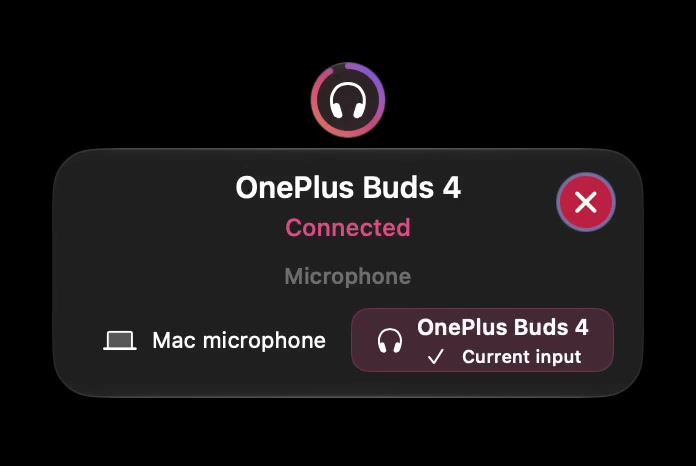
Open the full-size actual device-status capture
The microphone choice does not identify whether a browser tab is muted. A connection badge also does not prove that the intended output is receiving the website's audio. Use the device-state guide if those observations are unclear.
If you are comparing sound packs inside the native SoundBuddy app, use its local preview guide. Safari's website controls are a separate layer from that native workflow.
Compare one control, then retain unresolved evidence
Outside a call or recording:
- Note the site, browser/macOS versions and the selected output.
- Record whether Play was pressed, whether the picture advances and whether another known source works.
- Inspect the player, tab-audio control and per-site autoplay choice as separate fields.
- If one available control clearly differs from your intention, compare that choice alone with the same clip.
- Restore the preferences you want and record any site-specific silence that remains.
If the problem persists with the intended settings, keep the exact site and reproduction sequence for its support team. A change that helps temporarily does not identify the cause, and another app's playback success does not diagnose the website's player.
For the different problem where you hear a clip locally but Meet attendees cannot, use the presentation-audio guide. Local listening and transmitted presentation audio are different results.
No Safari playback or browser-setting test was performed for this article. The useful outcome is identifying the failing scope while preserving deliberate browser and listening preferences.
Next step: compare the player's state, the intended tab's Audio button and that site's autoplay choice before changing devices or global settings.