Choose Dictation or Voice Control before changing microphones
When a microphone indicator appears but words do not reach your document, identify the speech-input tool before changing devices. Entering text, controlling the Mac with commands and playing typing feedback are separate jobs.
SoundBuddy is our product. Its microphone controls concern the Mac's default input, and its keyboard feature plays feedback. Neither is the speech recognizer that inserts words into a document.
Separate a working microphone from working text entry
A public Mac support question reports a working Voice Memos microphone and working Voice Control, but no inserted text from standard Dictation. That observation does not diagnose the cause. It shows why a successful recording or visible microphone indicator should not be treated as a completed speech-to-text test.
Write down the result you need before investigating:
- Spoken words inserted into a document: identify the active text-entry tool and destination.
- Spoken commands navigating or editing: identify Voice Control and its command settings.
- Typing feedback becoming quiet during microphone activity: inspect SoundBuddy's own pause state.
Success in one of these does not establish success in the others.
Inspect the active Apple speech-input tool
Apple's Dictation guide distinguishes text entry from Voice Control's command-based interaction. When Voice Control is on, standard macOS Dictation is unavailable; Voice Control handles dictation instead.
For standard Dictation, inspect System Settings > Keyboard > Dictation. The same area contains Microphone source and the Dictation shortcut. Apple says Automatic chooses a device the Mac considers likely for that use, so record the displayed choice rather than assuming it matches another app.
Place the insertion point in the intended text field before starting. Apple's documented options include Edit > Start Dictation and an available microphone key or configured shortcut. Check the language and the instructions for your macOS version; availability and features vary.
The guide also directs you to the privacy information shown in Keyboard settings. Review that information for your configuration rather than assume that every type of spoken input has identical processing or sharing rules.
Inspect Voice Control in its own settings
Apple's Voice Control settings reference places its controls under System Settings > Accessibility > Voice Control. It has a language choice, its own Microphone selection and a command list. Automatic microphone selection is a choice for that tool, not evidence that every audio app shares the same input.
The reference also lists optional sound feedback when a spoken command is recognized. If you hear a cue, identify which feature produced it before changing SoundBuddy's typing sounds. A command-recognition cue and a keypress sound have different triggers.
Choose the tool that fits the task, then inspect that tool's current source. Do not repeatedly toggle both speech tools and several microphone settings at once; it makes the result harder to explain.
Read a SoundBuddy pause as feedback state
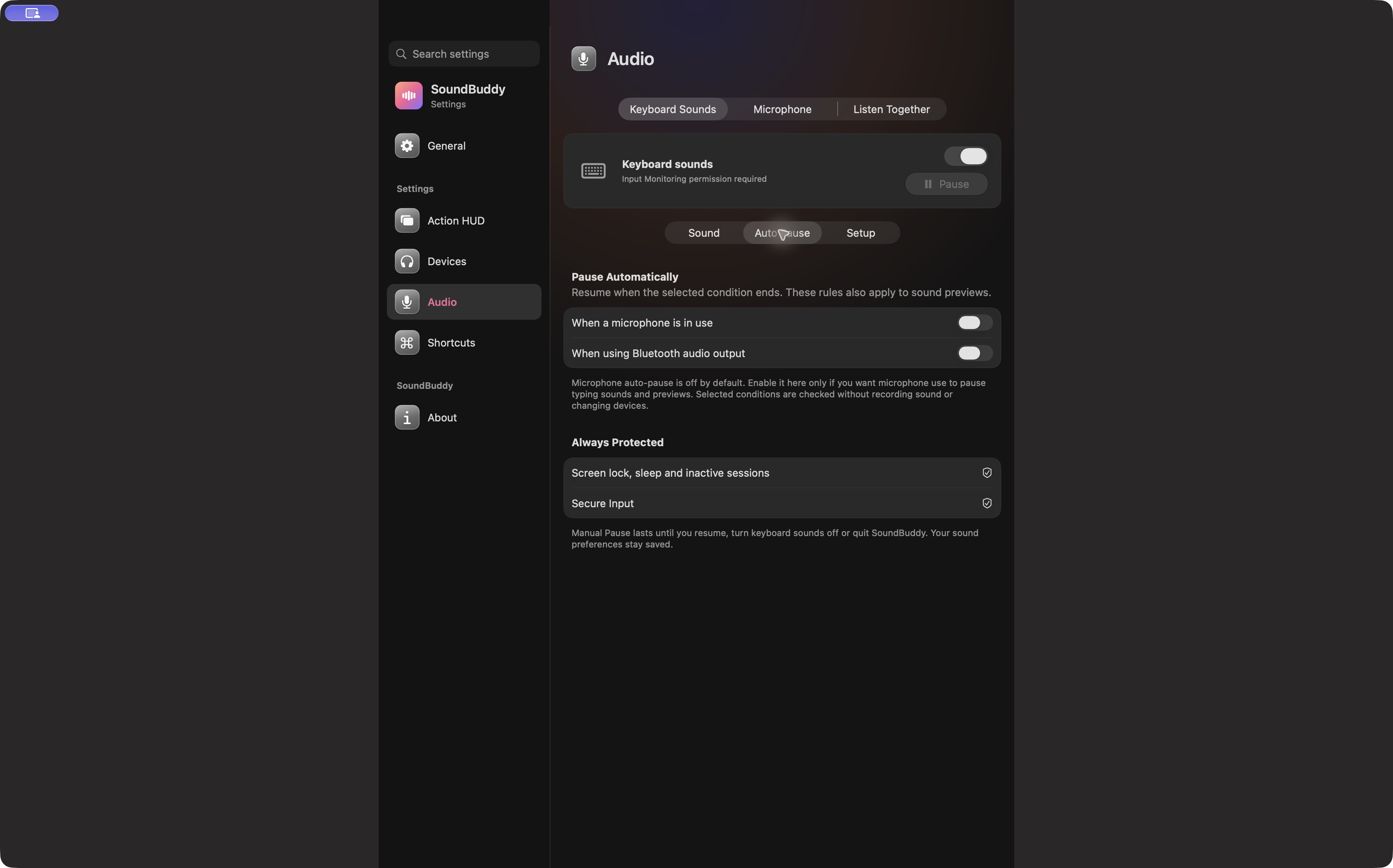
SoundBuddy's optional When a microphone is in use condition can pause its typing sounds and previews when it detects input activity. It is not a Dictation-specific detector, and a pause does not prove that the intended recognizer is hearing the intended microphone.
Open the full-size actual Auto Pause capture
If you choose this condition, distinguish detected activity, unavailable activity information and a manual pause. Read the status rather than infer that silence means successful transcription. The microphone Auto Pause guide covers that separate setup and comparison.
SoundBuddy's default-input choice also does not replace a speech tool's own source selection. Use the Mac-versus-app input guide for that distinction.
Check one short phrase in the intended destination
Use an empty, non-sensitive document and a phrase that contains no private work. Note the speech tool, its source and the destination before comparing anything. Observe separately whether the tool starts, whether text appears where intended and whether the words are correct.
If another app can record but this tool still inserts no text, keep that difference in the report. It is useful evidence, but it does not establish that permissions, hardware or the recognizer caused the failure. Do not use unrelated permission resets or a new audio purchase as a substitute for identifying the failing stage.
No transcription experiment was performed for this article. A useful comparison ends with one clear result and one setting changed at most, not an assumption that a microphone icon proves the whole writing workflow works.
Next step: name the active speech tool, inspect its source and verify a short phrase in the intended text field before troubleshooting typing feedback.