Focus is on, but you still hear a cue? Check the feedback source

If Do Not Disturb is active and you still hear a sound, first identify what produced it. A delivered notification, a keyboard-feedback sound, a connection cue and audio playing inside an app are different observations. Treat Focus rules and SoundBuddy's own feedback controls as separate checks.
SoundBuddy is our product. Its floating Action HUD is an app panel, and its optional sounds have app preferences. This guide does not establish automatic synchronisation between a Mac Focus and those preferences.
Check the notification rule before diagnosing a sound
Apple's Focus setup guide describes pausing or silencing notifications, with choices about allowed people and apps. Inspect the active Focus rather than assuming that its name means every possible interruption is blocked. Keep any exceptions you intentionally need.
Apple's notification guide separately explains muting app notifications. Those controls concern notifications delivered through that system. They are not evidence that every app's playback or custom interface has changed.
A closed June 2026 cmux issue reports a sound playing while its notification banner was suppressed. The report illustrates a reader's expectation about notification quiet versus app-generated audio. It does not establish cmux's current behaviour or a SoundBuddy bug.
Identify the event you actually noticed
Use one ordinary observation rather than changing every quiet setting at once:
- A banner with an app name: inspect that app's notification permissions and the active Focus rules.
- A cue immediately after a connection event: inspect the connection-sound preference in the app producing it.
- Feedback while typing: inspect the keyboard-sound feature's enabled and pause state.
- A sound when you open a menu: inspect the app's menu-opening sound preference if available.
- A floating status panel: inspect the app's own automatic-display preferences. A panel is not necessarily a Notification Center banner.
Do not label an unidentified sound “a notification” just because it is short. Note the event that coincided with it and the app you were using. If necessary, compare one app preference outside a real call, presentation or recording.
Set the SoundBuddy feedback you want
Open SoundBuddy > Settings > Action HUD. Inspect the automatic display controls for device connections, volume/mute changes and supported display-brightness changes. For quiet connection feedback, inspect both the automatic connection-display preference and Play connection and disconnection sounds. The sound switch is the direct audio choice; do not assume every combination of popup and sound preferences operates independently.
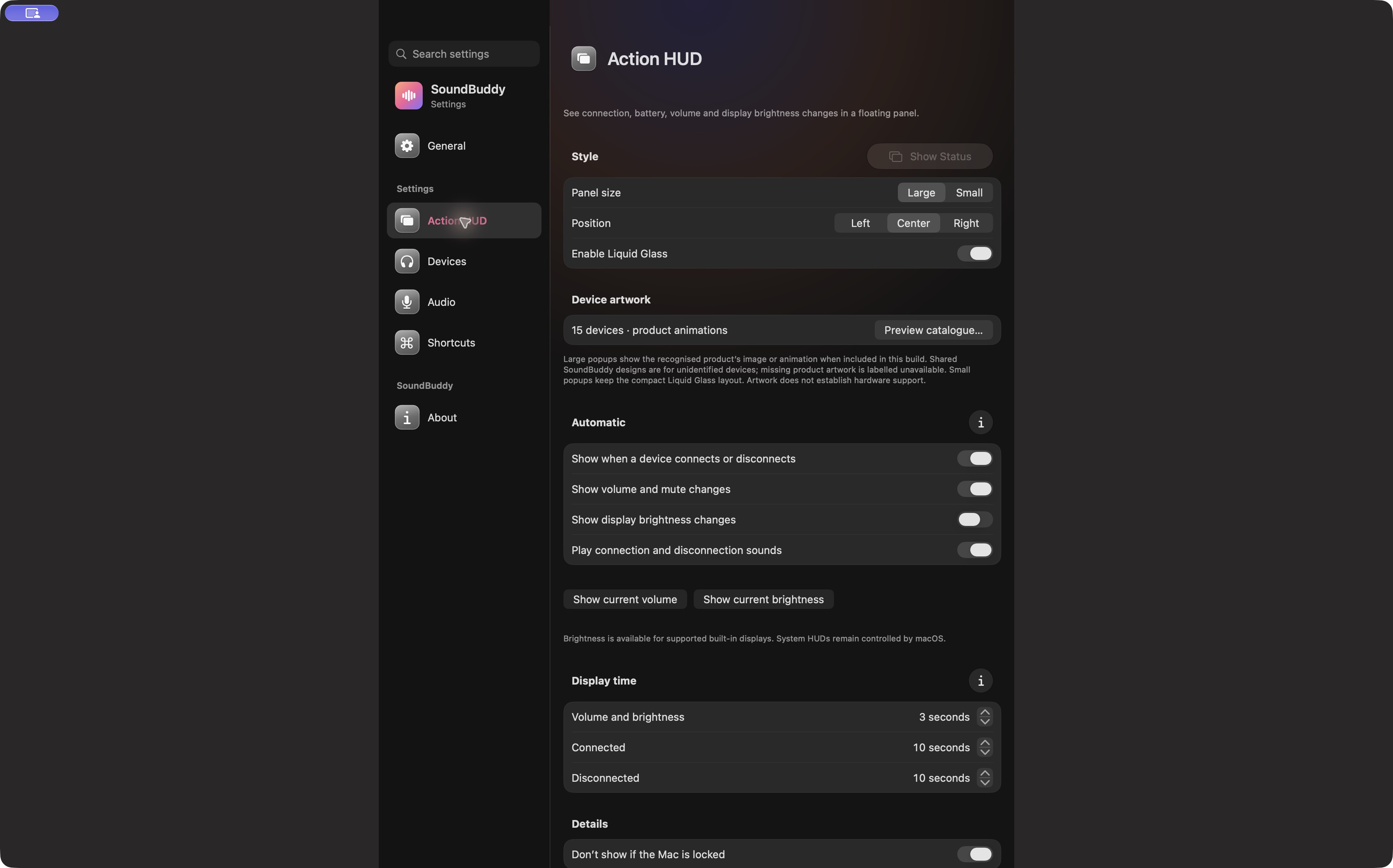
Open the full-size app capture to read the individual preferences.
For typing feedback, open Settings > Audio > Keyboard Sounds and inspect the Keyboard sounds switch. For a menu-opening cue, inspect General for Play a sound when opening the menu if your installed copy offers it. These are specific app choices, not a global mute for every application.
The connection-versus-keyboard sound guide covers the separate feedback features. Optional microphone/Bluetooth pause conditions answer their own audio-context questions; they should not be treated as a verified Focus integration.
Make a short checklist for your work block
Before a work block, note the combination you actually want:
- The active Mac Focus and any notification exceptions you intentionally keep.
- Whether SoundBuddy's automatic panels are wanted for this block.
- Whether connection cues, typing feedback and an available menu-opening cue should be on or off.
- The app states you intend to restore afterward.
Change only the relevant preference, then observe the same kind of event deliberately when practical. You do not need to disconnect a working headset during a call to test a connection cue. If you cannot safely reproduce the event, keep the result marked untested.
No Focus mode, sound playback or connection test was performed for this article. A screenshot of preferences does not prove the Mac is quiet, and silence during one observation does not establish that every possible notification is blocked.
Preserve useful access and measurements
You can keep SoundBuddy accessible while reducing optional feedback. Hiding the menu-bar icon is a different decision, covered in the icon recovery guide. Lowering the whole Mac's volume may also change audio you intended to keep, so start with the identified source's control.
A quieter setup may suit your work, but this guide does not measure greater productivity. If you compare work blocks, record completed work and interruptions separately from how pleasant the setup feels. Our sound and productivity guide explains that evidence boundary.
Next step: identify one interruption source, inspect its matching control and record the resulting state before changing another layer.