Podcast pace feels wrong on Mac? Check the player and show speed

If a podcast feels rushed or unusually slow, inspect its displayed playback speed before changing your Mac's audio hardware settings. A listening preference in the player is a different question from a recording project playing at the wrong pitch or sample rate.
Start with the exact app and episode. Then distinguish a one-session speed choice from a saved preference for that show. A useful pace is the one that suits your listening, not the highest number the player offers.
Read the speed shown in the player
Apple's Podcasts playback guide for Mac describes opening the Playback Speed control, which may display the current speed, and choosing Faster, Slower or a preset. It lists volume and skipping as separate controls.
Changing volume changes a listening level. Skipping moves to a different point in the episode. Neither is the same action as choosing a playback pace. If you want to hear a difficult passage again, decide whether you need to revisit it, slow it down or both.
For a comparison, keep the same episode, passage and output. Read the speed first, choose an available setting you intend to use and note whether the pace now fits. If you prefer the original-speed option shown by the player, use that as your reference. Do not copy another listener's preferred speed as a requirement.
Check whether the show has its own preference
Apple's show settings reference describes a separate custom speed for a show. In the Mac app, open Shows, select the show, open More and choose Settings. The current guide lists Custom for This Show and an Adjust control for selecting a speed.
Inspect this if your question concerns a particular show rather than one moment in the player. Record any custom setting before changing it. The reference is version-specific; use its version selector and the controls in your installed copy rather than assuming every older release has the same layout.
This is a place to inspect a preference, not proof that a saved setting caused unexpected behaviour. If the displayed result does not follow the setting you selected, report both values and the app version. Do not change download, notification or episode-removal options while investigating pace.
Distinguish speed shortcuts from volume shortcuts
Apple's Mac Podcasts shortcut reference lists Option-Command-Up Arrow and Option-Command-Down Arrow for increasing and decreasing playback speed. Command-Up Arrow and Command-Down Arrow adjust volume instead.
That additional modifier matters. Check the app menu and current keyboard layout if a shortcut behaves differently; Apple notes that shortcuts can vary by language and layout. Use the visible control when you are unsure which command will run.
Before attributing a shortcut to the wrong app, note which app is active. A combination that does something in a podcast player is not automatically a system-wide command for every audio app.
Include the content type in a missing-control report
A historical Pocket Casts discussion describes a user unable to change speed for files in its web player on multiple Macs. The author's later reply says changing speed on a podcast did work.
That contrast makes the player and content type useful details. It does not establish a current Pocket Casts defect, a limitation of every browser or a problem in Apple Podcasts. The thread does not provide a confirmed explanation for the file behaviour.
If your speed control is missing or unresponsive, record:
- The app or browser, version and macOS version.
- Whether this is a subscribed episode, a video episode or a separate audio file.
- The speed displayed, the option you selected and what happened afterward.
- Whether another episode in the same player behaves differently.
Do not upload private audio or create a new service account just to assemble that note. Existing content you are already entitled to play is enough for a proposed comparison. No player or file was operated for this guide.
Keep SoundBuddy shortcuts separate from player controls
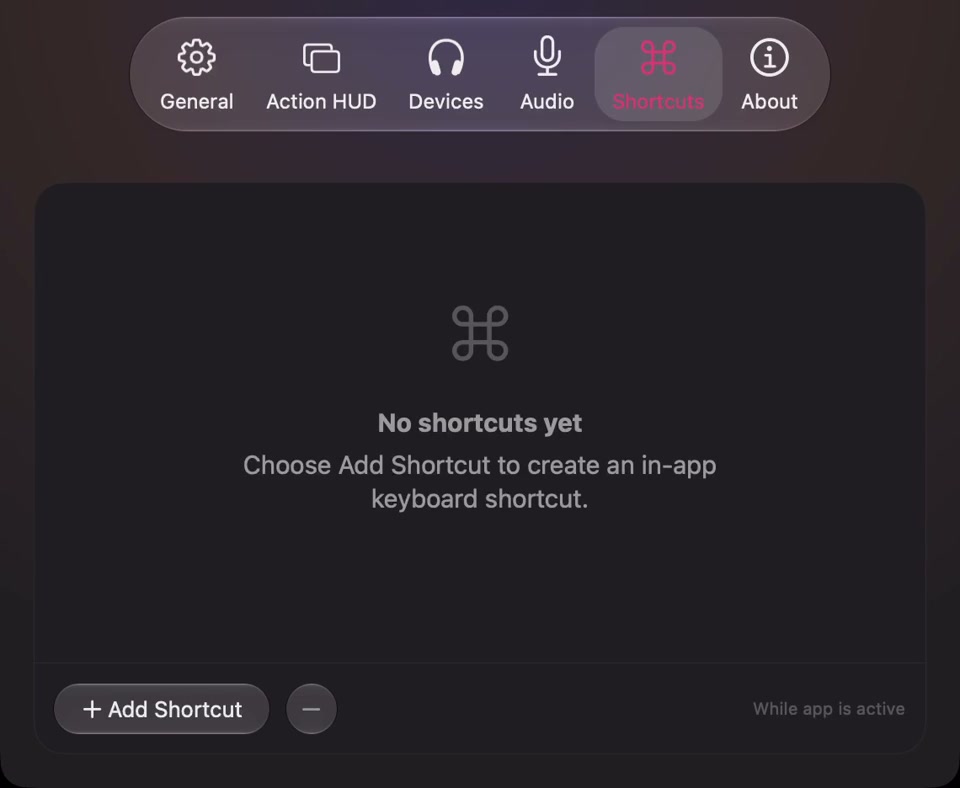
Open the full-size actual SoundBuddy Shortcuts capture
SoundBuddy is our product. Its in-app action shortcuts do not set a podcast player's playback speed. The SoundBuddy shortcut guide explains their scope. If your problem instead concerns an instrument project with changed pitch and speed, use the separate Logic sample-rate investigation.
This guide draws on public documentation and desk research. It does not establish a preferred speed for learning, measure comprehension or claim that faster listening improves productivity.
Next step: read the current player speed, inspect a show-specific preference if relevant and compare one passage with a pace you choose.