Sound moves when you turn your head? Check Spatial Audio on Mac
If a voice or instrument seems to change position as you move your head, inspect the playback mode before moving the Mac's left/right balance. A head-relative change, a permanently quieter channel and sound that drifts without movement are different observations.
SoundBuddy is our product. Its connection and microphone status can help identify an accessory, but those readings do not establish which Spatial Audio mode the Mac is using.
Separate head-relative movement from unexplained drift
Notice the pattern during ordinary listening. Does the apparent position change with head movement, remain to one side, or shift even when you are still? Keep the app, passage and listening device the same while describing it.
A public AirPods discussion reports drifting sound that the author explicitly says is unrelated to head movement and continues after Spatial Audio and tracking were turned off. Another participant mentions switching between an iPhone and Mac. These are unresolved reports, not proof that tracking caused the drift or that a particular mode will repair it.
If one channel stays unexpectedly quieter, use the output-balance guide for that separate question. Do not use its balance adjustment as an automatic response to every moving sound image.
Inspect the available Mac playback mode
Apple's Spatial Audio and head-tracking guide describes supported AirPods, apps and content on Apple silicon Macs with macOS 12.3 or later. Check the guide's current model and connection requirements; the controls are not available for every headphone or audio source.
For the documented Mac workflow, wear the supported AirPods, connect them to the Mac and open their menu-bar control. Inspect the options available for the app playing the passage:
- Off: Spatial Audio and head tracking are off.
- Fixed: Spatial Audio is on, without head tracking.
- Head Tracked: Spatial Audio and head tracking are on.
Use the guide for your macOS version. If a control is absent, record the headphones, app and content rather than guessing its state. Inspect the mode in the supported app where you hear the change.
Keep head tracking distinct from Spatial Audio itself
Apple's Audio accessibility reference explains that head movement can change where a sound seems to be located. Its Spatial audio follows head movements setting can be turned off while retaining Spatial Audio. Availability requires an Apple silicon Mac and compatible paired headphones; model-specific options vary.
That distinction matters if you like the spatial presentation but prefer not to have it respond to head movement. It is a preference to compare in your supported setup, not a requirement to turn every audio feature off.
Do not assume that a mode displayed in one app proves the state of another app or a different device. Record the actual control you inspected and the listening task you intended.
Read SoundBuddy's status for what it shows
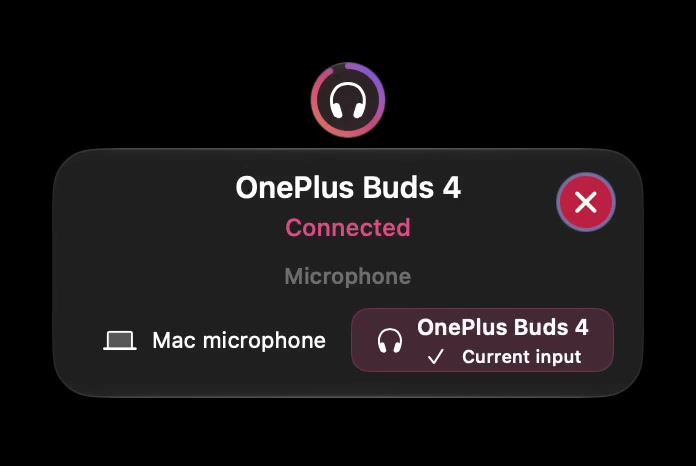
Open the full-size actual device-status capture
The pictured microphone choice is not a reading of the playback processing mode. Nor does a connected-device badge prove a particular spatial effect, equal left/right playback or support for the headphones described in Apple's guide.
Use the paired, connected and selected guide if the device states are unclear. For the moving sound image, return to the Mac's relevant playback control rather than repeatedly changing the microphone selection.
Compare one available mode using the same passage
Choose a familiar, non-sensitive passage at a comfortable level outside a call or recording. Keep the output, app and content steady.
- Note the current playback mode and whether the effect follows ordinary head movement.
- If the supported control is available and you want a comparison, change only Head Tracked to Fixed for that app.
- Replay the same passage and note whether you prefer its presentation, with no other audio changes.
- Restore the original mode if that suits you better.
- If drifting continues without head movement, preserve that observation and consult the model's support guidance instead of calling it a tracking problem.
Do not treat the absence of a mode control as a reason to install another utility or reset several settings. A useful support note includes the exact headphones, Mac/macOS version, app, content and mode, plus whether movement was involved.
No spatial-listening comparison or hardware test was performed for this article. The useful outcome is a deliberate playback preference and a clearer description of any remaining problem, not a claim that one mode fixes every drifting sound.
Next step: note whether the sound changes with head movement, then inspect the supported app's current mode before changing balance or microphone settings.