Mac reads each letter you type? Check spoken feedback

If typing produces spoken characters or words when you only expected clicks, identify the speech feature before changing output volume or removing a keyboard-sound app. Spoken typing echo and a sound-pack effect can both follow typing, but they have different controls.
SoundBuddy is our product. This guide separates its keyboard feedback from Apple's spoken-feedback settings. The goal is to keep the feedback you find useful and change only the source you intended.
Describe the sound before naming the cause
Use a few harmless characters in an empty document. Is the Mac saying the characters, reading complete words, speaking interface labels or playing a non-verbal effect? Record what you hear without assuming that any voice must be VoiceOver.
An older public Mac discussion describes letters being spoken while VoiceOver appeared off. Replies point to a separate spoken-content preference. It illustrates confusion between similarly triggered features; it does not diagnose the cause on every current Mac. Do not copy its broad suggestion to disable all accessibility options.
Inspect Speak typing feedback
Apple's Read & Speak settings reference describes a dedicated Speak typing feedback option under System Settings > Accessibility > Read & Speak. Use the guide for your macOS version if the settings names differ from older instructions.
Its details distinguish Echo characters, Echo words, Echo selection changes and Echo modifier keys. These let you choose the type of spoken feedback rather than treat it as one undifferentiated sound. Note the current choices before deciding whether one should change.
The same reference describes other triggers, such as speaking selected text, items under the pointer or announcements. If speech follows one of those actions rather than typing, inspect the matching option. Reducing the Mac's main output volume changes listening more broadly than choosing a particular speech trigger.
If you use VoiceOver, inspect its typing echo separately
Apple's VoiceOver text-verbosity reference lists While typing speak in VoiceOver Utility's Verbosity > Text controls. Its choices include Characters, Words, Characters and Words, and Nothing.
If VoiceOver is part of how you navigate the Mac, use its relevant echo preference rather than turning the screen reader off just to compare typing feedback. Record the existing choice and keep the rest of your navigation setup steady.
VoiceOver's text settings also distinguish cursor movement and other text events. A change limited to typing echo should not be treated as a universal switch for all speech. Follow the instructions appropriate to your existing VoiceOver setup rather than turning it on simply for this article.
Keep SoundBuddy's sound-pack choice separate
SoundBuddy's keyboard feature plays the selected sound-pack effects. Its own Keyboard sounds switch concerns that feedback, while Apple's spoken-feedback controls belong to macOS. Changing a pack is not the same action as selecting whether the Mac speaks characters or words.
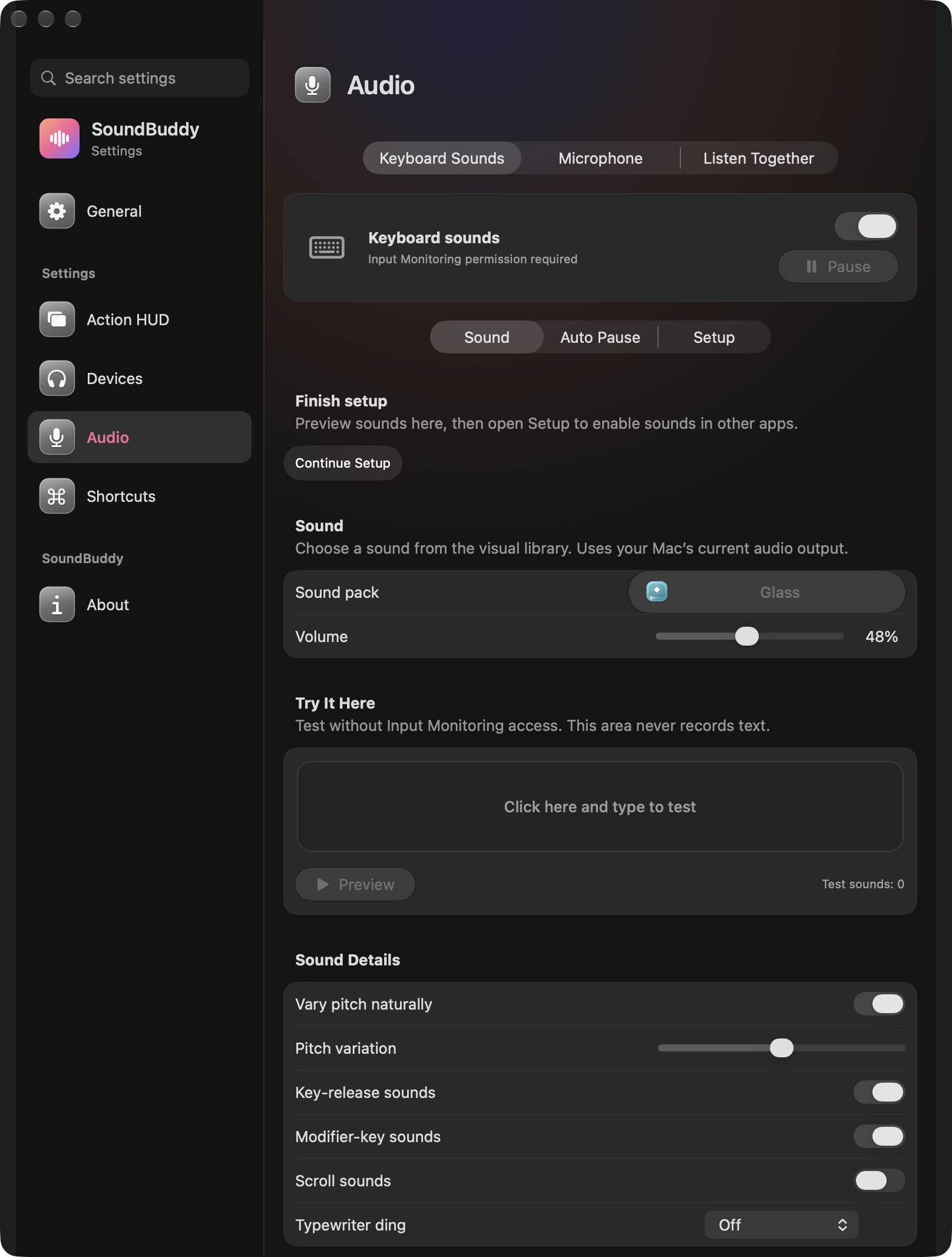
Open the full-size actual keyboard-settings capture
For a comparison where you do not want SoundBuddy effects, inspect its own switch first. The preview guide covers trying a pack separately from global typing setup. You do not need to grant a new input permission just to identify an existing spoken-feedback source.
If all you want is a lower level for SoundBuddy effects, use its keyboard-sound volume guide. That is a different decision from choosing which words macOS speaks.
Compare one trigger and preserve your preferred feedback
Outside private work, make a short comparison in the same empty document:
- Note whether the sound is spoken text, interface speech or a non-verbal effect.
- Identify the setting that matches that trigger and record its current state.
- If you want a change, adjust only that specific choice and repeat the same harmless input.
- Check that the feedback you still rely on remains usable.
- Restore the earlier choice if the change does not match your preference.
If speech occurs only in one app, record the app and the action that triggers it rather than assume that a system-wide setting explains it. If the sound continues, preserve that observation and investigate the next matching source one at a time.
No speech or playback experiment was performed for this article. There is no universal best amount of typing feedback; a useful result is deliberate control over the spoken and non-verbal layers in your own workflow.
Next step: identify whether you hear characters, words, interface speech or effects, then inspect that source's own feedback control.