Quiet dialogue in the Mac TV app? Check the playback guide for your device

If a film's music and effects are audible but you keep missing speech, raising the whole output may leave you turning it down again in the next scene. First distinguish the Apple TV app on your Mac from an Apple TV 4K connected to a television. Their controls are not interchangeable.
The practical aim here is to catch the dialogue and describe the exact playback setup. This guide does not promise to repair a film's mix or diagnose why a particular title sounds quiet.
Match the instructions to the device doing playback
Apple's TV app audio and subtitle guide lists Mac audio-track choices separately from its iPhone and iPad Enhance Dialogue instructions. Do not turn a mobile instruction into a Mac menu path.
The Apple TV 4K audio guide describes Enhance Dialogue and Reduce Loud Sounds for that device. It says options depend on the programme, speakers or headphones and Apple TV model. Its stronger enhancement can alter the original mix. These are hardware-platform instructions, not evidence that the same switch is available in the Mac app.
Check the guide heading before hunting through settings. A guide that tells you to use an Apple TV remote or open Video and Audio settings may address the box rather than the Mac in front of you. Missing that distinction is not proof your installation is broken.
Use the Mac's available subtitle controls
During playback, show the controls and open the Subtitles menu to choose an available option. If you only missed a short phrase, Apple's app guide describes skipping back on a Mac to display temporary subtitles.
The separate Mac Playback settings reference places Show on Skip Back under Automatic Subtitles in TV, Settings, Playback. It also lists Show When Muted. Check those preferences if you want that behaviour, rather than assuming the same subtitle choice applies to every title or device. Availability can vary by content and region.
Subtitles are a reading aid. Turning them on does not remix the audio or demonstrate that speech volume changed. If the text is enough to recover a missed line, you can stop there without changing the listening system.
Note the audio track before comparing scenes
The app's Audio Options menu can offer a different language or a track with audio descriptions. Record which option is selected. A different language or descriptive track is a content choice, not a universal dialogue-boost switch.
If you need to investigate further, use a short section of the same programme:
- Write down the title, episode and approximate moment where speech is difficult to follow.
- Record that playback is in the Mac app, along with the macOS version, listening output and selected audio track.
- Note whether the problem is missed speech within an otherwise audible scene or the entire programme being quiet.
- If you want a reading aid, try the available subtitle option for that section. Keep the output and audio track unchanged for the comparison.
- Record what helped you follow the scene and which controls were absent. Avoid increasing everything simply to match someone else's volume setting.
A trailer, another episode or another streaming service can be useful context, but it is not an identical audio comparison. Changing several of those at once makes the support question harder to isolate.
Do not use a forum theory as a diagnosis
A historical public Mac discussion describes dialogue being quiet relative to other sound in the TV app on a Mac Mini running Monterey. The author also describes confusion between the app and Apple TV hardware.
Replies suggest audio-format and speaker-layout explanations, but the thread does not establish a completed fix. Another participant reports a different experience. That is evidence of a reported difficulty, not proof that Atmos, a particular title or your speaker layout is responsible today.
If you seek support, share the setup notes and a programme timestamp rather than private account information or copied film audio. State whether subtitles helped with comprehension, separately from any change in what you heard.
Keep SoundBuddy feedback separate from a film's mix
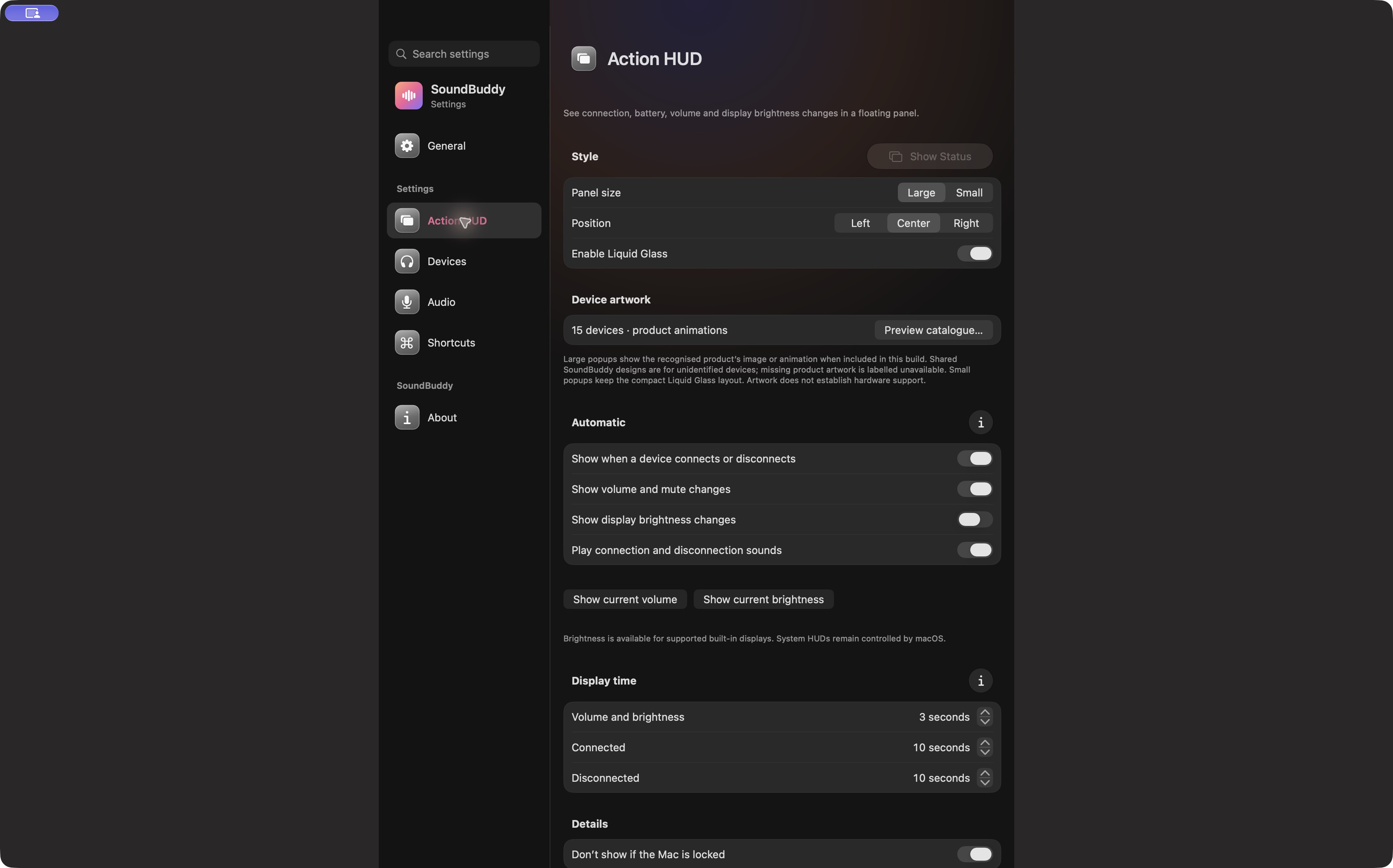
Open the full-size actual Action HUD capture
SoundBuddy is our product. A visible volume indication does not separate dialogue from music or change a programme's mix. The volume-feedback guide explains that boundary; the Live Captions guide addresses a separate system captioning feature.
This article uses public documentation and desk research. No film, receiver or listening comparison was tested, and no clarity or productivity improvement was measured.
Next step: identify the playback device, then use its documented subtitle and audio-track controls before seeking a dialogue setting described for another platform.