Music dips while VoiceOver speaks? Inspect audio ducking

If music becomes quieter as VoiceOver announces an item and returns between announcements, the timing is worth noting before you change headphones or the Mac's main volume. VoiceOver has a specific audio-ducking preference for making other audio quieter during speech.
That can be useful. The choice is whether the relationship between speech and media suits your task, rather than whether every volume change should be removed. If VoiceOver is how you navigate, keep it available throughout the investigation.
Describe which audio becomes quieter
Separate these observations:
- Music or a podcast dips while VoiceOver speaks: inspect the documented audio-ducking option.
- VoiceOver's own speech fades or becomes hard to hear: record that as a different symptom. Do not assume it is the intended reduction of other media.
- Volume changes only during a call, when you speak or after changing outputs: note that trigger separately. A VoiceOver preference is not a universal switch for every application's audio behaviour.
Keep one output and one ordinary media passage steady while you observe. Changing the headphones, player volume and accessibility settings together makes the cause harder to identify.
Read the Sound category before choosing a change
Apple's VoiceOver Sound reference describes Enable audio ducking in VoiceOver Utility's Sound category. Other audio, including music or a podcast, is reduced while VoiceOver speaks. The documented way to turn that behaviour off is to deselect its checkbox.
The same reference describes Mute sound effects as a separate choice that does not affect VoiceOver speech or other apps' audio. Do not use it as a substitute for the ducking preference.
For an existing VoiceOver user, open VoiceOver Utility through your usual accessible workflow and inspect Sound. Use the documentation for your installed macOS version if labels differ. You do not need to enable VoiceOver just to follow this guide if you do not already use it.
The AppleVis VoiceOver Utility guide, published in 2025 and updated for Tahoe, also describes other audio returning after VoiceOver finishes speaking. It is a community guide, not our test of every media player or output device.
Choose speech priority deliberately
Before altering anything, note whether Enable audio ducking is selected and what you want to hear during the task.
- Keep VoiceOver speech and your navigation setup available.
- Listen for whether the media reduction starts and ends with ordinary VoiceOver announcements. Use non-sensitive content.
- If that behaviour helps you follow speech, retain it. There is no need to change a useful setting because another person prefers constant music volume.
- If you intentionally want a comparison, change only the ducking checkbox and repeat the same short passage and navigation action.
- Check that speech remains easy enough for your task. Restore the previous choice if the comparison makes navigation harder.
Record the original preference and the result. Avoid compensating with a large increase in system output or resetting all VoiceOver preferences for this one question.
Keep older bug reports separate from expected ducking
A July 2020 Mac discussion on AppleVis describes VoiceOver speech itself dipping and returning. A commenter suggested a ducking-related workaround. The original author replied that they valued ducking and that the issue had not seriously affected their experience.
That is a historical report of a different symptom. It does not establish a current macOS bug, prove a fix on your Mac or justify switching off useful speech support. If your speech itself fluctuates, record the macOS version, voice, output and trigger for a targeted support report.
Keep SoundBuddy feedback as its own layer
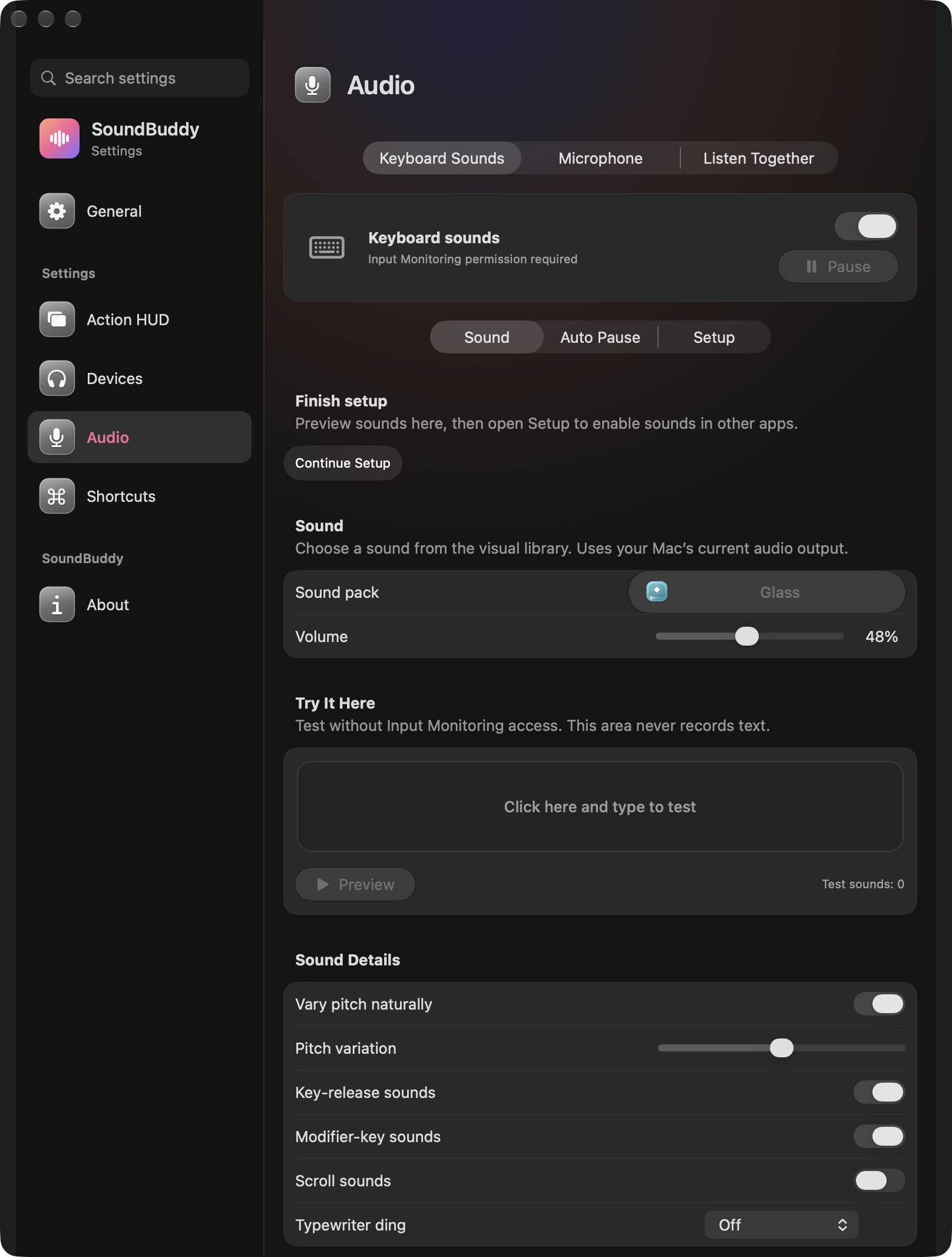
Open the full-size actual keyboard-settings capture
SoundBuddy is our product. Its keyboard Volume control concerns its typing effects; it is not a replacement for VoiceOver's media relationship preference. If those effects compete with speech, inspect their own volume control separately. For spoken letters or words during typing, use the spoken-feedback guide.
No screen-reader, media playback or accessibility comparison was performed for this article. The intended outcome is an informed preference that preserves useful speech, not a measured concentration or productivity improvement.
Next step: identify which audio dips and when, then inspect the matching preference while keeping your navigation support available.