MacBook lid closed: choose a microphone that can actually hear you
For closed-lid calls on an Apple silicon MacBook, plan around an external microphone. The built-in microphone is disabled by a hardware protection when the lid closes. A familiar device name in a selector cannot establish that it is receiving sound.
SoundBuddy is our product. It can help you choose the Mac's default input and configure preferred and fallback inputs while the app is open. It cannot reactivate a hardware-disconnected microphone. Start with the Mac's own input selector, then check your meeting app before relying on a closed-lid setup.
Understand the closed-lid boundary
Apple's hardware microphone guidance documents the lid-triggered disconnect for Apple silicon Mac laptops and specified Intel laptops with the T2 chip. This article focuses on Apple silicon, the platform SoundBuddy supports. Keep that protection intact.
If you want to use the laptop's built-in microphone, keep the lid open. If you want to work with the lid closed, choose an external input that you have checked in that arrangement. That could be a microphone in a headset, webcam or display, or a separate microphone. An accessory needs an actual microphone input; a display connection or headphones alone does not establish one.
Check the arrangement you intend to use
Do this outside a real meeting, with the Mac already working on its external display. This is an audio check, not a guide to changing sleep behaviour or configuring display support.
- With the lid open, connect the external microphone you intend to use.
- Open System Settings > Sound > Input and select that exact device. Apple's input-settings guide explains the system selector.
- Use a harmless test phrase and inspect the input level. Check the meeting app's device choice too.
- Close the lid only when that is appropriate for your working display setup. Repeat the check in the intended closed-lid arrangement.
- If the Mac sleeps, restore the working setup before continuing. If the microphone becomes silent, reopen the lid and use a known working arrangement rather than experimenting during a call.
| Arrangement | Input to check | Evidence you need |
|---|---|---|
| Lid open, laptop microphone selected | Built-in microphone | Input activity and a successful app audio test |
| Lid closed, laptop microphone still named | An alternative external input | The name alone is insufficient; the hardware boundary still applies |
| Lid closed, external microphone selected | That exact external device | Input activity and the meeting app's test in this arrangement |
| Preferred external microphone unavailable | A separately checked backup, or reopen the lid | A usable input, rather than only a saved fallback name |
Choose the closed-lid target deliberately in SoundBuddy
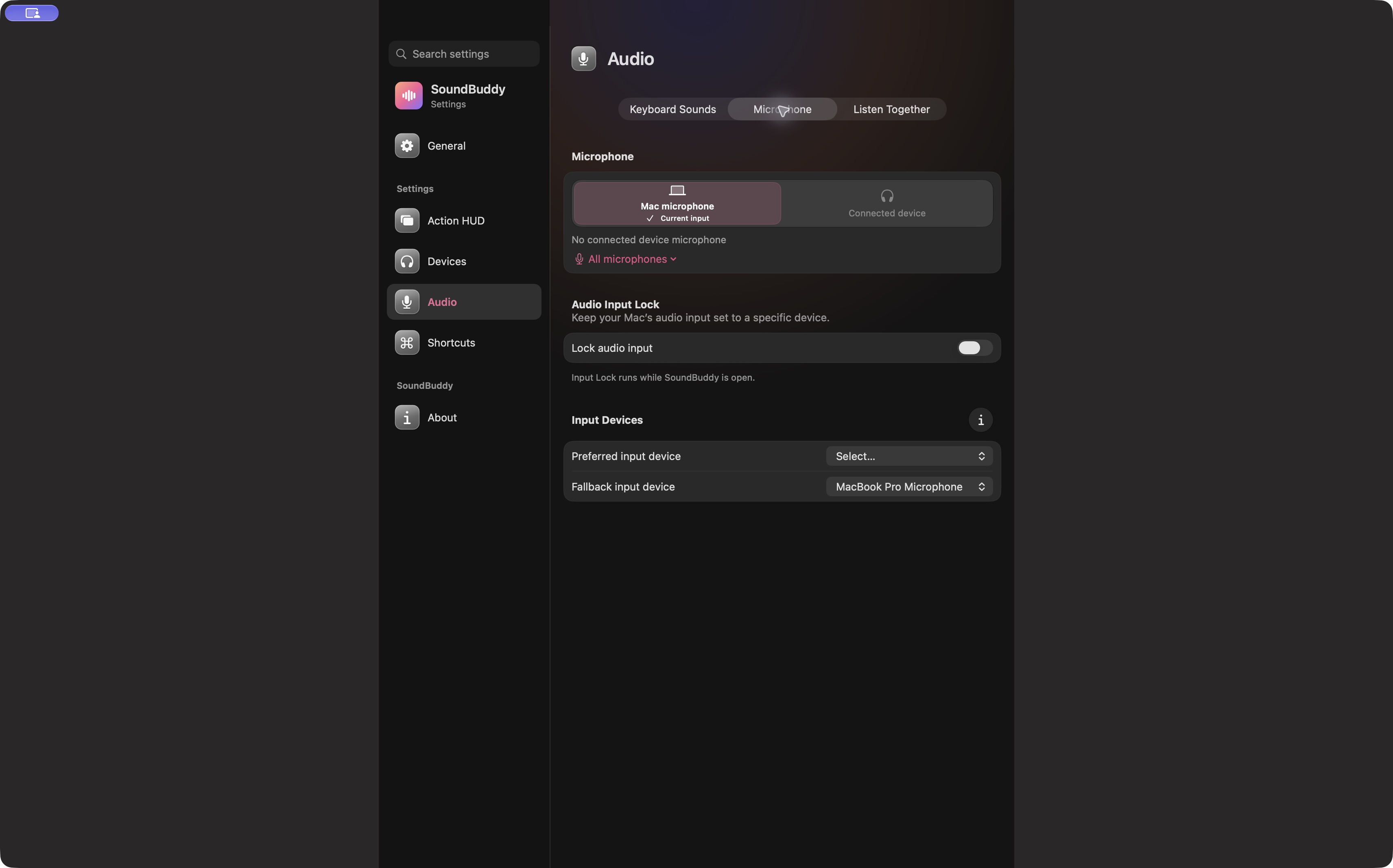
In SoundBuddy's Audio > Microphone settings, review both input roles before enabling a lock. For a closed-lid desk, choose the external microphone you just checked as the preferred input. If you configure a fallback, choose another input you can actually use there. Follow the Input Lock setup guide for the controls.
Do not assume a lid closure will always trigger automatic fallback. A device can remain named in software while it provides no audio. SoundBuddy's closed-lid hardware transitions were not tested for this article, so the guide makes no automatic recovery promise. Recheck your actual input after changing the arrangement.
If the Mac receives sound but the meeting does not, use the call-app selector guide. A meeting app can retain its own choice independently of the system default.
Keep one desk setup card
Write down the lid position, external input name, app input choice and backup action that passed your check. Revisit the card after changing a dock, microphone or meeting app. It gives you a repeatable starting point without implying that one successful check guarantees every future call.
Next step: verify one external microphone with the lid in your intended position, then save that device name on your desk setup card.