Microphone changes after headphones reconnect: record which selector moved
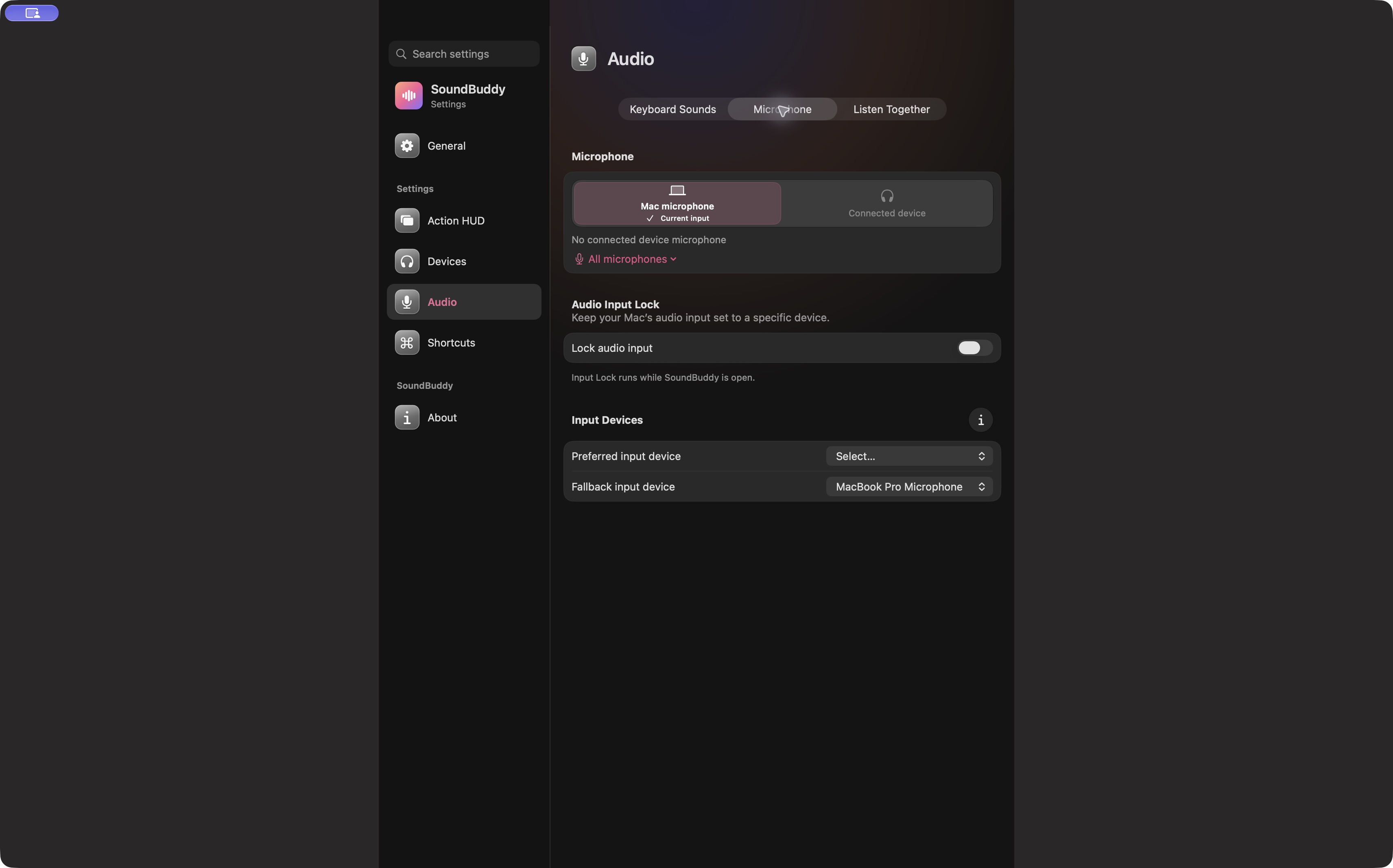
If your voice suddenly sounds distant after reconnecting headphones, compare the Mac input and the call app's input before changing either. A selected device, an available device and the microphone an app actually uses are separate observations. A short before-and-after log helps locate the change.
SoundBuddy is our product. Its microphone view provides a convenient place to inspect the system choice, but it cannot establish what every meeting app is using. This guide is for investigating a reconnect event outside an important call. It complements the Input Lock setup guide rather than repeating its configuration steps.
Make one reconnect observable
Start with a working setup. Open the Mac's Sound settings and note the selected input. Apple documents the selector in its sound input guide. Open your meeting app's audio settings too and record its exact selection, including whether it follows the system default.
Reconnect only the headphones you are investigating. Avoid changing a dock, webcam and Bluetooth connection together. Record the same fields immediately afterwards, before correcting the selection. If this is happening during a real meeting, restore a known working microphone first and investigate later.
| Checkpoint | System input | Call-app input | Observed result |
|---|---|---|---|
| Before reconnect | Write the exact name | Write the exact name or default option | Does the app's audio test work? |
| Immediately after | Same, changed or unavailable? | Same, changed or unavailable? | What changed in the test? |
| After one correction | Name after your deliberate choice | Name after your deliberate choice | Is the result restored? |
This is a worksheet, not a report of a test we performed on your hardware. Keep unknown cells explicit. A remembered device name alone does not show that its microphone is currently available.
Choose the next check from the disagreement
If the system input changed and the app follows the default, restore the intended system input and repeat the app's test. If the Mac choice stayed correct but the app changed, use the call-app selector guide. Repeating system changes may leave that app-specific choice untouched.
If the intended microphone disappeared from the list, check its connection and availability before configuring a preferred input. A lock cannot make an unavailable microphone receive your voice. Keep a fallback you can actually use on that Mac.
Use SoundBuddy after locating the change
Once the log points to the system default, consider SoundBuddy's preferred and fallback input controls while the app is open. Follow the existing Input Lock guide, then check the meeting app separately. Treat repeatability on your own setup as the acceptance test; this screenshot does not demonstrate reconnect recovery or active-call success.
Next step: fill one before-and-after row, then change only the selector that disagrees with your intended setup.