Selected, allowed or recording? Read your Mac microphone status

A microphone name, an access switch and a privacy indicator answer different questions. A selected input tells you which device is the system default. Permission tells you which apps may use a microphone. An activity indicator helps you inspect use. None of those labels, by itself, tells you whether an app saved a recording.
Use this distinction when you notice an unexpected microphone indicator or want to understand what an audio utility's selector does. SoundBuddy is our product. Its microphone selection control changes the Mac's default input; it is separate from a recording app's controls.
Match the observation to the question
| What you observe | What it can establish | What you still need to check |
|---|---|---|
| A named device is selected as the Mac input | The system's current default input choice | Which input a particular app uses and whether it is active |
| An app is allowed in Microphone settings | The app has the listed access permission | Whether it is using the microphone now |
| macOS reports microphone activity | Current or recent use, as the interface describes it | The named app and its handling of that audio |
| A recording app shows a saved audio file | That app reports a saved result you can inspect | Its retention, sharing or cloud settings |
Keep the labels exact. “Allowed”, “selected” and “used recently” are useful observations. Replacing all three with “recording” loses information you need to decide what to do next.
Inspect an unexpected indicator in Control Center
Apple's Control Center guide describes the orange microphone indicator and the field that can identify apps using microphone, camera or system audio. Open Control Center and inspect the activity information it provides. Where available, open its Privacy details too. The exact presentation depends on your macOS version.
Read whether the interface describes current use or recent use before drawing a conclusion. If both camera and microphone are active, Apple explains that only the green camera dot may be shown. The absence of an orange dot beside a green one is not a complete microphone-activity check.
Also consider the settings window you just opened. Apple's sound-input guide notes that accessing Input options in Sound Settings turns on the indicator. That observation does not establish that a separate recording was saved.
Review access separately from the selected device
To inspect app permission, open System Settings > Privacy & Security > Microphone. Apple's microphone access guidance explains the per-app access switches and advises reviewing third-party privacy practices.
If the named app's access is unexpected, finish any work you need to preserve, then close it or review its permission. Expect microphone-dependent features to be affected if you remove access. A work-managed Mac may need your administrator's help. Changing the selected input is not a substitute for this access review.
For a website, the browser and the site's own permission are additional layers. Use the browser permission and device-selection guide for that troubleshooting path rather than changing unrelated audio settings.
Understand SoundBuddy's selector screenshot
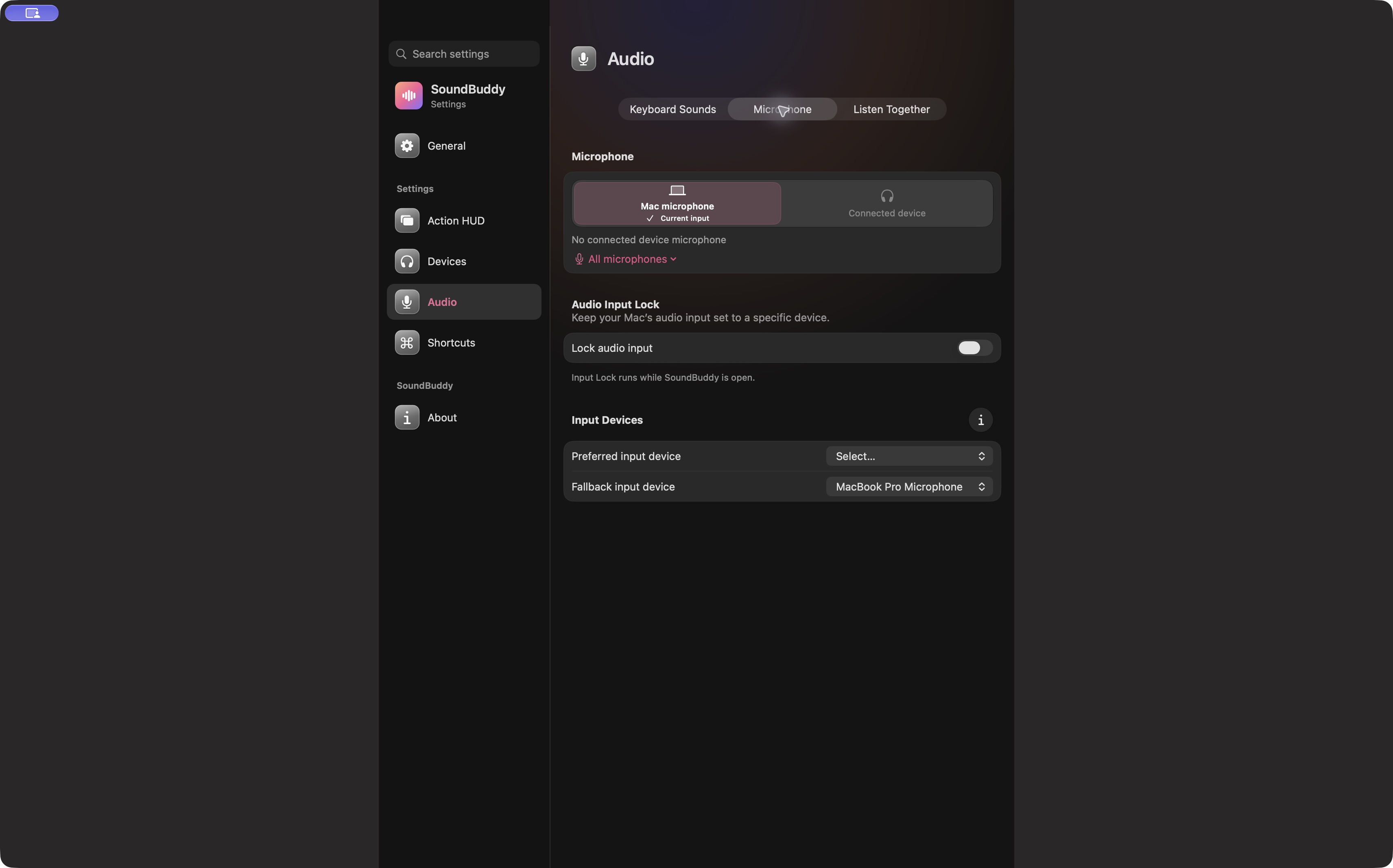
The pictured Mac microphone choice is a routing preference. It is not a recording status label. Review the meeting, dictation or recording app that is actually using audio before making a claim about what it retains or sends. This guide does not infer those practices from an input selector or from the presence of an activity dot.
Keep a short observation card
Write down the selected device, the app macOS names, the exact activity wording and the app's own recording state. Include your macOS version if you need support. You can describe those fields without attaching a private conversation, work document or recording.
If your question is simply whether a chosen input receives sound, use the separate microphone level-check guide. If your question is whether an app retained audio, inspect that app's recording history, settings and current privacy documentation.
Next step: identify the app in macOS's activity details, then write what the interface actually says before deciding whether to change access.