Make a work playlist steadier without chasing Mac volume

If the next song feels much louder even though the Mac volume setting has not moved, inspect the music player's loudness option before repeatedly changing output volume. The setting shown for a device and the level of the recording passing through it answer different questions.
SoundBuddy is our product. This guide covers Apple Music and Spotify controls alongside the limits of SoundBuddy's output feedback. It does not claim that any playlist or setting improves concentration for everyone.
Identify what changes when the song changes
Keep the same player, output and comfortable starting level while identifying the pattern:
- The difference follows particular songs: inspect the player's song-level loudness option.
- The difference appears after switching headphones or speakers: establish the selected output and its own control first. That is a route comparison, not a song comparison.
- Only notifications interrupt the music: use the separate Mac alert guide.
- A player is silent or distorted throughout: that needs a playback investigation. Normalization is not a general repair switch.
A public listener discussion describes tracks feeling uneven and uncertainty about normalization. It concerns a Windows setup, so it is evidence of the question rather than a diagnosis for your Mac. Other commenters' numerical volume suggestions are not settings to copy across devices.
Check Sound Check in Apple Music
Apple explains that recordings can have different loudness, including differences between some stereo and Dolby Atmos songs. Its Sound Check guidance describes adjusting loudness between songs.
On a Mac, open Music > Settings, select Playback and inspect Sound Check. Apple's guide also names Preferences for versions using that menu label. Note whether the option was already selected before making a comparison.
This is a Music setting. It does not establish the level of notifications, another browser tab or a different output device. Record the original choice so you can return to it if you prefer the earlier presentation.
Check Spotify's desktop normalization and its scope
Spotify's listener guide labels normalization as a Premium feature. In its desktop instructions, open the profile menu, choose Settings and find Normalize volume under Audio Quality. Use the controls available in your current account and app; this guide does not require changing your plan.
The page also offers Loud, Normal and Quiet playback levels. It says Loud reduces dynamic variation. Increasing a level is a different decision from enabling normalization, so avoid changing both for the first comparison.
Spotify's technical explanation says album playback keeps gain compensation consistent across the album, while shuffled or mixed-album tracks are adjusted individually. It also excludes the web player and third-party devices such as TVs or speakers from normalization. A browser-versus-desktop or remote-speaker comparison therefore needs its playback path recorded.
Do not assume every track will sound identical or that the option fixes an existing distortion. Start with the service's documented scope rather than forum claims about how all music should be mastered.
Read SoundBuddy's output feedback as a setting
SoundBuddy's Action HUD can show an available volume or mute reading for the Mac's default output. That reading does not analyse the song's loudness or perform the player's normalization.
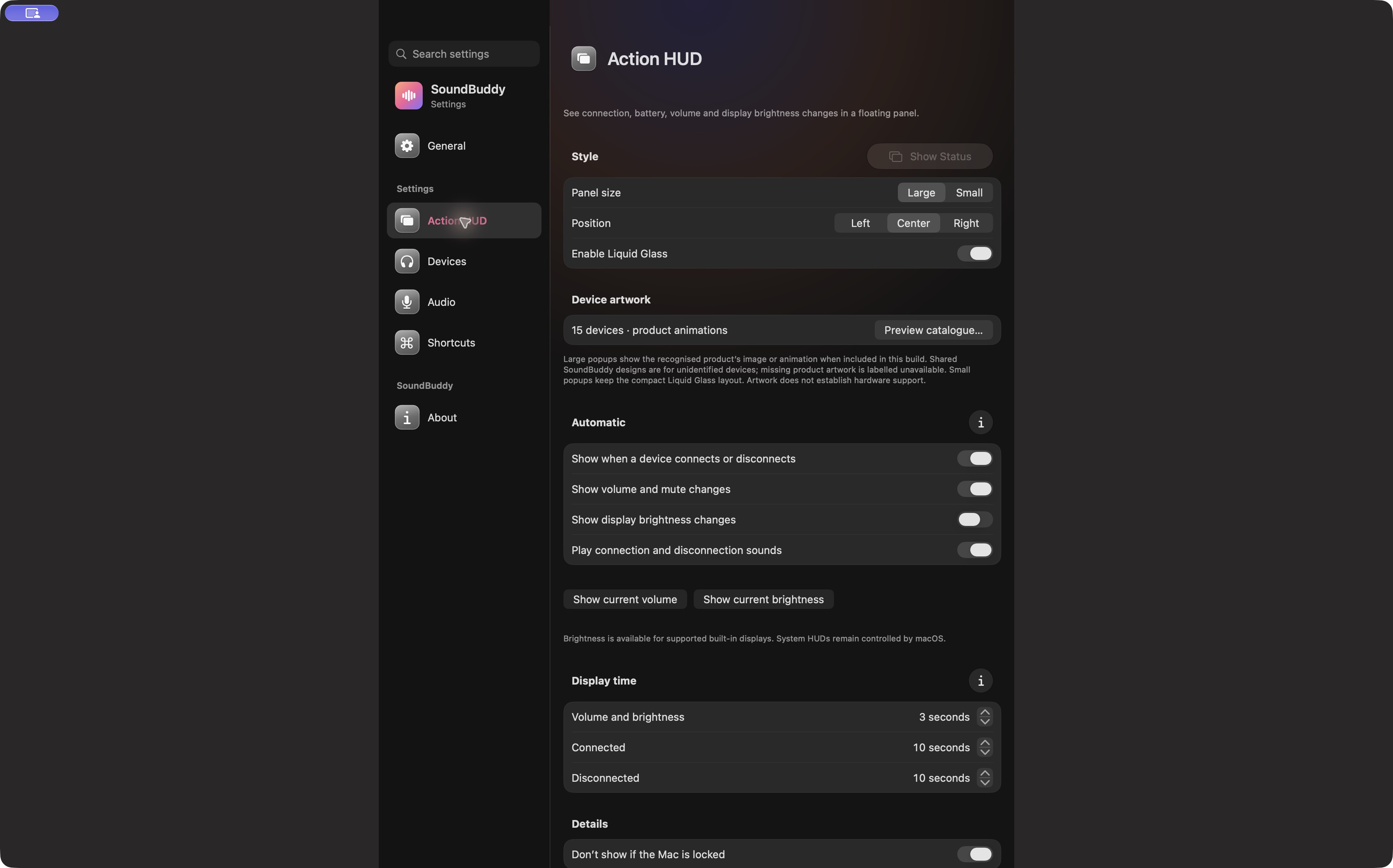
Open the full-size actual Action HUD capture
An unchanged output percentage can accompany a change in how loud the next recording feels. The percentage is not a calibrated sound-level measurement. If your output does not expose a usable volume reading, an absent percentage does not establish silence.
The output-control guide covers unavailable sliders and physical controls. This article's task is choosing the right player setting for song-to-song differences, rather than making a device controllable.
Compare one choice before returning to work
Use a short listening comparison outside a call or recording:
- Note the player, whether playback is local or remote, and the selected output.
- Record the existing normalization or Sound Check choice and any separate playback-level option.
- If the relevant control is available, compare the same short passages from two songs after changing only that choice. Keep the output at a comfortable level; do not raise it just to make the comparison dramatic.
- Record whether the transition is less distracting for you, unchanged or less preferable. Restore the earlier choice if needed.
A useful result is a preference for this listening setup, not proof of better productivity or a universal volume ceiling. If the jump only occurs on a different playback path, investigate that path instead of repeatedly changing an unrelated Mac setting.
Next step: identify the player and playback path, then inspect its existing song-level loudness choice before adjusting several volume controls.