Make Mac alerts quieter while keeping media audible

If a short alert interrupts a call, video or playlist, first identify whether you want a quieter system alert or a silent notification from one app. Turning the whole Mac down changes the listening setup too. A more specific control can preserve the audio you intended to hear.
SoundBuddy is our product. Its connection cues and typing feedback have their own preferences. They are separate from macOS alert volume and from the permission for an app to play notification sounds.
Choose the smallest scope that matches your goal
- If one app's notifications are noisy but you still want to see them, inspect that app's notification sound option.
- If Mac alert effects are too loud, inspect Alert volume and the effects output.
- If a SoundBuddy connection cue or typing sound interrupts, inspect its own preference.
A public Mac discussion describes wanting visible notifications without their sounds while media continues. That is a useful workflow goal, but it does not establish that one global switch controls every app's audio.
Keep an app's visible notifications and change its sound
Open System Settings > Notifications, then select the app you want to review. Apple's Notifications reference lists Allow notifications, the visual alert style and Play sound for notification as separate options. Available choices vary by app.
Note the existing configuration. Leave Allow notifications and your preferred visual style in place, then turn off Play sound for notification if you want that app's delivered notifications to be silent. Keep any important app or time-sensitive alert choices you intentionally rely on.
Observe the next ordinary notification rather than asking someone to send a private test message. Confirm both parts of your goal: you still see the notification, and its notification sound is absent. If an app plays audio through its own controls, inspect those separately instead of assuming this permission is a universal mute.
Lower Mac alert effects without changing the main listening level first
Open System Settings > Sound. Apple's alert-sound guide describes the Alert volume slider and Play sound effects through output choice.
Record the current values. Keep the main output level steady and reduce Alert volume for a controlled comparison. Alert volume is relative to the Mac's output volume, so changing the main volume later can also change the alert loudness you hear.
If another output is available, inspect Play sound effects through only when you deliberately want a different destination. This is an alert-effects route, not proof that every app's call, media or ringtone follows it. Confirm your call or player output separately if that is also part of the problem.
Selecting an Alert sound plays a preview. Use that deliberately when you want to hear the selected effect; if your goal is only volume, keep the sound choice unchanged. Compare one control, then note what actually changed.
Keep SoundBuddy's visual update and its cue separate
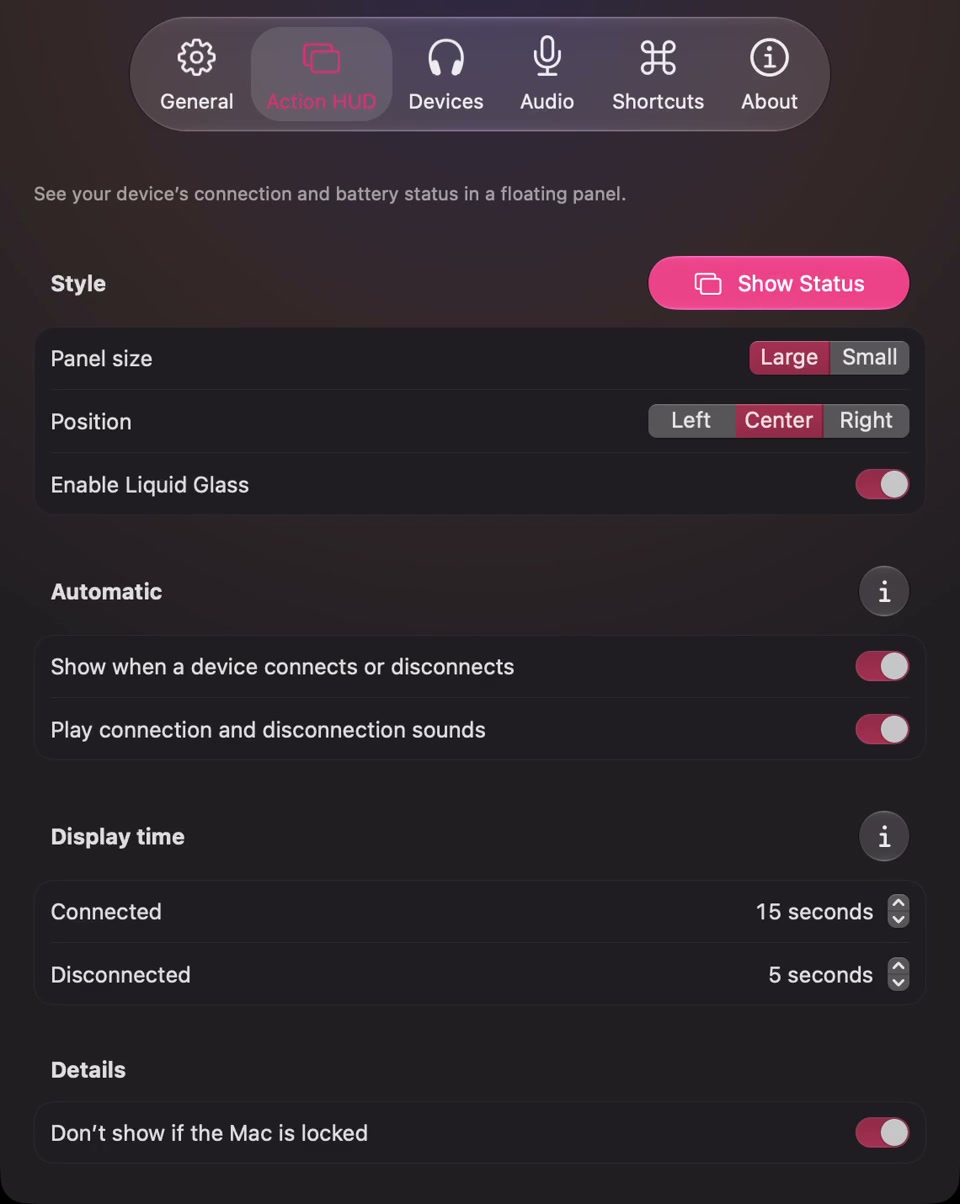
Open the full-size actual Action HUD capture
If the interruption is SoundBuddy's connection cue, inspect Play connection and disconnection sounds in Action HUD. Its sound preference is separate from showing the automatic device panel. A screenshot with both enabled does not demonstrate the result of disabling one.
The SoundBuddy sound-source guide covers its connection, menu and keyboard controls. Use those controls for the relevant SoundBuddy feedback rather than expecting a notification permission to govern every custom sound.
Verify what remains audible
After one change, keep a short note of the event, the app, the output and what you heard. Did the unwanted alert become quieter? Did the visible notification remain? Can you still hear the call or media at the intended level?
If a sound persists, identify its owner before changing another setting. The Focus and feedback guide explains a different question: why notification-silencing rules do not establish that every app-generated sound has stopped.
Next step: choose one noisy source, record its original setting and change the matching control. Keep the configuration that meets your notification and listening needs, and restore the original value if the comparison does not help.