Put SoundBuddy connection popups where they fit your work
A connection popup is useful when you can read it without losing the line you were following. If SoundBuddy's panel sits over a toolbar, a document heading or another frequently used area, try a different position before making the panel disappear faster.
SoundBuddy is our product. Its Action HUD settings offer Left, Center and Right positions, plus Large and Small device panels. These choices let you compare layouts for your own workspace. They do not move other apps' notifications or guarantee an improvement in concentration.
Choose the space you need to keep clear
Open the document, editor or browser layout you normally use. Identify the area near the top of the screen that you need to see most often. That might be a centered document title, controls on the right, or a navigation sidebar on the left.
Start with the position farthest from that area. This is a practical starting point, not a universal recommendation: putting a panel on the right can suit one layout and obscure important controls in another.
Open SoundBuddy Settings > Action HUD > Style. Note your existing Panel size and Position before changing anything. Keep your display arrangement, popup duration and size steady while comparing positions.
Compare one fresh panel at a time
- Select Left, Center or Right under Position.
- Let any existing panel finish. Judge a newly shown panel rather than expecting the open panel to move immediately.
- If Show Status is available for your current device, use it deliberately to inspect the placement. Otherwise wait for a suitable ordinary connection event.
- Return to your work and check whether the useful content remains readable. Try one other position only if you need it.
Do this outside an important call. There is no need to disconnect a working headset repeatedly just to compare positions. If no device status is available, leave the test until you have a suitable device connected.
The positions place SoundBuddy's panel along the upper part of the chosen screen. They are not arbitrary coordinates or a free-drag layout editor. On a multi-display setup, observe where the new panel actually appears on your Mac. This guide does not promise a particular monitor, cursor-following behavior or a separate saved position for every display.
Change size after choosing position
Once placement is useful, compare Small and Large for a connection-status panel. Keep the position and duration unchanged during this second comparison. Choose the size that lets you read the information you need without covering important work.
Panel size applies to SoundBuddy's device connection panel. Do not use it as a promise that the separate volume or brightness feedback panel will become larger. Those are different presentations. See the volume feedback guide if that is the panel you are evaluating.
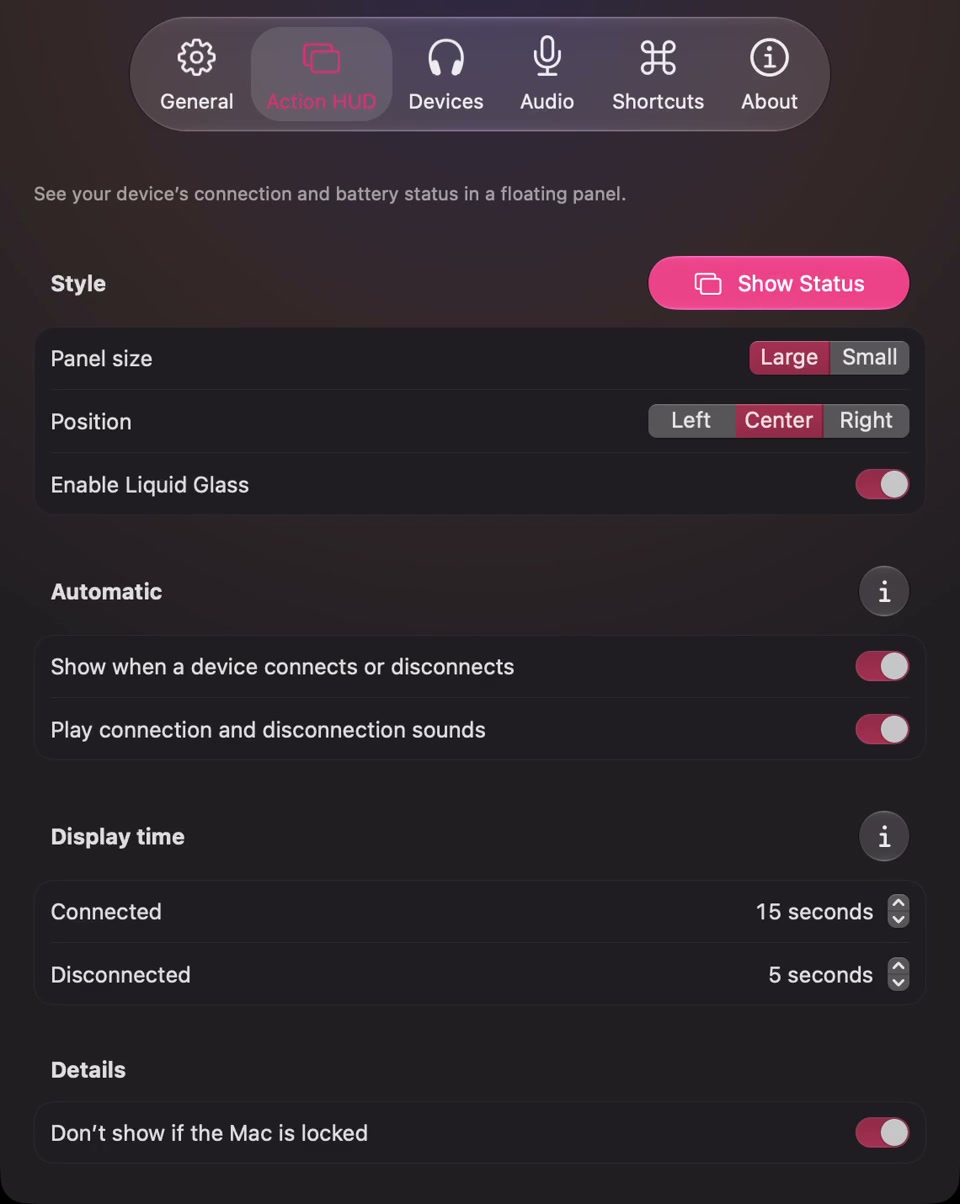
Open the full-size actual settings capture
Keep placement separate from timing and system notifications
A smaller panel can still be inconveniently placed. A short display time can still interrupt a task. Compare these factors separately so you know which change helped. If the panel is in a useful place but vanishes too soon, use the popup duration guide next.
Screen overlap is a real category of interface friction, but its cause matters. For example, a public Nuvio Desktop issue describes player controls covering subtitles. That is a report about another app's player interface, not evidence of a SoundBuddy bug or something these settings can repair.
Similarly, moving a SoundBuddy connection panel does not reposition macOS message banners, alter a video's subtitles or replace the system's own volume display. Identify which app owns the interruption before changing its controls.
Next step: record your original position, compare one fresh SoundBuddy device panel in another position, and keep the layout that leaves your work readable. Restore the original choice if the alternative is less useful. No measured time savings or focus improvement is claimed here.