USB microphone missing through a dock? Compare the connection paths
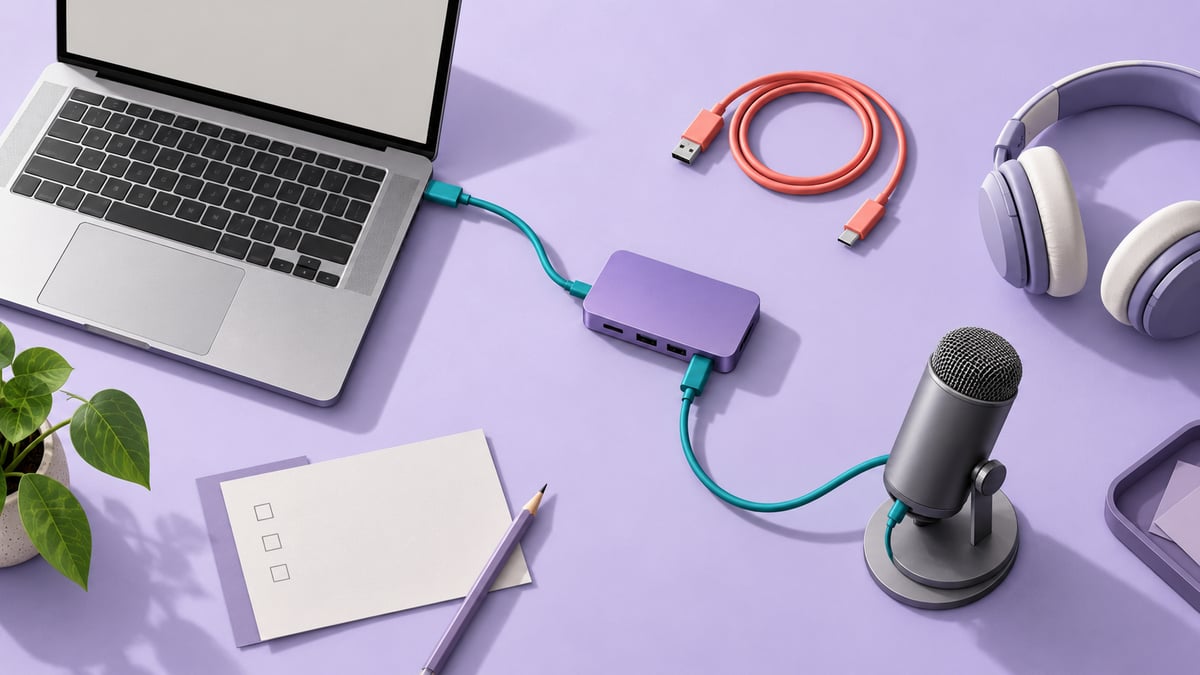
If a USB microphone works when connected directly to your Mac but disappears through a dock, start with the connection path. A powered microphone or a working display does not establish that macOS has recognised an audio input.
This guide gives you a small direct-versus-dock worksheet. It helps separate accessory approval and connection problems from choosing the wrong input. SoundBuddy is our product; its microphone controls become useful once macOS makes an input available. They do not establish that a particular dock or microphone is compatible.
Check accessory approval on an Apple silicon MacBook
Apple's accessory guidance explains that a new or unknown USB or Thunderbolt accessory may need approval on a Mac laptop with Apple silicon. Unlock the Mac and review the prompt for the accessory you recognise and trust. Power can still flow when data access has not been allowed.
Use the approval prompt for your own accessory. You do not need to weaken the general security setting to run this comparison. On a managed Mac, your administrator may control the setting. Desktop Macs have different accessory-approval behaviour; do not assume a missing laptop-only setting is itself the fault.
Compare direct and docked input lists
Run this outside a call, with a known working input available for your next meeting. Move the microphone connection rather than disconnecting the whole desk. Keep the same microphone and cable where the connectors permit it, and record any adapter or cable you have to change.
- Connect the microphone directly to a compatible Mac port, using the maker's supported connection method.
- Open System Settings > Sound > Input. Note whether the microphone appears and write down its exact name.
- If it appears, select it and check the input level with a harmless test phrase. A listed device still needs this check.
- Connect the same microphone through the dock. Repeat the list and input-level observations.
- Record the difference before changing another setting. A direct connection that works narrows the investigation; it does not identify which dock, cable or power component caused the difference.
| Field | Direct connection | Through the dock |
|---|---|---|
| Port and cable or adapter used | Write the path | Write the path |
| Approval prompt seen and reviewed | Record your observation | Record your observation |
| Exact name in Sound > Input | Name, or absent | Name, or absent |
| Input level responds when selected | Yes, no, or not checked | Yes, no, or not checked |
| Result in the intended call app | Test result, or not checked | Test result, or not checked |
If the microphone is absent on both paths, avoid blaming the dock from this comparison alone. Check the microphone maker's current Mac connection requirements, supported cable and any required software before assuming the issue is an audio-selector preference.
Respond to a USB power warning separately
If macOS shows a USB Devices Disabled or insufficient-power warning, use Apple's USB troubleshooting steps. They include reconnecting the device, trying another Mac port, comparing a direct connection and checking the AC connection of a self-powered hub.
Follow the hub maker's power instructions. A warning is a useful observation for the worksheet; it is not proof that a new dock is necessary. If the issue persists, share the two-path results with the microphone or dock vendor. Leave system-file edits and unverified forum workarounds out of this first comparison.
Choose the input after it is available
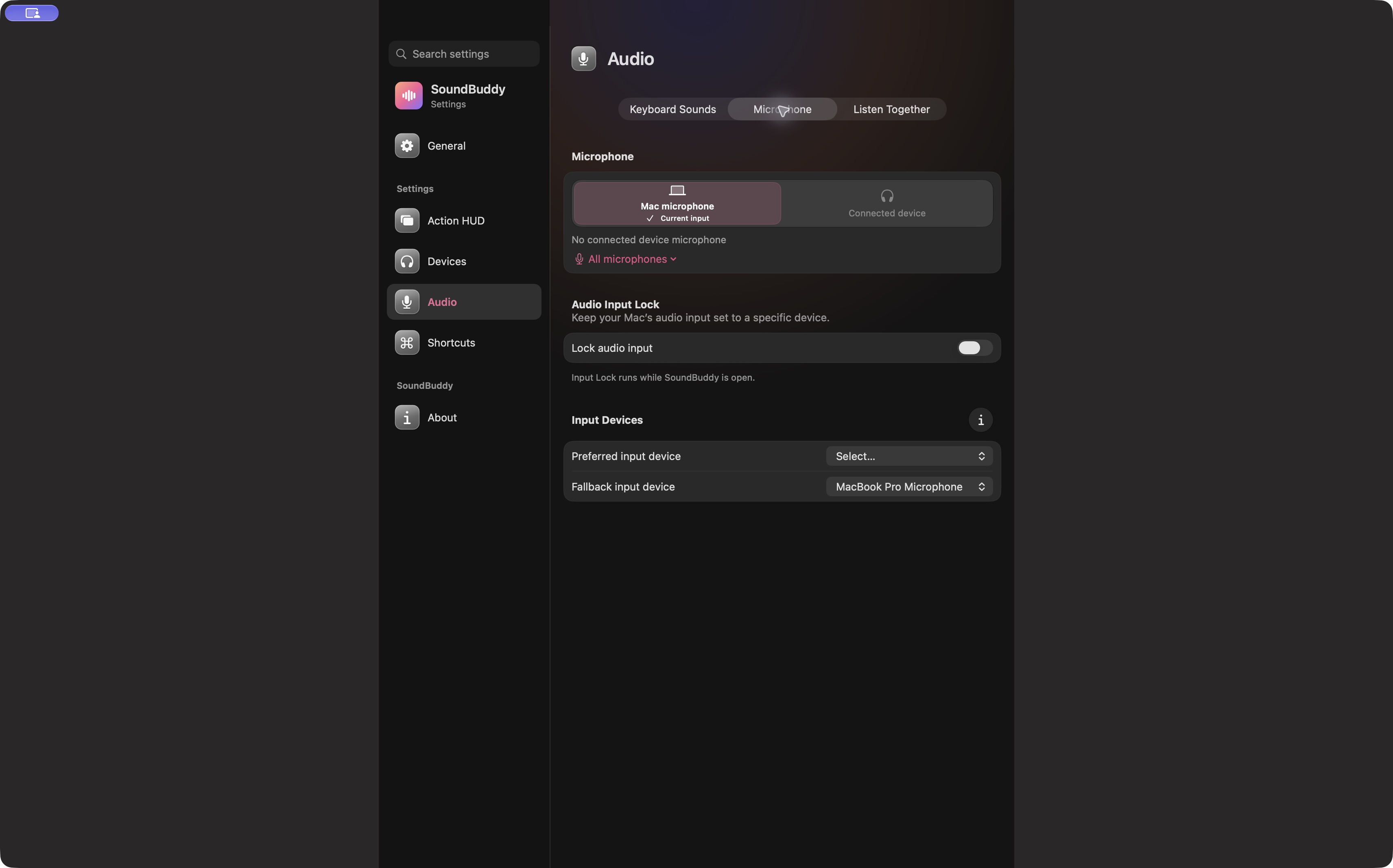
Once the external input is available, select the intended microphone in macOS or SoundBuddy and test it in the app you will use. If the system receives audio but the meeting does not, continue with the system-versus-call-app selector guide. If you want a preferred and backup input while SoundBuddy is open, use the separate Input Lock guide.
Next step: fill one direct-versus-dock row before changing a second component. Keep the working path for your next call and investigate the difference afterward.