Aggregate or Multi-Output Device? Choose the Mac audio group for the job

Before creating an audio group on a Mac, write down what you want to happen. Recording several inputs as separate channels is different from playing the same audio through several outputs. Apple's Aggregate Device and Multi-Output Device tools address those different jobs.
SoundBuddy is our product. Input Lock maintains an available default input; it does not turn a device preference into a channel mixer. This guide explains Apple's Audio MIDI Setup choices, not a demonstrated SoundBuddy sharing session.
Start with the task
- One microphone for a call, with separate headphones for listening: first check the app's input and output selectors. If they already offer the combination you need, a new group may be unnecessary.
- Several input or output channels presented together to an audio app: investigate an Aggregate Device and the app's channel-selection support.
- The same playback sent through several output devices: investigate a Multi-Output Device.
- A call app should receive your microphone plus other app audio: do not assume either group automatically creates that mix. You need an explicit, supported routing plan and a receiving-app test.
The group name alone does not tell you which physical source an app will record or which outputs will receive playback.
What an Aggregate Device combines
Apple's Aggregate Device guide describes combining devices into one device with additional discrete input and output channels. The channels remain something the receiving audio application must use correctly; creating the group does not automatically mix every microphone into one voice track.
Apple's channel-identification reference explains how subdevices correspond to numbered channels in an app. Keep Audio MIDI Setup open while mapping a physical input to the intended track. A track receiving Input 1 is not proof that every microphone in the group is being recorded.
Before setting one up, check the participating devices' sample rates and Apple's clock/drift guidance. Do not choose arbitrary values just to make the group appear. If a device is absent from the system, a group cannot supply the missing physical input. For that situation, see identifying available microphones.
What a Multi-Output Device does
Apple's multiple-output guide describes sending playback through several devices in one output group. Its setup includes choosing the participating outputs and a primary device.
Check the Mac and app output selectors after creating a group. Select the intended group where needed; a sidebar entry alone is not proof that playback is routed through it.
This is an output task. It does not create several microphone inputs, select a call microphone or establish that two listeners hear perfectly synchronised sound. It also does not prove a particular device exposes a software volume control. Check the actual outputs and use their supported controls, as explained in the volume-control guide.
Do not treat the word “primary” as a promise that every physical device in the group has identical behaviour, latency or loudness.
Plan the route before changing the default
In Applications > Utilities > Audio MIDI Setup, inspect the devices you already have. Note the current system input/output and the audio app's selections before creating another configuration.
Use a short route note:
- Which physical sources or destinations must participate?
- Does the app need separate channels, or should several outputs hear the same playback?
- Which group and app channel selections serve that task?
- What ordinary test will confirm each intended input or output, and which earlier selections will you restore afterward?
A public BlackHole routing report describes audio gaps in a particular virtual-audio/aggregate setup. The report is not proof of the cause on another Mac, but it illustrates why a listed group and actual working playback are separate observations. Do not copy a complicated route merely because its device names resemble yours.
Where SoundBuddy's input controls fit
If macOS exposes an available logical input and SoundBuddy offers it as a uniquely identifiable preferred input, inspect that choice deliberately. An input preference refers to the exposed input device; it does not configure the group's individual recording channels for another app.
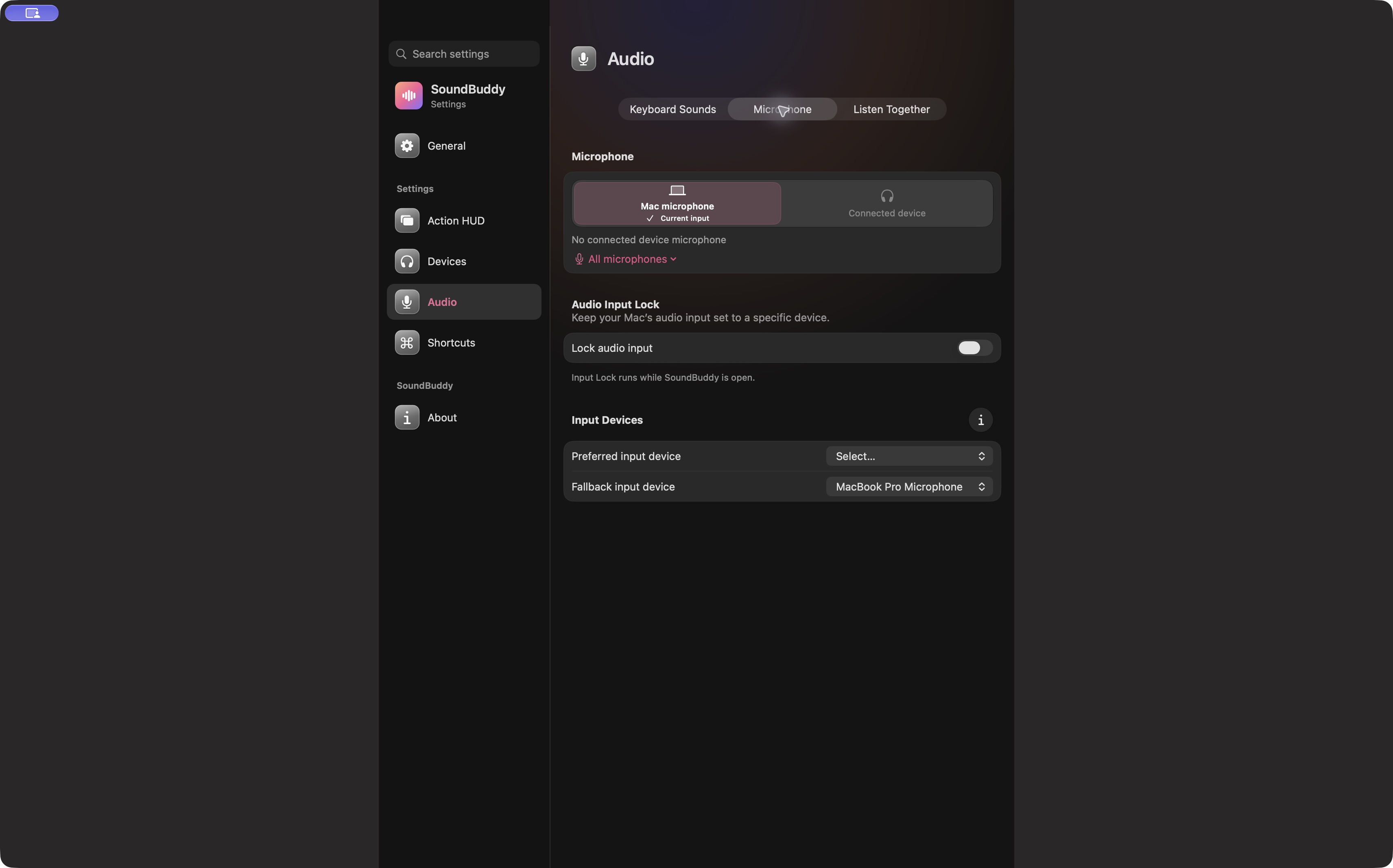
Open the full-size app capture for the original device-choice reference.
Use the Input Lock guide for maintaining a preferred default. If the audio app has its own device selection, verify that too. A default input choice cannot guarantee an app's track configuration or an output group's playback.
Confirm the result outside a real session
Test each intended input separately with a harmless phrase or sound, or check each intended output at a comfortable level. Use the app's relevant test and inspect whether it saves or uploads audio before making a recording. Keep the comparison limited to the route you planned.
If something fails, record the missing channel or destination and return to your noted working selections before expanding the setup. No aggregate, multi-output, recording, synchronisation or hardware compatibility test was performed for this article.
Next step: choose between additional channels and shared playback, then verify the actual route rather than relying on the group's name.