Two similarly named Mac microphones? Identify the physical input
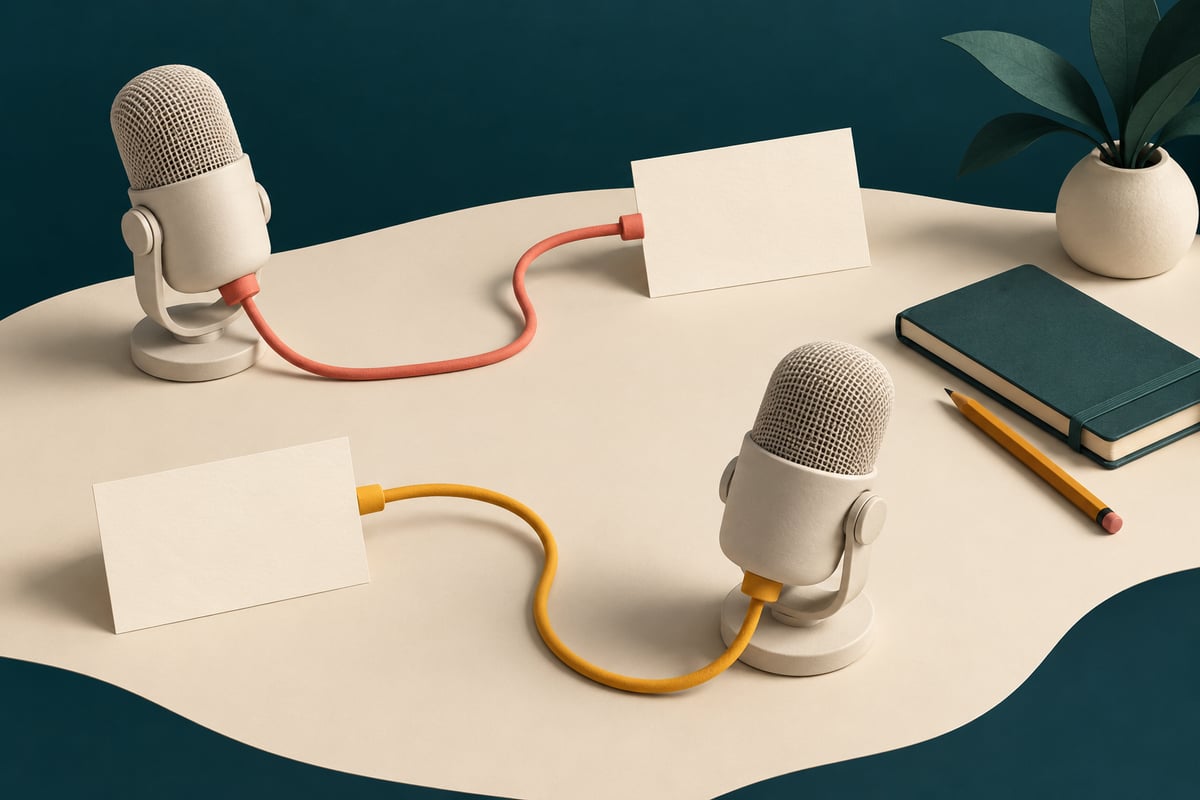
If your Mac lists two microphones with similar names, establish which physical device each entry represents before choosing a preferred input. A familiar label, a first-row position or a moving meter alone is not a reliable desk map.
SoundBuddy is our product. Its input controls can help you manage an available microphone after you identify it. They cannot create a missing input, rename every USB device or prove which physical microphone heard your voice.
Start with the right question
There are three different situations:
- Two input entries with similar labels: you need to map each available entry to a physical source.
- Two connected microphones but only one listed input: first investigate whether macOS exposes both inputs. Changing a preference cannot supply a missing device.
- One physical device with several entries: inspect the device's own documentation before assuming those entries represent separate microphones.
Device labels are not always product names. The Audacity device reference notes that some USB audio hardware appears under a generic name such as USB Audio CODEC, including hardware that is not itself a microphone.
One public podcasting report describes two identical USB microphones without two independent inputs in Audio MIDI Setup. That is an individual report, not evidence that all identical microphones fail on Macs or that a specific cable change will fix yours.
Make a physical map outside a call
Use a quiet setup window. Finish active calls and recordings first, and note your current input so you can restore it. Check the manufacturer's connection procedure before removing an accessory. Leave shared docks and storage connections alone.
- Write a temporary physical description for each external mic, such as “left desk mic, coral cable” and “right desk mic, yellow cable”. These are your own notes, not names SoundBuddy has assigned.
- Open System Settings > Sound > Input and note the available entries. Apple documents the input selector and level meter in Sound settings.
- If safe for that microphone, disconnect only one external mic and observe which input entry disappears. Reconnect it, wait for the list to settle and inspect again. Do not identify it by row order after reconnecting.
- Select the intended available input and say an ordinary, non-sensitive test phrase. Compare the meter while speaking and while quiet. If both mics are nearby, both may hear the phrase, so meter movement alone does not resolve their identity.
- Keep the physical description, selected label and observed result together in a private desk note. Recheck the mapping after changing connections or equipment.
Do not tap or blow into a mic to distinguish it. If you cannot safely isolate a connection or the entries remain ambiguous, stop guessing and consult the device maker. A short deliberate recording may answer a sound-quality question, but it is not required just to observe an input meter. Use the separate meter check guide for that distinction.
Use SoundBuddy after you know the source
SoundBuddy's microphone settings show a current input and preferred/fallback controls. Confirm that the available choice corresponds to the source you just identified before configuring a lock. A stable device identity is different from its human-readable label; two equal labels do not necessarily mean the same identity.
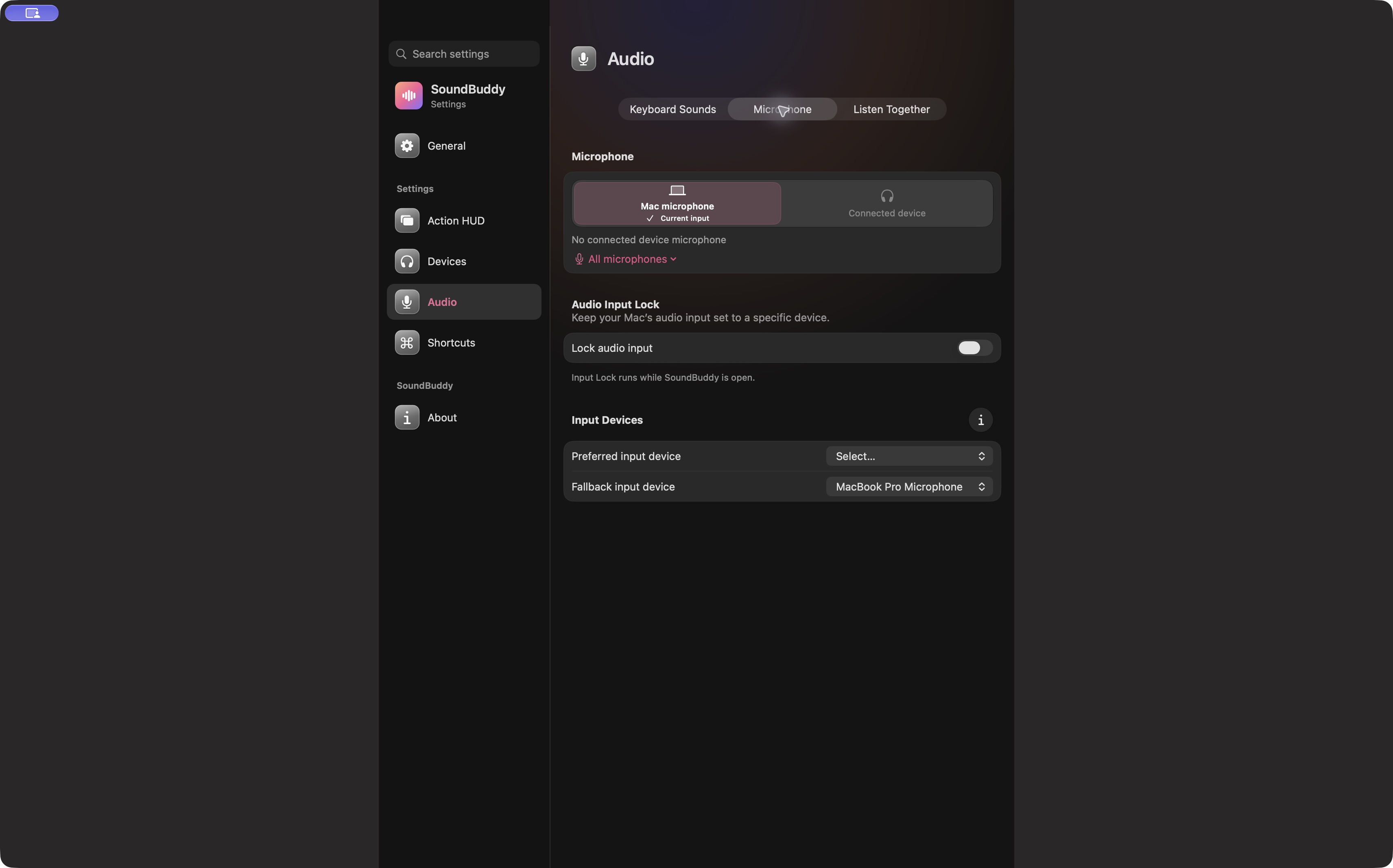
Open the full-size app capture to read the controls.
Some SoundBuddy shortcuts require an unambiguous matching input, and its lock choices require a uniquely resolvable device identity. An unavailable shortcut is not enough to diagnose the cause. Do not repeatedly toggle Input Lock in the hope that it will repair ambiguous hardware identities. Follow the Input Lock setup guide once the intended choice is clear.
When you need two microphones at once
Selecting one preferred input is a different job from recording two speakers on separate microphones. Samson's multiple Q2U guide describes an Aggregate Device workflow for that model. It does not establish support for every USB pair, and an aggregate cannot be configured from two independent inputs that the system has not exposed.
SoundBuddy is not a multitrack recorder or a repair tool for a device's reported identity. If an input is absent only through a dock, use the direct-versus-docked comparison. If the problem persists, give the maker your Mac/macOS version, microphone model, connection path and which inputs appear, without posting private serial numbers or complete system reports publicly.
Next step: identify one physical input and verify its available entry before saving a preferred microphone. No duplicate-microphone hardware test was performed for this article.