AirPods let room sound through? Check the listening mode on Mac
If you hear more of the room than you expected while listening on AirPods, note the listening mode before changing microphones, raising media volume or resetting Bluetooth. The choice that shapes surrounding sound at your ears is different from the choice that shapes what a call receives.
Start with the task: do you want to hear nearby conversation, reduce room distractions, or understand an unexpected change? There is no single listening preference for every desk or person.
Name the listening choice, not just the headset
Apple's listening-mode guide distinguishes:
- Transparency: hear surrounding sounds.
- Noise Cancellation: reduce external noise.
- Adaptive: automatically blend cancellation and transparency as the environment changes, on supported models.
Check the exact AirPods model and its available options. The linked guide explicitly covers macOS 27 or later; use the guide appropriate to your installed version instead of expecting every older menu or model to match it.
These are listening modes. Apple's microphone Voice Isolation is a different control, as explained in the microphone-processing guide. A quieter room at your ears does not establish what another person hears from your microphone.
Inspect the mode offered by your Mac
With supported AirPods worn and connected, Apple's Mac instructions offer the AirPods menu-bar icon or System Settings > your AirPods for selecting a listening mode. Inspect the name and state actually displayed before choosing a change.
If the expected control is absent, record the model, macOS version, connection state and menu you inspected. Do not substitute instructions for a different model or assume SoundBuddy supplies the missing option.
For a first comparison outside a call:
- Write down the current mode and what you want to hear in this setting.
- Keep the same AirPods, player, passage and ordinary listening level.
- If another supported mode suits the task, compare that one choice without simultaneously changing volume, microphone or music settings.
- Note whether your concern is surrounding room sound, the media itself or your own voice.
- Keep the mode that suits your task and record the earlier choice so you can return to it.
Do not judge cancellation by a microphone meter. Likewise, a successful device connection is not a listening comparison. If the room still sounds unexpectedly different, retain that observation for model-specific support rather than repeatedly resetting the entire setup.
A missing Off option does not mean you need another device
A public Mac-only AirPods Pro 3 report describes Transparency, Adaptive and Noise Cancellation being available while Off was missing. The author had already reset and paired again. A reply linked Apple's guide, and the author thanked them; the thread does not document a completed test of the fix.
Apple's guide says Off is separately enabled on AirPods Pro 2 and Pro 3, and warns that hearing is not protected with that mode selected. Read its model-specific explanation before making that separate choice. Turning every listening mode off is not a general recommendation for desk work.
The report illustrates a menu question, not a proven firmware fault, a need to buy an iPhone or evidence that all AirPods offer identical controls.
Keep SoundBuddy's input status separate
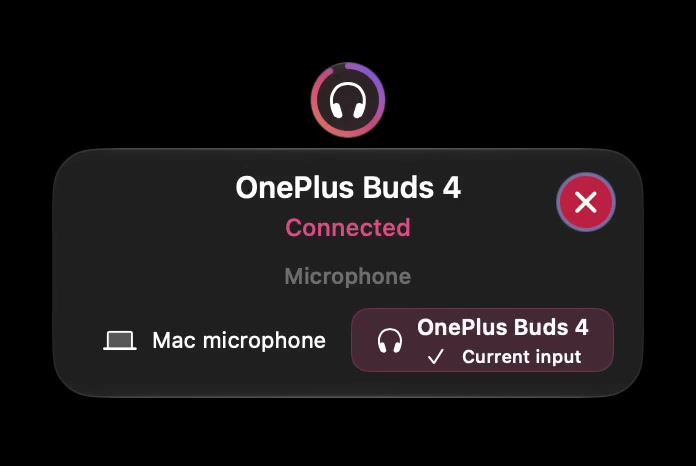
Open the full-size actual device-status capture
SoundBuddy is our product. This capture illustrates device and microphone status; it does not establish an AirPods listening mode or demonstrate ambient-noise control. Inspect the supported AirPods controls on the Mac for that question.
If the change follows your own speech and media becomes quieter, use the Conversation Awareness guide. If the main concern is hearing your own voice in a headset, use the sidetone guide. Describe the trigger before treating these as one problem.
No AirPods listening comparison, noise measurement or microphone test was performed for this article. The proposed benefit is a more deliberate setup choice; no focus or productivity improvement has been measured.
Next step: identify your exact model and displayed listening mode, then compare one appropriate choice while keeping the rest of the setup steady.